User Role Management

The User Role Management feature in Orangescrum Cloud allows workspace admins to define, group, and manage different roles within your organization — ensuring clarity of responsibility and structured collaboration across projects.

Instead of assigning permissions individually for every user, you can create Role Groups (like Engineering Team or QA Team) and define specific roles within each group (such as Frontend Developer, QA Lead, or Project Manager).

Example: You can create a “Marketing Team” group and define roles such as Campaign Manager, Content Writer, and SEO Analyst — each representing a clear position within the team.

Why Use User Role Management

  • Better organization — structure your workspace by departments or teams.
  • Role clarity — every team member knows their position and assigned duties.
  • Streamlined project setup — quickly assign predefined roles to new users.
  • Consistency across projects — maintain uniform role definitions across the company.
  • Simplified reporting — analyze productivity and workload by role.

Accessing User Role Management

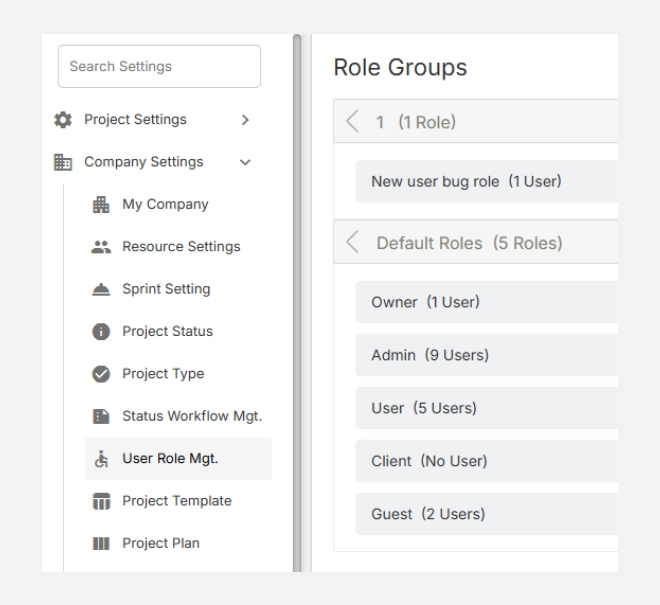
  1. Navigate to Settings → Company Settings → User Role Mgt.
  2. You’ll see a categorized list of existing Role Groups (such as QA, Engineering, Project Manager, etc.) along with their respective roles.

Understanding Role Groups

A Role Group represents a department, discipline, or function within your organization (e.g., QA Team, Project Managers, Engineering, Marketing).

Each Role Group contains multiple Roles, which define specific positions within that group.

Example Setup:

Role Group Roles Inside
QA Sr. QA Manager, QA Lead, QA Engineer
Project Management Project Manager
Engineering Team Backend Lead, Frontend Developer, Full-Stack Developer
DevOps DevOps Engineer

This grouping makes it easier to add or remove roles and assign them to users as your team grows.

Adding a New Role Group

  1. Click the “+” icon beside any section to add a new role group.
  2. Enter a descriptive group name — e.g., Design Team or HR Department.
  3. Click Save.

Your new Role Group will now appear in the list and can have roles added under it.

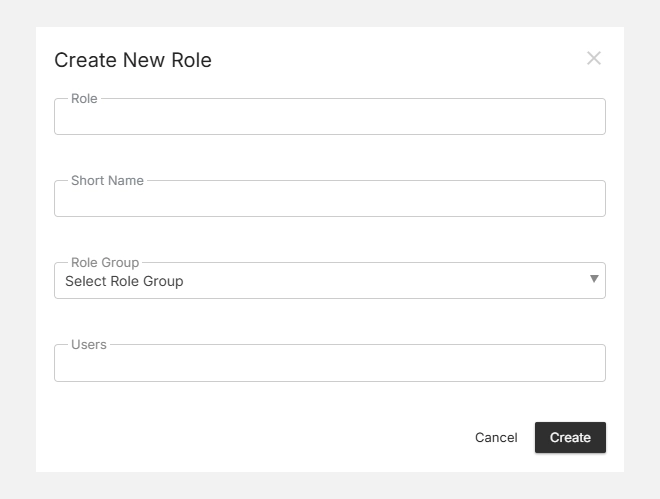
Adding a Role Within a Group

  1. Click the “+” icon inside the chosen Role Group (e.g., QA or Engineering).
  2. Enter the Role Name — such as Automation Tester, Content Strategist, or UI Designer.
  3. Optionally, assign users immediately or leave it empty for future assignment.
  4. Click Save.

Your new role will appear nested under the selected Role Group.

Editing or Deleting Roles

  • Click the Edit icon beside a role to rename or update it.
  • Use the Delete icon to remove a role that’s no longer needed.
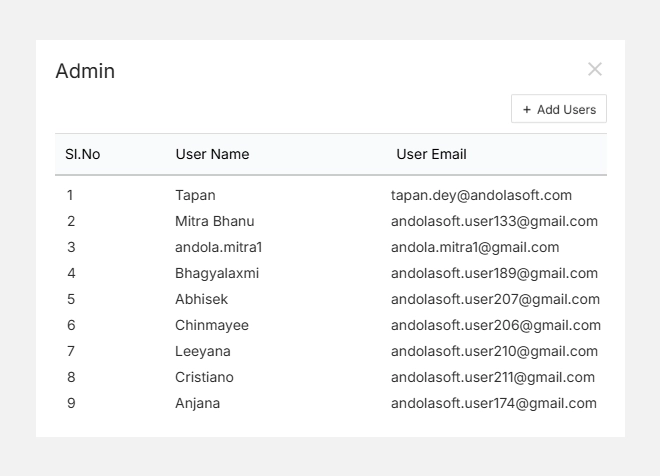
  • You can also assign users directly to a role by clicking the User icon.

Note: Deleting a role removes it from all linked users, but it does not delete the users themselves.

Project Status Settings

The Project Status section in Orangescrum Cloud allows you to define how project progress is tracked across your organization.

Each project passes through different phases — from initiation to completion — and using clear, consistent statuses helps your team and stakeholders understand where each project stands.

Example: A marketing agency might use statuses such as “Planning,” “Execution,” and “Completed,” while a construction firm could have “Design Approval,” “Procurement,” and “Site Work.”

Why Use Project Status

  • Consistency: Maintain uniform progress stages across all projects.
  • Visibility: Instantly identify where each project stands.
  • Tracking: Simplify reporting and filtering by project status.
  • Customization: Tailor default statuses to match your team’s workflow.

Accessing Project Status Settings

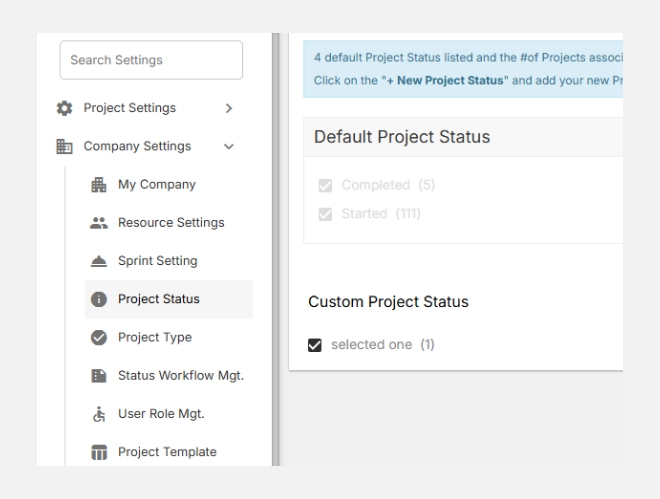
  1. Go to Settings → Company Settings → Project Status.
  2. You’ll see two sections:
    • Default Project Status — Predefined system statuses like Started, Completed, On Hold, and Stack.
    • Custom Project Status — Statuses you can create based on your organization’s workflow.

Custom Project Status

Custom statuses allow you to define additional lifecycle stages unique to your company or domain.

For instance:

  • For a Legal Firm: File Organization, Trial Preparation, Case Closure
  • For a Software Company: Requirement Gathering, QA Review, Release Pending
  • For a Construction Team: Design Approval, Procurement, Site Execution

Each custom status provides greater control and visibility over specialized workflows.

Adding a New Project Status

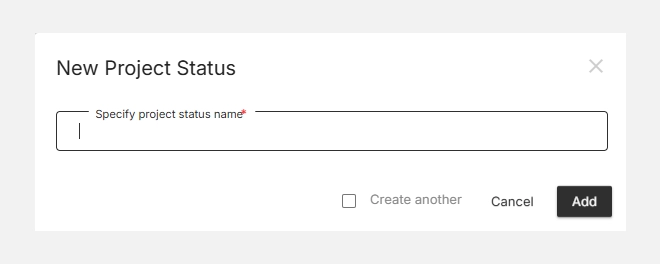
  1. Click + New Project Status in the top-right corner.
  2. Enter the name of your new status (e.g., Client Review or Final Documentation).
  3. Click Add to add it to your list.

Your new status will appear under Custom Project Status and can be assigned to any active or future project.

Editing or Removing a Status

  • To rename or modify a custom status, click the status name and make your changes.
  • To remove a status, uncheck it or delete it from the list.
    (Default statuses cannot be deleted.)

Resource Settings

The Resource Settings section in Orangescrum Cloud helps you configure your organization’s working structure — including daily working hours, weekends, holidays, and resource availability rules.

These settings ensure that project timelines, workload distribution, and resource utilization reports accurately reflect your team’s actual working schedule.

Example: If your company works 9 hours per day, Monday to Friday, and observes alternate Saturdays as holidays — configuring this once ensures every project and time log automatically follows that structure.

Why Use Resource Settings

  • Accurate scheduling — ensure deadlines and workloads are aligned with working days.
  • Realistic resource planning — view actual team availability before assigning tasks.
  • Improved reporting — track effort and utilization accurately.
  • Centralized control — define global working rules for the entire organization.

Accessing Resource Settings

  1. Navigate to Settings → Company Settings → Resource Settings.
  2. You’ll see options to set working hours, weekends, and holidays, as well as enable or disable resource tracking features.

Configuring Resource Settings

Follow these steps to customize your company’s working calendar:

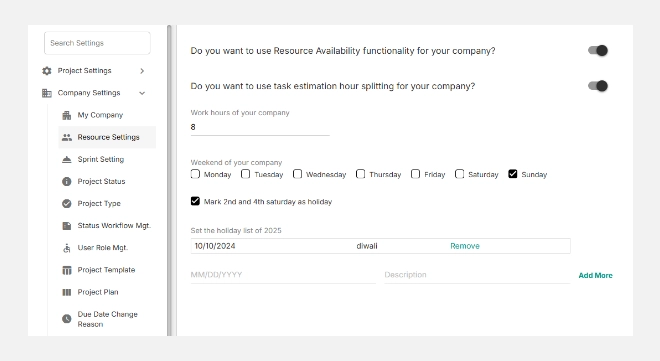
Enable Resource Availability Tracking

Turn on the “Use Resource Availability” toggle to activate resource tracking.

This allows Orangescrum to calculate workload and availability for each user based on your defined working hours and holidays.

Enable Task Estimation Hour Splitting

Toggle “Use Task Estimation Hour Splitting” if you want tasks with multiple assignees to automatically divide estimated hours among them.

This ensures balanced workload distribution and realistic planning.

Set Working Hours

In the Work hours of your company field, specify your standard daily working hours.

Example: Enter “9” for a 9-hour workday. All time logs, workload charts, and utilization calculations will use this as a baseline.?

Define Weekends

Select your company’s weekly holidays.

Example: Check Saturday and Sunday for a standard weekend. You can also mark 2nd and 4th Saturdays as holidays — common in many organizations.

Add Company Holidays

Under Set the holiday list, add official holidays for the year.

Example:

  • 05/25/2024 – Voting Day
  • 12/25/2024 – Christmas

You can also:

  • Click Add More to include multiple holidays.
  • Click Remove to delete old or incorrect entries.

Save Changes

Click Save at the bottom-right corner once all fields are configured.

My Company Settings

The Company Settings section in Orangescrum Cloud allows administrators to manage all organization-level configurations in one place. 

From setting up your company profile, logo, and time zone to defining holidays, working days, and default task behaviors — this is where you establish how your workspace operates. 

It ensures that every project and user follows a consistent structure aligned with your company’s standards. 

Whether you’re onboarding new teams or scaling operations, configuring Company Settings is the first step toward building an organized, branded, and efficient Orangescrum workspace.

My Company

The My Company section in Orangescrum Cloud lets you personalize your workspace by adding your organization’s key information — including company name, contact details, billing address, logo, and preferred currency.

These details appear on invoices, reports, and automated communications, helping you maintain a consistent and professional brand identity across all projects.

Example: If your company “Acme” manages multiple client projects, configuring My Company ensures all generated invoices and communications reflect Acme’s name, logo, and address automatically.

Why Use “My Company”

  • Brand consistency — add your logo, website, and address for a professional touch.
  • Regional accuracy — select your default time zone and currency for localized billing.
  • Centralized information — manage key organizational details in one place.
  • Auto-filled data — information here populates across invoices, reports, and notifications.

Accessing My Company Settings

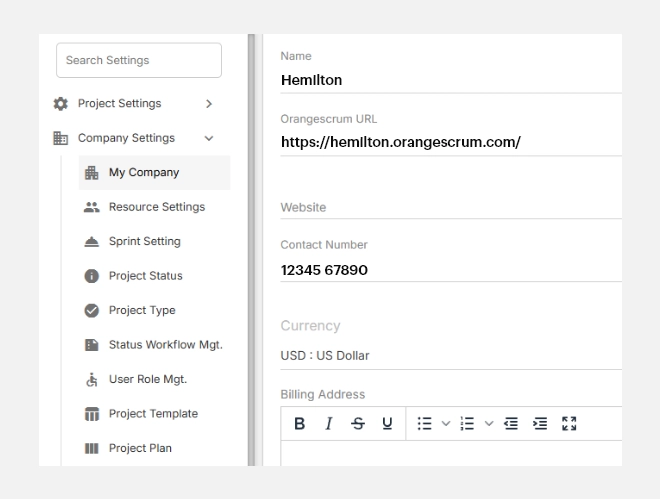
  1. Go to Settings → Company Settings → My Company
  2. You’ll see editable fields for company details, contact info, and branding.

Setting Up Your Company Details

To configure your company information:

  1. Name — Enter your company’s legal or display name.
  2. Orangescrum URL — This is your unique workspace URL 
    • This field is auto-generated during workspace creation.
  3. Website — Add your official company website (optional).
  4. Contact Number — Enter a valid business phone number.
  5. Currency — Choose your organization’s default currency (e.g., USD, EUR, INR).
    • This setting impacts billing, time logs, and invoice calculations.
  6. Billing Address — Add your office or corporate address.
    • You can use rich text formatting (bold, lists, etc.) for clean presentation on invoices and reports.
  7. Logo — Upload your company logo to brand your workspace and client-facing documents.
    • Recommended size: at least 200×200 pixels.

Once done, click Update to save your changes.

How It Looks

After saving, your company details automatically appear in:

  • Invoices and billing templates
  • Reports and exports
  • Client communications and emails
  • Workspace header and profile menus (for Admins)

Editing or Updating Company Details

  • You can update your company details anytime by revisiting Settings → My Company.
  • Click Update after making any changes.
  • Updated data reflects immediately across all modules (invoices, exports, reports).

Note: Changing currency or billing details affects new invoices only; previously created ones remain unchanged.

Account Settings

The Account Settings section in Orangescrum Cloud is your control center for configuring how your workspace operates.

From defining project behaviors and company-wide standards to managing user profiles, workflows, and external integrations — everything begins here.

Whether you’re an admin setting up organization-wide rules or a manager customizing project workflows, Account Settings ensures your team’s workspace remains organized, secure, and aligned with your company processes.

Within this area, you can:

  • Set up Project Settings 
  • Configure Company Settings 
  • Manage Bug and Issue Tracking preferences
  • Update your Profile Settings and personal preferences
  • Connect third-party tools under Integrations


Project Settings – Part 3

This section focuses on optimizing your project finances and streamlining workflows for maximum efficiency. You’ll learn how to manage cost settings to track billable and internal rates, and leverage workflow automation to reduce repetitive tasks and maintain consistency across projects.

By setting up cost tracking and automation rules, your team can ensure financial transparency, improve productivity, and focus on high-priority work—making every project more profitable and organized.

Cost Settings

The Cost Settings module allows you to manage and control the financial side of your projects by defining user-wise billing rates.

Here, you can set the Cost to Client (billable rate) and Cost to Company (internal rate) for each team member, ensuring transparent and accurate project cost tracking.

Example: A designer might be billed at $60/hour to the client, while their internal cost to the company is $40/hour.

Why Use Cost Settings

  • Track profitability — know how much you’re charging versus spending per project.
  • Set accurate billing rates for each user, client, or department.
  • Integrate with invoicing — automatically apply the correct rates during billing.
  • Enhance project planning with real-time cost insights.

Accessing Cost Settings

  1. Navigate to SettingsProject SettingsCost Settings.
  2. You’ll see a list of active projects with their associated cost configurations.
  3. Click on a project to view or update its user-level cost details.

Accessing cost settings

Setting Up Costs for a Project

1. Select a project (e.g., Orangescrum Dev, Health & Glow Content, Marketing Demo).
2. You’ll see a list of users assigned to that project.
3. For each user, define:

  • Cost to Client: The rate charged to the client (billable).
  • Cost to Company: The internal rate paid to the team member or used for cost analysis.

4. Click + Add More to include additional users.
5. Hit Save once all entries are added or modified.

Setting-up cost for a project

Tip: Keep your cost rates standardized across similar projects to make performance comparisons easier.

Editing or Removing Cost Entries

  • To edit, click the (Edit) icon next to a user’s rate.
  • To delete, click the (Delete) icon to remove that entry.
  • After any changes, click Save to apply updates.

Note: Edits to cost rates only affect new time logs and invoices; historical entries remain unchanged for data integrity.

Default Rate

At the top of each project, you’ll see a Default Rate value.

This serves as the fallback rate when a user does not have a specific “Cost to Client” value assigned.

Best Practice: Always define a Default Rate to ensure that no project time logs remain unbilled.

Multi-Project Management

Each project can have unique cost settings.

For example:

  • “Web Development Project” → Hourly billing based on team roles.
  • “Maintenance Project” → Fixed internal costs but variable client rates.

Switch between projects in the Cost Settings list to manage rates across your portfolio easily.

With Cost Settings, Orangescrum empowers you to manage financial transparency across projects — ensuring every hour is accounted for and every project stays profitable.

Workflow Automation

Workflow Automation in Orangescrum Cloud helps you save time and maintain consistency by automating repetitive actions.

Instead of manually updating tasks or sending reminders, you can set up rules that automatically trigger based on specific conditions — like changing task status, assigning users, or updating due dates.

Example: When a task’s status changes to “Completed,” automatically notify the project manager and update the “Progress” field.

Why Use Workflow Automation

  • Reduce manual effort — let Orangescrum handle repetitive steps for you.
  • Improve productivity — automate transitions, notifications, and updates.
  • Maintain consistency — ensure uniform behavior across similar projects.
  • Enhance communication — send instant alerts when conditions are met.

Accessing Workflow Automation

  1. Go to Settings → Project Settings → Workflow Automation.
  2. You’ll see a simple, three-step setup wizard:
    • Choose Type
    • Set Conditions
    • Define Actions

Accessing workflow automation

Creating a New Workflow Automation

Follow these steps to create your first automation:

Step 1: Choose Type

  • Click Workflow Automation+ New.
  • Enter a Workflow Name (e.g., Task Status Update, Client Review Notification).
  • Select the Project for which this automation applies.
  • Click Next to proceed.

Creating a new workflow automation

Step 2: Define Conditions

This is where you decide when the automation should trigger.
You can set conditions based on project or task attributes, such as:

  • When a task status changes (e.g., “In Progress”“Completed”).
  • When a task is assigned or reassigned.
  • When a due date is reached.
  • When a label or custom field is updated.

Tip: Combine multiple conditions to build complex rules — e.g., trigger only when a “High Priority” task is overdue and assigned to a specific team.

Step 3: Define Actions

Next, choose what should happen when the condition is met. Common actions include:

  • Send notifications to specific users or teams.
  • Change task status automatically (e.g., move to “Under Review”).
  • Assign or reassign a user to the task.
  • Update fields such as due date, label, or priority.

Once your action is defined, click Save to activate your workflow automation.

With Workflow Automation, Orangescrum turns repetitive actions into effortless processes — keeping your projects moving smoothly and your teams focused on what truly matters.