Getting Started

What Is Self-Hosted Orangescrum?

Orangescrum Self-Hosted (or On-Premises) edition is a fully controllable deployment of the Orangescrum project management platform within your own IT infrastructure.

Instead of relying on Orangescrum Cloud, where your data is hosted and managed by our servers, the self-hosted version lets you install the entire application—database, backend, and frontend—on your own servers, VM, or private cloud environment.

It gives you complete authority over your deployment stack, data governance, and integration policies. You decide the environment—whether it’s an on-premises Linux server, Windows Server, or containerized cloud setup via Docker, Kubernetes, or Proxmox.

A self-hosted setup includes everything that powers Orangescrum Cloud:

  • Application services (frontend/backend)
  • Database (MySQL/MariaDB or PostgreSQL)
  • File storage and attachments
  • Email, notifications, and automation services
  • Security, SSL, and user-access controls

In short, you’re running Orangescrum in your own data center or private cloud, with full administrative control.

Benefits of Self-Hosting Orangescrum

While the cloud version is ideal for teams seeking plug-and-play simplicity, many organizations—especially those in government, IT services, construction, healthcare, and financial sectors—prefer self-hosting for deeper control, compliance, and integration flexibility.

Here’s why:

1. Data Control & Privacy

All your project data, tasks, attachments, and user details stay within your infrastructure. This ensures compliance with internal IT policies, ISO/IEC 27001, GDPR, or regional data-sovereignty mandates.

2. Customization & Integrations

You can extend the Orangescrum core with custom modules, modify configurations, or integrate directly with internal ERP, HRMS, or reporting systems—something not always possible in multi-tenant cloud environments.

3. Performance Optimization

You control CPU, RAM, and storage provisioning. High-performance NVMe disks or tuned PostgreSQL instances can drastically improve large-scale project load times.

4. Security & Compliance

You decide your authentication methods, SSL policies, firewalls, and access control layers. Many organizations integrate with LDAP/AD or SSO providers for centralized identity management.

5. Cost Efficiency at Scale

For teams with 100+ users, self-hosting can significantly reduce long-term subscription costs compared to SaaS pricing. You pay once for the license and manage hosting internally.

6. Long-Term Sustainability

With version-controlled deployments and database backups, your system continues to operate even if external connectivity is interrupted. It’s ideal for air-gapped or restricted environments.

Use Cases — When to Choose Self-Hosting

Choosing between Orangescrum Cloud and Self-Hosted depends on your operational model, compliance needs, and scale. Here are common scenarios where self-hosting shines:

  • Enterprise IT Teams needing full DevOps control and on-prem integration.
  • Construction & Infrastructure Firms managing multiple sites under strict client data agreements.
  • Government and Public Sector organizations operating in isolated or controlled network environments.
  • Software Development & DevOps Agencies that customize Orangescrum workflows, build custom plugins, or embed APIs.
  • Financial, Healthcare, and Defense Institutions requiring audit trails, encryption policies, and zero external data exposure.
  • Private Cloud Deployments (AWS EC2, Azure VM, Google Cloud VM, or OpenStack) where admins prefer dedicated control with auto-scaling flexibility.

If your organization values customization, compliance, and control more than convenience, Orangescrum Self-Hosted is the perfect fit.

Import and Export

Moving project data from one tool to another can feel like a nightmare. Hours of manual entry, mismatched columns, broken timelines… It’s not fun.

This is where Orangescrum Imports makes things easy!

With Imports, you can bring everything over — Milestones, Sprints, Epics, Features, Stories, Tasks, Subtasks, Estimations, Due Dates, Timelogs, Project Plans, Templates, Budgets, Test Cases, and more — without typing it all in again. Just upload a file, and Orangescrum does the heavy lifting for you.

Sounds good? Let’s walk through it.

Why Use Orangescrum Imports?

Think about it:

  • You don’t need manual typing, which saves hours of boring data entry.
  • Onboarding is easy, so you can get started quickly with ready projects.
  • Bulk upload lets you move thousands of tasks in just minutes.
  • The process ensures accuracy by reducing human errors with a clean, pre-formatted template.
  • Your project data stays consistent and neatly aligned with Orangescrum’s structure.
  • You get flexibility to migrate from spreadsheets, tools, or even databases.
  • The system scales with you, whether you’re importing one project or an entire portfolio.
  • Data consistency is maintained, keeping all your historical records intact.
  • You save costs by reducing manual effort, errors, and rework.
  • Time-saving imports let you focus on execution instead of setup.
  • The process is future-proof since you can re-use templates whenever you want.

Whether you’re switching from another project management tool, moving away from messy spreadsheets, or setting up a brand-new workspace, Imports makes the process smooth.

What can you import to Orangescrum?

  1. Tasks
  2. Timelogs
  3. Customers
  4. Epics
  5. Test cases
  6. Task templates

Import Tasks

  • Login to your Orangescrum account.
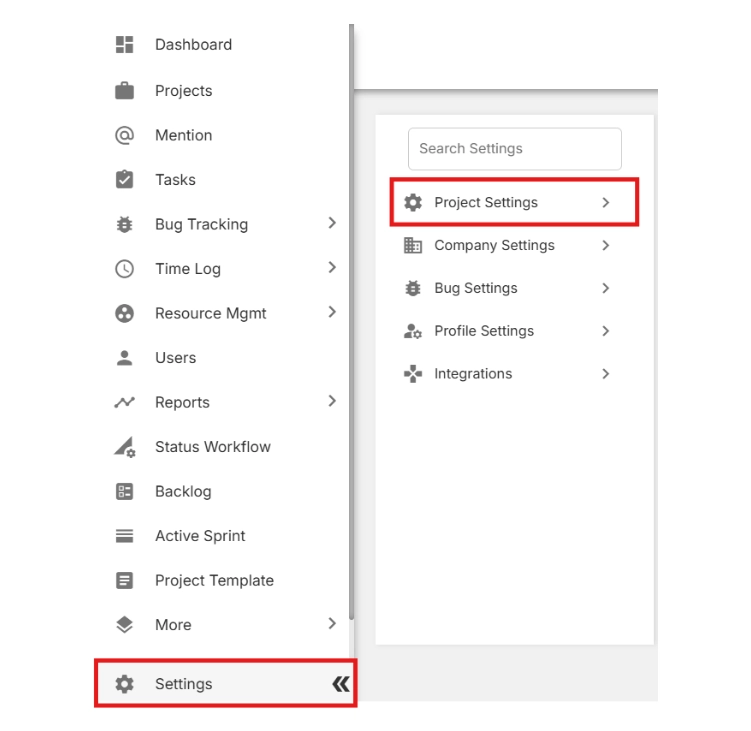
  • From the left-side menu, scroll to the bottom and click Settings.
  • Select Project Settings.

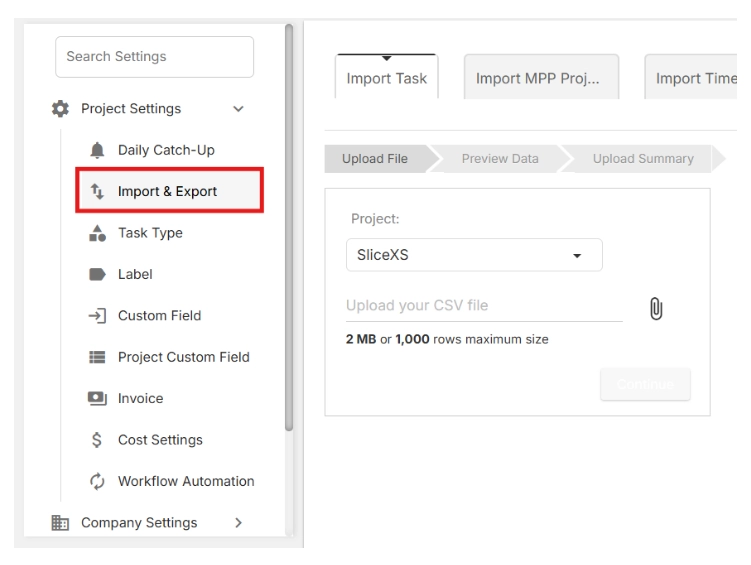
  • Click on Import & Export.

🔎 This is where you can both download the import template and upload your project data later.

  • Click Download the sample file.


Contact Support

We’re here to help — anytime you need assistance.

Overview

Whether you’re new to Orangescrum or a seasoned project manager, help is always just a click away.

The Support section gives you quick access to tutorials, help documents, FAQs, and direct assistance from our team — so you can resolve issues faster and keep your projects running smoothly.

Orangescrum Support is available for all users — from Free plans to Enterprise customers.

Where to Find Support

You can reach the Orangescrum Support team through multiple channels:

1. Help Center (Knowledge Base)

Explore detailed step-by-step documentation on every Orangescrum feature at the help portal.

You’ll find:

  • Product guides and tutorials
  • Troubleshooting articles
  • FAQ sections
  • Best practice resources

Start with our “Getting Started” and “Academy” modules for a guided learning experience.

2. Orangescrum Academy

Learn project management the Orangescrum way!

Our Academy portal offers in-depth training modules, including:

  • Agile project management
  • Time tracking & reporting
  • Video tutorials and product demos

Perfect for new users, admins, and teams who want to master productivity in Orangescrum.

3. Email Support

For issues requiring personal assistance or workspace-specific troubleshooting contact support@orangescrum.com

When emailing, please include:

  • Your workspace URL
  • A short description of the issue
  • Screenshots (if possible)
  • Your browser/device details

Our team responds within 24 business hours (faster for Enterprise users).

4. Enterprise Priority Support

If you’re on an Enterprise or Self-Hosted Plan, you get access to:

  • Dedicated Account Manager
  • Priority Ticket Resolution
  • Live Onboarding & Training Sessions
  • Custom Integration Support

Your team will have direct guidance from Orangescrum specialists.

How to Submit a Support Ticket

  1. Go to Help → Contact Support in the left navigation or bottom widget.
  2. Fill out the quick form:
    • Subject
    • Description of issue
    • Attach files or screenshots (optional)
  3. Click Submit Ticket.

Once submitted:

  • You’ll receive a confirmation email with a ticket number.
  • Our support representative will reach out within one business day.
  • You can reply directly via email to continue the conversation.

Keep your workspace active during troubleshooting for faster diagnosis.

Data & Privacy Support

  • All support requests are handled securely.
  • Your workspace data remains private and protected.
  • Only authorized personnel access your workspace for troubleshooting (with your consent).

We adhere to strict GDPR and data-protection standards.

Subscription & Billing

Easily manage your workspace plan, billing cycle, and user count from one place.

The Subscription & Billing section in Orangescrum Cloud allows the Account Owner to manage everything related to the workspace plan — including upgrades, downgrades, billing cycles, and user usage.

You can monitor your current plan, track user limits, and manage billing preferences with complete transparency and control.

Only the Account Owner has access to Subscription & Billing.

How to Access Subscription & Billing

  1. Log in to your Orangescrum Cloud account.
  2. Go to the Settings menu.
  3. Click on Subscription & Billing.
  4. You’ll see your current plan details, billing type, and user count.

Available Plans

Orangescrum currently offers three subscription plans:

Plan Ideal For Key Highlights
Personal Individuals or freelancers Basic task and project management features
Startup Small and growing teams Advanced task tracking, reports, and integrations
Professional Established teams Includes resource management, automation, and premium support

You can upgrade or downgrade your plan anytime based on your requirements.

Billing Cycles

Orangescrum supports two billing cycles:

Billing Type Description
Monthly Pay every month — ideal for teams that prefer flexibility.
Yearly Pay once a year — save more with a discounted rate.

You can switch between monthly and yearly billing anytime from the Subscription page.

Upgrading or Downgrading Your Plan

When Upgrading:

If you move to a higher plan during an ongoing billing cycle, the upgrade takes effect immediately. You’ll gain instant access to all features available in your new plan.

When Downgrading:

If you switch to a lower plan, the change will apply after your current billing cycle ends. Your existing plan and features will remain active until that period is over.

Managing Users and Billing Adjustments

When Adding Users:

If you add more users before the billing cycle ends, the system will recalculate the amount for the additional users, and charges will apply immediately.

Example: If you paid for 30 users but added 10 more during the cycle, the cost for the 10 new users will be prorated and billed right away.

When Removing Users:

If you reduce the number of users before completing your billing cycle, the difference will be automatically adjusted — you’ll get an extended access period based on the unused balance.

Managing Payments and Renewal

  • Review your plan and renewal date anytime under Settings → Subscription & Billing.
  • All payments are processed securely through trusted gateways.
  • Renewal happens automatically based on your billing frequency (Monthly / Yearly).

Summary

  • Accessible only by the Account Owner.
  • Manage your plan, users, and billing frequency easily from Settings.
  • Upgrades take effect immediately.
  • Downgrades and user reductions adjust after the billing cycle ends.
  • Transparent billing ensures no hidden charges.

Mobile Access

Manage your projects, tasks, and teams anytime, anywhere.

Overview

The Orangescrum Mobile App allows you and your team to stay productive on the go.

Whether you’re tracking progress, logging time, or checking updates — everything you do on desktop can now be done directly from your mobile device.

Stay connected with your projects 24×7 — monitor, collaborate, and act in real time.

App Availability

The Orangescrum app is available on:

Search for “Orangescrum Project Management” on your app store and install it for free.

Login & Authentication

You can sign in to your Orangescrum account using:

  • Email & Password (same credentials as the web version)
  • SSO (Single Sign-On) — if enabled for your workspace
  • Google or Microsoft Sign-in (for connected accounts)

Steps to log in:

  1. Open the Orangescrum app.
  2. Enter your workspace URL or company domain (e.g., yourteam.orangescrum.com).
  3. Log in with your credentials or preferred sign-in method.

Your login and data are protected by enterprise-grade SSL encryption.

Dashboard Overview

After logging in, you’ll land on your Dashboard, which provides a snapshot of:

  • Active projects
  • Assigned tasks
  • Pending deadlines
  • Recent activities and notifications

You can quickly switch between projects, view ongoing work, or start a new task directly from the dashboard.

Manage Tasks on Mobile

The mobile app provides a simplified yet powerful task management experience.

Create Tasks

  1. Tap Create Task.
  2. Enter the Task Title, Description, and Due Date.
  3. Assign it to a User and select a Project.
  4. Tap Save — the task will sync instantly to your web workspace.

View & Update Tasks

  • Tap any task to open its details.
  • Edit the title, change status, or update comments.
  • Attach files or screenshots directly from your device.

Task Filters & Views

  • Filter by Status, Assignee, Project, or Priority.
  • Sort by Due Date or Creation Date for better visibility.

Every change you make on mobile reflects instantly on the web — ensuring perfect sync.

Time Tracking on Mobile

Easily log and manage time entries while working in the field or remotely.

To log time:

  1. Open the Time Log tab.
  2. Select the Task you worked on.
  3. Add the Hours Spent and optional notes.
  4. Tap Submit.

To review your timesheet:

Go to Reports → Timesheet to see all logged hours.

Track work hours on the go for accurate project billing and reporting.

Projects & Team Collaboration

Access Your Projects

  • Tap the Projects tab to view all active, archived, or upcoming projects.
  • Drill down to see task lists, progress, and team assignments.

Collaborate in Real Time

  • Use Comments to communicate directly on tasks.
  • Mention teammates using @username for instant notifications.
  • Share attachments, screenshots, or documents straight from your phone.

No need to switch tools — chat, share, and collaborate inside Orangescrum.

Notifications & Alerts

Never miss an update!

The mobile app supports:

  • Push Notifications for new tasks, mentions, and updates.
  • Email Alerts (configurable in Notification Settings).
  • In-App Alerts for quick reference.

You can manage notification preferences via:
Profile Settings → Notifications

Stay informed without inbox overload.

Light & Dark Mode

Toggle between Light Mode and Dark Mode from your Profile menu for a comfortable viewing experience — especially during extended work hours.

Profile & Settings

Tap your Profile Icon to manage:

  • Personal information (name, email, phone number)
  • Time Zone & Language
  • Notification preferences
  • Password updates

Your preferences automatically sync across devices.

Offline Access

If you lose internet connectivity while working, Orangescrum temporarily saves your updates locally.

Once you’re back online, all changes are automatically synced to your workspace.

Work uninterrupted, even in low-network environments.

Supported Features Summary

Feature Availability
Create & Edit Tasks       ✅
Comment & Attach Files       ✅
Time Logging       ✅
Project Access       ✅
Resource & Team View       ✅
Notification Control       ✅
Offline Mode       ✅
Dark Mode       ✅

The mobile app focuses on speed, simplicity, and on-the-go efficiency.

Best Practices

  • Keep your app updated for new features and improvements.
  • Enable push notifications for time-sensitive project alerts.
  • Use mobile for quick check-ins, approvals, and updates.
  • For deeper reporting or admin controls, switch to the web version.

The mobile app complements your desktop workflow — giving you total control wherever you are.

Security

  • All data is encrypted in transit (SSL/TLS 1.2).
  • Two-factor authentication (2FA) available for secure access.
  • SSO and OAuth integrations supported for enterprise accounts.

Your workspace data is safe — even when you’re working remotely.

Troubleshooting

Issue Solution
Unable to log in Check workspace URL or reset password.
Push notifications not received Enable notifications from device settings.
Data not syncing Refresh the app or check your internet connection.
App crash or freeze Clear cache or reinstall the app.

If issues persist, contact support@orangescrum.com for assistance.

Summary

Capability Mobile Access Benefit
Task Management Create, edit, and monitor tasks in real time.
Collaboration Comment, share, and notify team members instantly.
Time Tracking Log hours while working remotely.
Notifications Stay updated with push alerts.
Sync Automatic updates across web and mobile.


Roles and Permissions

The Roles and Permissions feature in Orangescrum helps you define who can access what within your workspace.

It ensures teams collaborate effectively while keeping data secure — giving admins full control over user privileges, visibility, and actions.

Whether you’re managing small project teams or enterprise-level organizations, role-based permissions allow you to:

  • Control access to modules, projects, and data
  • Assign predefined or custom roles
  • Enable or restrict actions like edit, delete, or manage

For a detailed walkthrough — including how to create roles, manage permissions, and assign them to users —

Please visit the full documentation here:

Smart access management ensures smooth workflows and data protection across your organization.