The Resource Settings section in Orangescrum Cloud helps you configure your organization’s working structure — including daily working hours, weekends, holidays, and resource availability rules.
These settings ensure that project timelines, workload distribution, and resource utilization reports accurately reflect your team’s actual working schedule.
Example: If your company works 9 hours per day, Monday to Friday, and observes alternate Saturdays as holidays — configuring this once ensures every project and time log automatically follows that structure.
Why Use Resource Settings
- Accurate scheduling — ensure deadlines and workloads are aligned with working days.
- Realistic resource planning — view actual team availability before assigning tasks.
- Improved reporting — track effort and utilization accurately.
- Centralized control — define global working rules for the entire organization.
Accessing Resource Settings
- Navigate to Settings → Company Settings → Resource Settings.
- You’ll see options to set working hours, weekends, and holidays, as well as enable or disable resource tracking features.
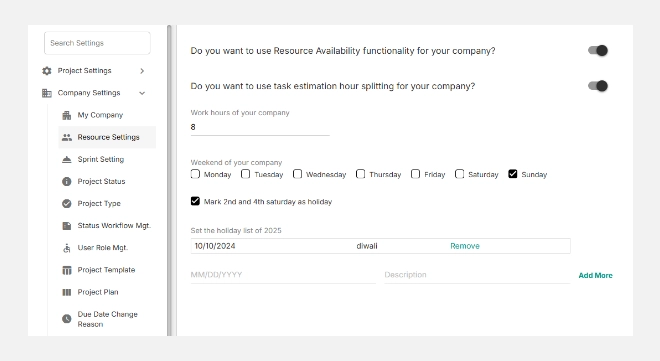
Configuring Resource Settings
Follow these steps to customize your company’s working calendar:
Enable Resource Availability Tracking
Turn on the “Use Resource Availability” toggle to activate resource tracking.
This allows Orangescrum to calculate workload and availability for each user based on your defined working hours and holidays.
Enable Task Estimation Hour Splitting
Toggle “Use Task Estimation Hour Splitting” if you want tasks with multiple assignees to automatically divide estimated hours among them.
This ensures balanced workload distribution and realistic planning.
Set Working Hours
In the Work hours of your company field, specify your standard daily working hours.
Example: Enter “9” for a 9-hour workday. All time logs, workload charts, and utilization calculations will use this as a baseline.?
Define Weekends
Select your company’s weekly holidays.
Example: Check Saturday and Sunday for a standard weekend. You can also mark 2nd and 4th Saturdays as holidays — common in many organizations.
Add Company Holidays
Under Set the holiday list, add official holidays for the year.
Example:
- 05/25/2024 – Voting Day
- 12/25/2024 – Christmas
You can also:
- Click Add More to include multiple holidays.
- Click Remove to delete old or incorrect entries.
Save Changes
Click Save at the bottom-right corner once all fields are configured.