Account Settings

The Account Settings section in Orangescrum Cloud is your control center for configuring how your workspace operates.

From defining project behaviors and company-wide standards to managing user profiles, workflows, and external integrations — everything begins here.

Whether you’re an admin setting up organization-wide rules or a manager customizing project workflows, Account Settings ensures your team’s workspace remains organized, secure, and aligned with your company processes.

Within this area, you can:

  • Set up Project Settings 
  • Configure Company Settings 
  • Manage Bug and Issue Tracking preferences
  • Update your Profile Settings and personal preferences
  • Connect third-party tools under Integrations


Project Settings – Part 3

This section focuses on optimizing your project finances and streamlining workflows for maximum efficiency. You’ll learn how to manage cost settings to track billable and internal rates, and leverage workflow automation to reduce repetitive tasks and maintain consistency across projects.

By setting up cost tracking and automation rules, your team can ensure financial transparency, improve productivity, and focus on high-priority work—making every project more profitable and organized.

Cost Settings

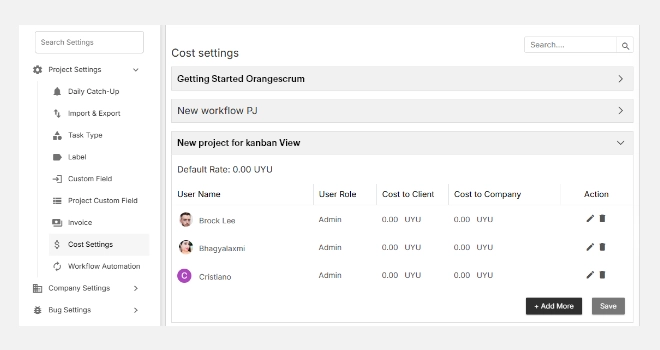
The Cost Settings module allows you to manage and control the financial side of your projects by defining user-wise billing rates.

Here, you can set the Cost to Client (billable rate) and Cost to Company (internal rate) for each team member, ensuring transparent and accurate project cost tracking.

Example: A designer might be billed at $60/hour to the client, while their internal cost to the company is $40/hour.

Why Use Cost Settings

  • Track profitability — know how much you’re charging versus spending per project.
  • Set accurate billing rates for each user, client, or department.
  • Integrate with invoicing — automatically apply the correct rates during billing.
  • Enhance project planning with real-time cost insights.

Accessing Cost Settings

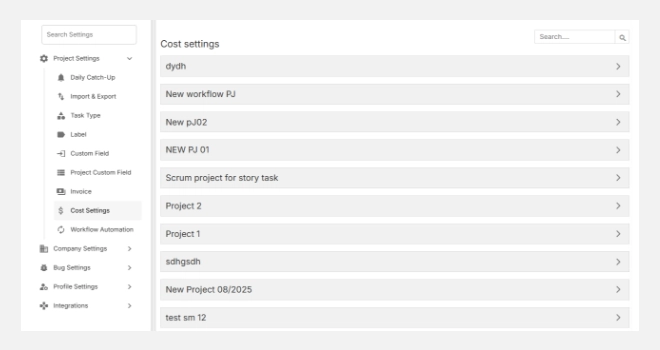
  1. Navigate to SettingsProject SettingsCost Settings.
  2. You’ll see a list of active projects with their associated cost configurations.
  3. Click on a project to view or update its user-level cost details.

Accessing cost settings

Setting Up Costs for a Project

1. Select a project (e.g., Orangescrum Dev, Health & Glow Content, Marketing Demo).
2. You’ll see a list of users assigned to that project.
3. For each user, define:

  • Cost to Client: The rate charged to the client (billable).
  • Cost to Company: The internal rate paid to the team member or used for cost analysis.

4. Click + Add More to include additional users.
5. Hit Save once all entries are added or modified.

Setting-up cost for a project

Tip: Keep your cost rates standardized across similar projects to make performance comparisons easier.

Editing or Removing Cost Entries

  • To edit, click the (Edit) icon next to a user’s rate.
  • To delete, click the (Delete) icon to remove that entry.
  • After any changes, click Save to apply updates.

Note: Edits to cost rates only affect new time logs and invoices; historical entries remain unchanged for data integrity.

Default Rate

At the top of each project, you’ll see a Default Rate value.

This serves as the fallback rate when a user does not have a specific “Cost to Client” value assigned.

Best Practice: Always define a Default Rate to ensure that no project time logs remain unbilled.

Multi-Project Management

Each project can have unique cost settings.

For example:

  • “Web Development Project” → Hourly billing based on team roles.
  • “Maintenance Project” → Fixed internal costs but variable client rates.

Switch between projects in the Cost Settings list to manage rates across your portfolio easily.

With Cost Settings, Orangescrum empowers you to manage financial transparency across projects — ensuring every hour is accounted for and every project stays profitable.

Workflow Automation

Workflow Automation in Orangescrum Cloud helps you save time and maintain consistency by automating repetitive actions.

Instead of manually updating tasks or sending reminders, you can set up rules that automatically trigger based on specific conditions — like changing task status, assigning users, or updating due dates.

Example: When a task’s status changes to “Completed,” automatically notify the project manager and update the “Progress” field.

Why Use Workflow Automation

  • Reduce manual effort — let Orangescrum handle repetitive steps for you.
  • Improve productivity — automate transitions, notifications, and updates.
  • Maintain consistency — ensure uniform behavior across similar projects.
  • Enhance communication — send instant alerts when conditions are met.

Accessing Workflow Automation

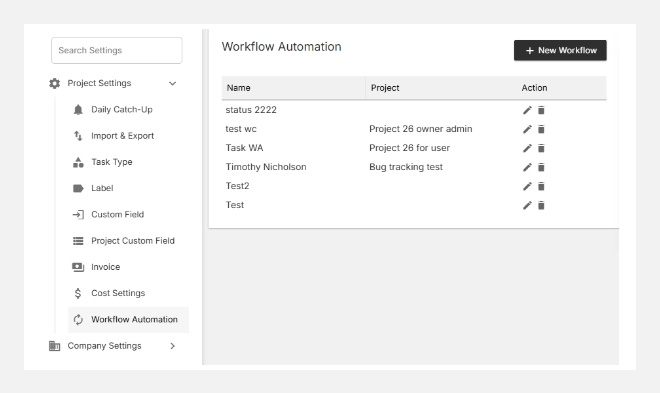
  1. Go to Settings → Project Settings → Workflow Automation.
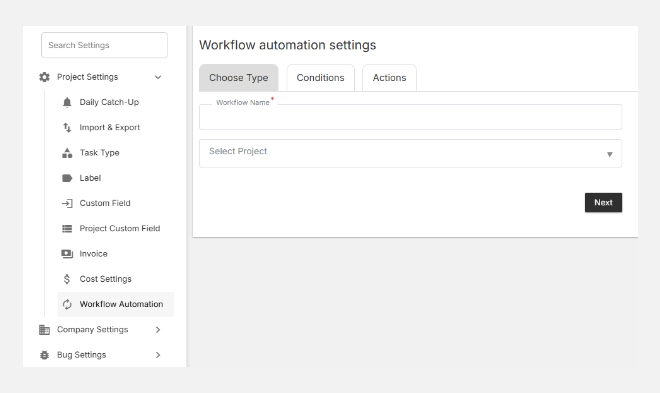
  2. You’ll see a simple, three-step setup wizard:
    • Choose Type
    • Set Conditions
    • Define Actions

Accessing workflow automation

Creating a New Workflow Automation

Follow these steps to create your first automation:

Step 1: Choose Type

  • Click Workflow Automation+ New.
  • Enter a Workflow Name (e.g., Task Status Update, Client Review Notification).
  • Select the Project for which this automation applies.
  • Click Next to proceed.

Creating a new workflow automation

Step 2: Define Conditions

This is where you decide when the automation should trigger.
You can set conditions based on project or task attributes, such as:

  • When a task status changes (e.g., “In Progress”“Completed”).
  • When a task is assigned or reassigned.
  • When a due date is reached.
  • When a label or custom field is updated.

Tip: Combine multiple conditions to build complex rules — e.g., trigger only when a “High Priority” task is overdue and assigned to a specific team.

Step 3: Define Actions

Next, choose what should happen when the condition is met. Common actions include:

  • Send notifications to specific users or teams.
  • Change task status automatically (e.g., move to “Under Review”).
  • Assign or reassign a user to the task.
  • Update fields such as due date, label, or priority.

Once your action is defined, click Save to activate your workflow automation.

With Workflow Automation, Orangescrum turns repetitive actions into effortless processes — keeping your projects moving smoothly and your teams focused on what truly matters.

Project Settings – Part 2

In this section, we focus on customizing your projects to match your team’s unique workflow. You’ll learn how to organize tasks with labels, capture project-specific data with custom fields, and manage billing through invoice settings.

These features help you standardize processes, improve visibility, and ensure your projects are structured for efficiency and clarity. By leveraging labels, custom fields, and invoice settings, your team can track work, prioritize tasks, and maintain financial accuracy seamlessly across all projects.

Labels

Use labels to organize, filter, and track tasks more efficiently across your projects.

What Are Labels?

Labels in Orangescrum help you tag and group related tasks for better visibility and quick filtering.

They act like color-coded tags or keywords that let your team easily identify the type, status, or category of a task at a glance.

Labels can be global (available across all projects) or project-level, allowing you to customize them for different workflows or departments.

Example: You can create labels like “Urgent,” “Client Review,” “Pending Approval,” or “Design Update” to instantly identify priorities and categories.

Why Use Labels

  • Simplify task organization – quickly tag and locate tasks.
  • Improve filtering and reporting – view progress by label or category.
  • Enhance communication – make priorities visible to the whole team.
  • Boost visibility – quickly identify blocked or high-priority items.

Accessing Label Settings

  1. Go to SettingsProject SettingsLabel.
  2. You’ll see two main areas:
    • Default Labels: Labels available across all projects.
    • Project-Level Labels: Custom labels created for specific projects.
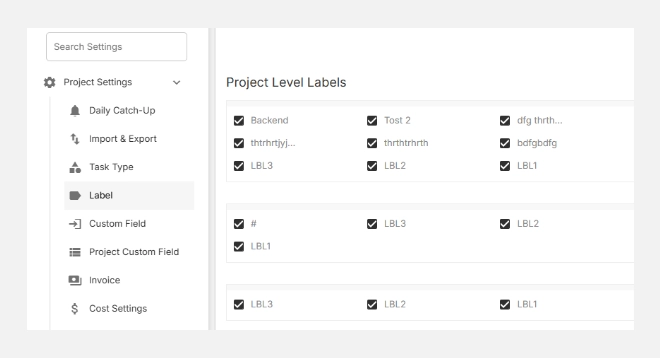
Accessing Label Settings

Creating a New Label

To create a new label:

  1. Click + New Label (top right).
  2. In the pop-up window, fill in the required details:
    • Project: Choose the project this label belongs to.
    • Label Name: Enter a descriptive name (e.g., High Priority, Internal Review).

Click Add to save your new label.
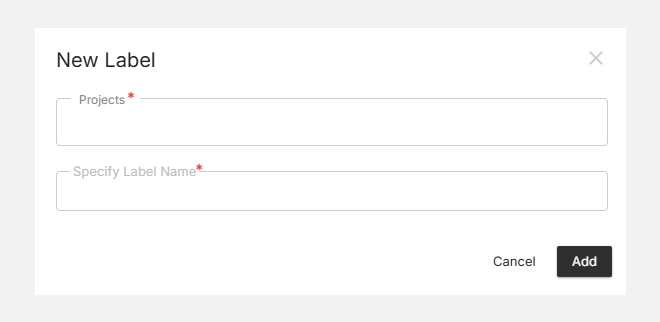
Creating a new label

Your label will now appear under the selected project’s list of Project-Level Labels.

Tip: Choose short, action-based names for labels to keep your task board clean and easy to scan.

Editing or Deleting Labels

You can modify or remove existing labels anytime:

  • Hover over a label and select the Edit icon to rename or reassign it.
  • Click the Delete icon to remove labels that are no longer needed.
  • All changes reflect instantly across related tasks.

Note: Deleting a label will untag it from all associated tasks but won’t delete the tasks themselves.

Default vs. Project-Level Labels

Type Scope Example Use Case
Default Label Available across all projects “Bug Fix,” “Urgent,” “Client Feedback”
Project-Level Label Specific to a single project “Design QA,” “Phase 1 Review,” “Procurement”

Best Practice: Use default labels for common task categories and project-level labels for domain-specific tracking.

Using Labels in Projects

Once your labels are set up, you can:

  • Apply them to tasks, subtasks, or issues for quick filtering.
  • Use Board View to group or color-code tasks by label.
  • Filter dashboards and reports by label to track progress or workload distribution.
  • Combine multiple labels to cross-filter related work items (e.g., High Priority + QA).

Labels bring clarity and speed to your workflow — helping teams categorize, prioritize, and track work seamlessly across projects.

Custom Fields

Every project is different — and so is the data you need to track.

Custom Fields in Orangescrum let you add personalized fields to tasks or projects beyond the standard ones (like title, due date, or assignee).

These fields help teams capture and display information specific to their business — such as client IDs, budgets, vendor details, or compliance status — right inside Orangescrum.

Example: A marketing team might add a “Campaign Type” field, while a construction company could track “Permit Number” or “Inspection Date.”

Why Use Custom Fields

  • Personalize your workspace — track exactly what matters to your projects.
  • Improve filtering and reporting — sort and analyze based on custom data points.
  • Support multiple use cases — from billing and compliance to HR or engineering workflows.
  • Standardize data entry — ensure all teams collect consistent information.

Accessing Custom Field Settings

  • Go to SettingsProject SettingsCustom Field.
  • You’ll see the option to add, edit, or remove custom fields at the workspace level.
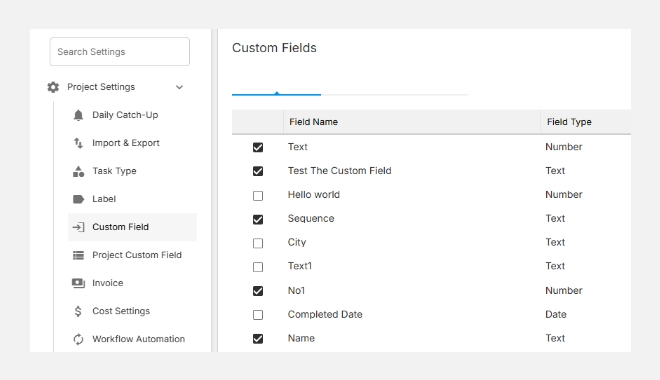
Accessing custom field settings

Adding a New Custom Field

To create a new field:

  • Click + New Custom Field (top right corner).
  • Choose the type of field you want to create from the pop-up menu:
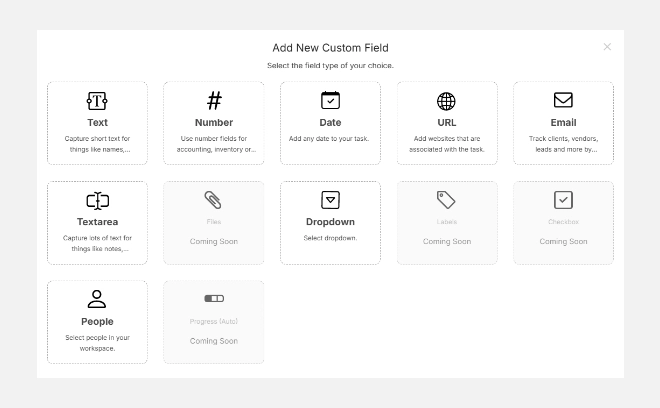
Adding a new custom field

Field Type Description Common Use
Text Capture short text entries Client ID, Vendor Name, Document Reference
Number Store numeric data Budget, Quantity, Estimate Hours
Date Add a date picker field Deadline, Inspection Date, Renewal Date
URL Include a website link Resource Links, Document URLs
Email Capture email addresses Client Contact, Vendor Email
Textarea Add long text fields Notes, Comments, Descriptions
People Select users from your workspace Task Owner, Reviewer, Supervisor

Note: More field types (Dropdown, Checkbox, Labels, Files, Progress) are coming soon!

  • Once selected, you’ll be prompted to name the field and decide whether it’s required or optional.
  • Click Save to add the field.

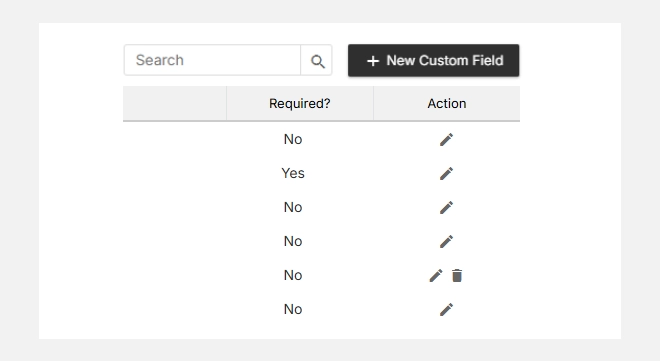
Editing or Deleting Custom Fields

  • To edit, click the (Edit) icon next to a field.
  • To delete, click the (Delete) icon — you’ll be asked to confirm the removal.
  • Edits apply instantly across all projects using that field.

Caution: Deleting a field will remove its values from all associated tasks. Export your data before deleting important fields.
Editing and deleting custom fields

Where You Can Use Custom Fields

Custom fields appear in:

  • Task Details View – display and edit custom information for individual tasks.
  • Project Overview – summarize project-specific data like budgets or phases.
  • Reports & Filters – filter tasks or generate analytics based on custom data.

With Custom Fields, you can tailor Orangescrum to your organization’s exact needs — making your workflows smarter, reports richer, and data more meaningful.

Invoice Settings

The Invoice Settings section in Orangescrum Cloud lets you define how billing works across your projects.

Here, you can assign rates, configure project-specific invoicing preferences, and ensure accurate tracking of billable time and expenses.

With centralized control, you can standardize how invoices are generated, prevent errors, and maintain financial transparency between your teams and clients.

Example: If you charge different rates for different projects (e.g., internal vs. client work), Invoice Settings helps you manage that easily.

Why Use Invoice Settings

  • Customize billing per project — set unique rates for each client or project.
  • Ensure accurate financial tracking — align time logs and tasks with the correct project rate.
  • Automate invoices — minimize manual edits and calculations.
  • Maintain consistency — use uniform invoice templates across projects.

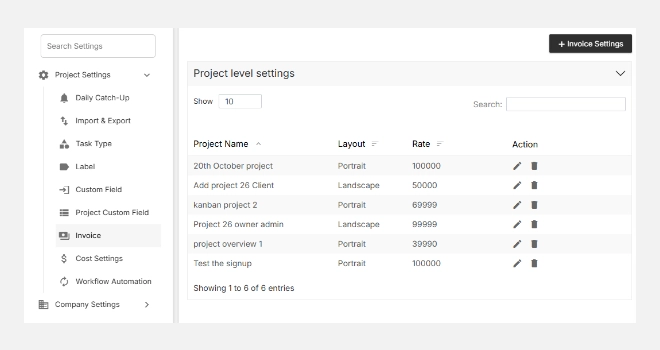
Accessing Invoice Settings

  • Go to SettingsProject SettingsInvoice.
  • You’ll see a list of existing Project-Level Settings (if any).
  • Click + Invoice Settings to add a new configuration.
Accessing Invoice Settings

Adding a New Invoice Setting

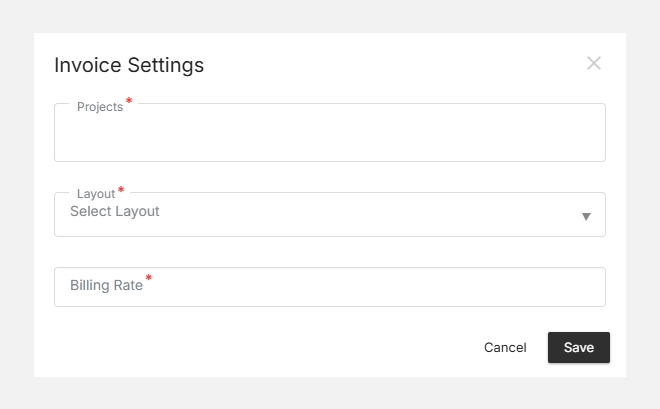
To create or edit invoice settings for a project:

  1. Click + Invoice Settings (top right corner).
  2. From the pop-up window, select:
    • Project: Choose the project you want to configure.
    • Rate: Specify the default hourly or fixed rate for billing.

Click Save to apply changes.

Your settings will now be saved under the Project-Level Settings list and automatically applied when creating invoices for that project.
Adding a new invoice settings

Tip: Use consistent naming for projects and rates so your finance team can easily match invoices to contracts.

Editing or Removing Invoice Settings

You can modify or remove configurations anytime:

  • Click the Edit icon next to a project to update rates or preferences.
  • Use the Delete option to remove outdated or incorrect settings.
  • Changes take effect immediately across your billing module.

Note: Deleting an invoice setting does not affect past invoices already created.
Project Settings – Part 1

Project Settings in Orangescrum Cloud let you customize how projects function, track progress, and manage cost and automation across your workspace.

From defining task types and labels to setting up cost structures and automations, these settings help you streamline work and maintain consistency across all projects.

Welcome to project settings

Daily Catch-Up

Keep everyone informed with automated daily summaries.

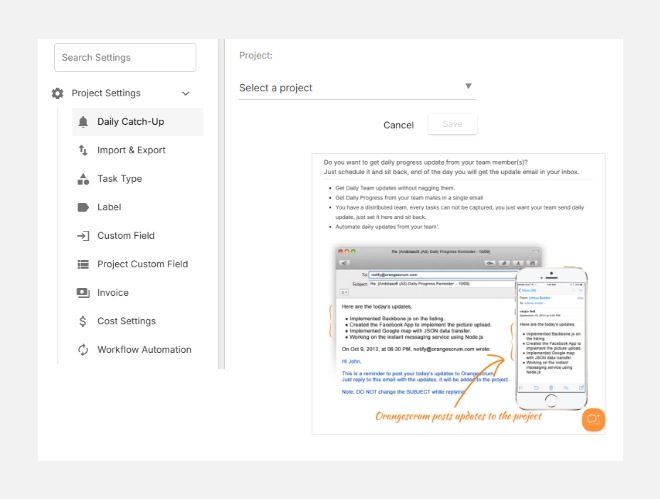
The Daily Catch-Up feature sends quick, structured email updates to team members summarizing:

  • Tasks completed yesterday
  • Tasks due today
  • Upcoming deadlines or pending approvals

You can enable or disable daily catch-ups at the workspace or user level.

Tip: Use Daily Catch-Up for distributed teams to maintain visibility without scheduling extra meetings.

How It Works

  1. Navigate to Settings → Project Settings → Daily Catch-Up.
  2. Select the Project for which you want to enable daily updates.
  3. Set your preferred time for updates (end of the workday works best).
  4. Save your settings.
  5. Orangescrum will automatically send an email reminder to all project members each day.

Daily catchup

Each user can then reply directly to the email with their updates — no login required.

Orangescrum collects these responses and adds them to the corresponding project as a daily activity log, while also emailing a compiled report to the project manager or admin.

Import & Export

Seamlessly bring data into or out of Orangescrum.

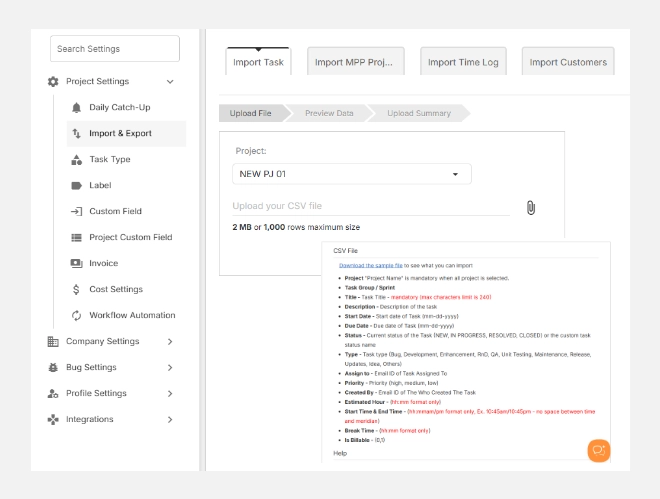
  • Import: Upload projects, tasks, or time logs via CSV templates.
  • Export: Download task lists, reports, or time data for offline review or analytics.

View step-by-step guide to Import and Export.

Import-and-export

Best Practice: Use consistent column headers in CSV files to ensure smooth import mapping.

Task Type

Organize and categorize your work efficiently by defining custom task types for every project.

Task Types help you categorize and structure the different kinds of work your team performs. 

They make it easy to group tasks, generate reports, and visualize project progress clearly.

In Orangescrum, you can use default task types (such as Development, Research, or QA) or create custom task types specific to your project needs.

Example: A software team may use “Bug,” “Feature,” and “Enhancement,” while a construction team might use “Inspection,” “Procurement,” and “Site Work.”

Why Task Types Matter

  • Bring consistency to how your team defines work.
  • Enable filtering and reporting by task category.
  • Simplify automation and workflow triggers tied to task types.
  • Improve resource and time analysis across projects.

Accessing Task Type Settings

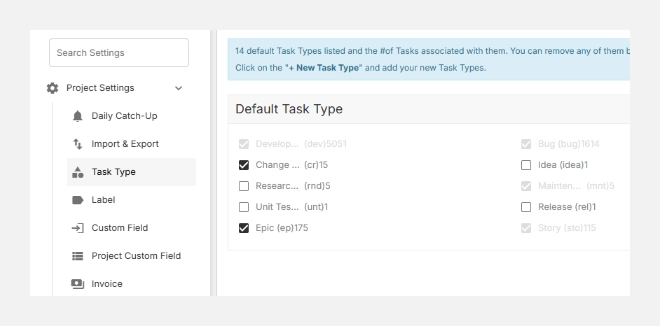
  1. Go to Settings → Project Settings → Task Type.
  2. You’ll see a list of Default Task Types and Project-Level Task Types.
  3. Default types apply globally, while project-level types can be customized for specific projects.

Accessing task type

Creating a New Task Type

To create a new custom task type:

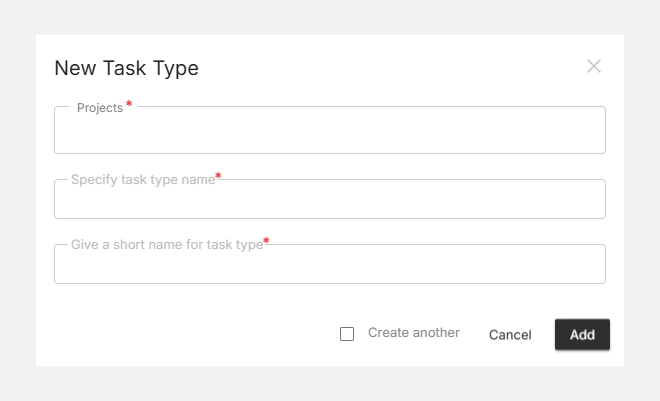
  1. Click + New Task Type (top right).
  2. In the pop-up form, fill in the following fields:
    • Project: Select the project where this task type should apply.
    • Task Type Name: Enter a clear name such as “Client Review” or “Testing.”
    • Short Name: Provide a short label or code (e.g., rev or test) for easy identification.
  3. (Optional) Tick Create another if you wish to add multiple types consecutively.
  4. Click Add to save.

Creating a new task type

Your new task type will now appear under the respective Project-Level Task Type list.

Tip: Keep task type names short and descriptive to maintain clean reports and filters.

Editing or Deleting Task Types

You can easily modify or remove existing task types:

  • Hover over a task type and click the edit icon to rename or update details.
  • Use the delete icon to remove unused or duplicate types.
  • Changes are instantly reflected across the project.

Note: Deleting a task type will remove its association from existing tasks but won’t delete the tasks themselves.

Getting Started – Part 3

In this section, we dive deeper into advanced features that help you customize workflows, automate processes, and enhance team collaboration.

You’ll learn how to optimize projects, manage dependencies, set up notifications, and configure integrations to make your project management experience smoother and more efficient.

This guide is designed to help teams scale their operations, maintain transparency, and ensure every task, deadline, and resource is tracked accurately.

By leveraging these advanced capabilities, you can improve productivity, reduce bottlenecks, and gain actionable insights to drive project success.

Project Templates

Save time by reusing project structures and workflows.

  • Convert existing projects into reusable templates.
  • Standardize milestones, task groups, and dependencies.
  • Quickly create new projects using your saved templates.

Create and apply project templates here.

Roles and Permissions

Define who can view, edit, or manage what.

  • Assign roles like Admin, Project Manager, or Team Member.
  • Set permissions for creating projects, editing tasks, or viewing reports.
  • Manage clients with restricted access to relevant projects.

View the complete roles and permissions guide here.

Integrations

Connect Orangescrum with your favorite tools for a seamless workflow.

  • Integrate with Slack, Google Drive, Dropbox, and Zapier.
  • Use APIs to connect with internal systems or third-party apps.
  • Automate repetitive actions across platforms.

Explore Orangescrum integrations here.

Subscription and Billing

Easily manage your plan, usage, and payment details.

  • Review your current subscription plan.
  • Upgrade, downgrade, or cancel directly from your account.
  • Download invoices or payment receipts anytime.

Manage your billing and subscriptions here.

Support and Resources

We’re here to help whenever you need it.

  • Visit the Help Center for tutorials and troubleshooting.
  • Reach out via live chat or email support for assistance.
  • Explore Orangescrum Academy and Webinars to sharpen your skills.

Contact Orangescrum Support here.

Getting Started – Part 2

Welcome to Getting Started Part – II with Orangescrum! This guide will help you take full advantage of Orangescrum’s core features for efficient project management, team collaboration, and productivity tracking. From organizing tasks and tracking time to managing bugs, sprints, and resources, you’ll learn how to streamline workflows and gain real-time insights into your projects.

Tasks

Stay organized and focused with Orangescrum’s powerful task management system.

  • Create and assign tasks with deadlines, priorities, and dependencies.
  • Add files, comments, and @mentions to keep context in one place.
  • View tasks in List, Board (Kanban), Calendar, or Gantt Chart views.

Learn to create and manage tasks here.

Time Tracking

Track time directly within your tasks to measure productivity and project effort.

  • Start and stop the timer as you work.
  • Log hours manually if needed.
  • Generate time reports by user, task, or project.

Learn to track and log time here.

Bug Tracking

For software and product teams, Orangescrum’s bug tracking module helps capture, assign, and resolve issues faster.

  • Report bugs directly from tasks.
  • Assign them to developers or QA members.
  • Prioritize by severity, category, or module.

Learn to manage bugs here.

Agile and Sprint Management

Orangescrum supports Agile workflows, helping teams plan sprints, track backlogs, and deliver faster.

  • Create sprints and link them to projects.
  • Assign story points, track velocity, and manage sprint goals.
  • Use the Sprint Board to visualize tasks in progress.

Get started with Agile and sprints here.

Resource Utilization

Get real-time visibility into how your team’s time is spent.

  • Monitor workload distribution across team members.
  • Identify underused or overburdened resources.
  • Adjust assignments directly from the Resource Dashboard.

View and manage resource utilization here.

Reporting and Analytics

Measure what matters.

Orangescrum provides comprehensive dashboards and reports for tracking productivity and progress.

  • Dashboard: Overview of ongoing projects, open tasks, and deadlines.
  • Reports: Time, performance, and utilization reports with filters for date, project, and team.
  • Custom Reports: Build and export data-driven insights for management reviews.

Generate reports and analytics here.