Developer API

Build custom integrations, automate workflows, and extend Orangescrum functionality using our REST APIs.

Overview

The Orangescrum Developer API allows developers to programmatically interact with Orangescrum data and features.

Using the API, you can:

  • Integrate Orangescrum with third-party applications
  • Automate project and task operations
  • Sync data between Orangescrum and external systems
  • Build custom dashboards, reports, or internal tools

The API is designed for secure, scalable, and flexible access to your Orangescrum workspace.

API Documentation

All technical details, endpoints, and examples are available in our official API documentation:

This documentation includes:

  • Authentication methods
  • Request & response formats
  • Endpoint references
  • Sample payloads
  • Error handling details

Developers should always refer to the documentation for the most up-to-date API specifications.

Supported API Capabilities

Using the Orangescrum API, you can work with the following core modules:

Projects

  • Create, update, and fetch projects
  • Access project status and metadata
  • Retrieve project lists for reporting or synchronization

Tasks

  • Create and manage tasks programmatically
  • Update task status, priority, and assignments
  • Fetch task details for automation or analytics

Users & Teams

  • Retrieve user details
  • Map users to projects and tasks
  • Enable external user synchronization

Time Tracking

  • Log time entries via API
  • Fetch timesheet data for billing or payroll systems
  • Generate time-based analytics

Reports & Data Access

  • Extract project and task data
  • Build custom reports or dashboards
  • Sync Orangescrum data with BI tools

Authentication & Security

The Orangescrum API uses secure authentication mechanisms to protect your workspace data.

  • API access is restricted to authorized users
  • Requests must include valid authentication credentials
  • All API communication is encrypted using SSL/TLS

Authentication details, including token usage and headers, are documented here:

Never expose API credentials in client-side code or public repositories.

Common Use Cases

The Developer API is commonly used for:

  • CRM, ERP, and accounting system integrations
  • Automated task creation from external apps
  • Syncing users, projects, and time logs
  • Building internal tools on top of Orangescrum
  • Custom workflow automation

The API enables Orangescrum to fit seamlessly into your existing tech stack.

Rate Limits & Best Practices

To ensure platform stability, API usage follows standard limits.

Best practices:

  • Cache responses wherever possible
  • Avoid excessive polling
  • Handle API errors gracefully
  • Use pagination for large data sets
  • Test integrations in a controlled environment before production use

Refer to the official documentation for rate limit guidelines and response codes.

Versioning

  • Current version: API v1
  • Backward compatibility is maintained within the same version
  • New features and improvements are released incrementally

Always use versioned endpoints as documented:

Troubleshooting

Issue Solution
Authentication failed Verify API credentials and headers
Invalid request error Check request payload format
Data not updating Confirm permissions and endpoint usage
Rate limit exceeded Reduce request frequency

For unresolved issues, review the API logs and documentation before contacting support.

Support

If you need help with API access or integration:

Summary

Capability Developer API Benefit
Integration Connect Orangescrum with external systems
Automation Reduce manual work through API-driven actions
Data Access Extract real-time project and task data
Scalability Build custom solutions on top of Orangescrum
Security Encrypted, authenticated API communication

The Orangescrum Developer API empowers teams to extend, automate, and integrate Orangescrum according to their business needs.
Contact Support

We’re here to help — anytime you need assistance.

Overview

Whether you’re new to Orangescrum or a seasoned project manager, help is always just a click away.

The Support section gives you quick access to tutorials, help documents, FAQs, and direct assistance from our team — so you can resolve issues faster and keep your projects running smoothly.

Orangescrum Support is available for all users — from Free plans to Enterprise customers.

Where to Find Support

You can reach the Orangescrum Support team through multiple channels:

1. Help Center (Knowledge Base)

Explore detailed step-by-step documentation on every Orangescrum feature at the help portal.

You’ll find:

  • Product guides and tutorials
  • Troubleshooting articles
  • FAQ sections
  • Best practice resources

Start with our “Getting Started” and “Academy” modules for a guided learning experience.

2. Orangescrum Academy

Learn project management the Orangescrum way!

Our Academy portal offers in-depth training modules, including:

  • Agile project management
  • Time tracking & reporting
  • Video tutorials and product demos

Perfect for new users, admins, and teams who want to master productivity in Orangescrum.

3. Email Support

For issues requiring personal assistance or workspace-specific troubleshooting contact support@orangescrum.com

When emailing, please include:

  • Your workspace URL
  • A short description of the issue
  • Screenshots (if possible)
  • Your browser/device details

Our team responds within 24 business hours (faster for Enterprise users).

4. Enterprise Priority Support

If you’re on an Enterprise or Self-Hosted Plan, you get access to:

  • Dedicated Account Manager
  • Priority Ticket Resolution
  • Live Onboarding & Training Sessions
  • Custom Integration Support

Your team will have direct guidance from Orangescrum specialists.

How to Submit a Support Ticket

  1. Go to Help → Contact Support in the left navigation or bottom widget.
  2. Fill out the quick form:
    • Subject
    • Description of issue
    • Attach files or screenshots (optional)
  3. Click Submit Ticket.

Once submitted:

  • You’ll receive a confirmation email with a ticket number.
  • Our support representative will reach out within one business day.
  • You can reply directly via email to continue the conversation.

Keep your workspace active during troubleshooting for faster diagnosis.

Data & Privacy Support

  • All support requests are handled securely.
  • Your workspace data remains private and protected.
  • Only authorized personnel access your workspace for troubleshooting (with your consent).

We adhere to strict GDPR and data-protection standards.

Subscription & Billing

Easily manage your workspace plan, billing cycle, and user count from one place.

The Subscription & Billing section in Orangescrum Cloud allows the Account Owner to manage everything related to the workspace plan — including upgrades, downgrades, billing cycles, and user usage.

You can monitor your current plan, track user limits, and manage billing preferences with complete transparency and control.

Only the Account Owner has access to Subscription & Billing.

How to Access Subscription & Billing

  1. Log in to your Orangescrum Cloud account.
  2. Go to the Settings menu.
  3. Click on Subscription & Billing.
  4. You’ll see your current plan details, billing type, and user count.

Available Plans

Orangescrum currently offers three subscription plans:

Plan Ideal For Key Highlights
Personal Individuals or freelancers Basic task and project management features
Startup Small and growing teams Advanced task tracking, reports, and integrations
Professional Established teams Includes resource management, automation, and premium support

You can upgrade or downgrade your plan anytime based on your requirements.

Billing Cycles

Orangescrum supports two billing cycles:

Billing Type Description
Monthly Pay every month — ideal for teams that prefer flexibility.
Yearly Pay once a year — save more with a discounted rate.

You can switch between monthly and yearly billing anytime from the Subscription page.

Upgrading or Downgrading Your Plan

When Upgrading:

If you move to a higher plan during an ongoing billing cycle, the upgrade takes effect immediately. You’ll gain instant access to all features available in your new plan.

When Downgrading:

If you switch to a lower plan, the change will apply after your current billing cycle ends. Your existing plan and features will remain active until that period is over.

Managing Users and Billing Adjustments

When Adding Users:

If you add more users before the billing cycle ends, the system will recalculate the amount for the additional users, and charges will apply immediately.

Example: If you paid for 30 users but added 10 more during the cycle, the cost for the 10 new users will be prorated and billed right away.

When Removing Users:

If you reduce the number of users before completing your billing cycle, the difference will be automatically adjusted — you’ll get an extended access period based on the unused balance.

Managing Payments and Renewal

  • Review your plan and renewal date anytime under Settings → Subscription & Billing.
  • All payments are processed securely through trusted gateways.
  • Renewal happens automatically based on your billing frequency (Monthly / Yearly).

Summary

  • Accessible only by the Account Owner.
  • Manage your plan, users, and billing frequency easily from Settings.
  • Upgrades take effect immediately.
  • Downgrades and user reductions adjust after the billing cycle ends.
  • Transparent billing ensures no hidden charges.

Mobile Access

Manage your projects, tasks, and teams anytime, anywhere.

Overview

The Orangescrum Mobile App allows you and your team to stay productive on the go.

Whether you’re tracking progress, logging time, or checking updates — everything you do on desktop can now be done directly from your mobile device.

Stay connected with your projects 24×7 — monitor, collaborate, and act in real time.

App Availability

The Orangescrum app is available on:

Search for “Orangescrum Project Management” on your app store and install it for free.

Login & Authentication

You can sign in to your Orangescrum account using:

  • Email & Password (same credentials as the web version)
  • SSO (Single Sign-On) — if enabled for your workspace
  • Google or Microsoft Sign-in (for connected accounts)

Steps to log in:

  1. Open the Orangescrum app.
  2. Enter your workspace URL or company domain (e.g., yourteam.orangescrum.com).
  3. Log in with your credentials or preferred sign-in method.

Your login and data are protected by enterprise-grade SSL encryption.

Dashboard Overview

After logging in, you’ll land on your Dashboard, which provides a snapshot of:

  • Active projects
  • Assigned tasks
  • Pending deadlines
  • Recent activities and notifications

You can quickly switch between projects, view ongoing work, or start a new task directly from the dashboard.

Manage Tasks on Mobile

The mobile app provides a simplified yet powerful task management experience.

Create Tasks

  1. Tap Create Task.
  2. Enter the Task Title, Description, and Due Date.
  3. Assign it to a User and select a Project.
  4. Tap Save — the task will sync instantly to your web workspace.

View & Update Tasks

  • Tap any task to open its details.
  • Edit the title, change status, or update comments.
  • Attach files or screenshots directly from your device.

Task Filters & Views

  • Filter by Status, Assignee, Project, or Priority.
  • Sort by Due Date or Creation Date for better visibility.

Every change you make on mobile reflects instantly on the web — ensuring perfect sync.

Time Tracking on Mobile

Easily log and manage time entries while working in the field or remotely.

To log time:

  1. Open the Time Log tab.
  2. Select the Task you worked on.
  3. Add the Hours Spent and optional notes.
  4. Tap Submit.

To review your timesheet:

Go to Reports → Timesheet to see all logged hours.

Track work hours on the go for accurate project billing and reporting.

Projects & Team Collaboration

Access Your Projects

  • Tap the Projects tab to view all active, archived, or upcoming projects.
  • Drill down to see task lists, progress, and team assignments.

Collaborate in Real Time

  • Use Comments to communicate directly on tasks.
  • Mention teammates using @username for instant notifications.
  • Share attachments, screenshots, or documents straight from your phone.

No need to switch tools — chat, share, and collaborate inside Orangescrum.

Notifications & Alerts

Never miss an update!

The mobile app supports:

  • Push Notifications for new tasks, mentions, and updates.
  • Email Alerts (configurable in Notification Settings).
  • In-App Alerts for quick reference.

You can manage notification preferences via:
Profile Settings → Notifications

Stay informed without inbox overload.

Light & Dark Mode

Toggle between Light Mode and Dark Mode from your Profile menu for a comfortable viewing experience — especially during extended work hours.

Profile & Settings

Tap your Profile Icon to manage:

  • Personal information (name, email, phone number)
  • Time Zone & Language
  • Notification preferences
  • Password updates

Your preferences automatically sync across devices.

Offline Access

If you lose internet connectivity while working, Orangescrum temporarily saves your updates locally.

Once you’re back online, all changes are automatically synced to your workspace.

Work uninterrupted, even in low-network environments.

Supported Features Summary

Feature Availability
Create & Edit Tasks       ✅
Comment & Attach Files       ✅
Time Logging       ✅
Project Access       ✅
Resource & Team View       ✅
Notification Control       ✅
Offline Mode       ✅
Dark Mode       ✅

The mobile app focuses on speed, simplicity, and on-the-go efficiency.

Best Practices

  • Keep your app updated for new features and improvements.
  • Enable push notifications for time-sensitive project alerts.
  • Use mobile for quick check-ins, approvals, and updates.
  • For deeper reporting or admin controls, switch to the web version.

The mobile app complements your desktop workflow — giving you total control wherever you are.

Security

  • All data is encrypted in transit (SSL/TLS 1.2).
  • Two-factor authentication (2FA) available for secure access.
  • SSO and OAuth integrations supported for enterprise accounts.

Your workspace data is safe — even when you’re working remotely.

Troubleshooting

Issue Solution
Unable to log in Check workspace URL or reset password.
Push notifications not received Enable notifications from device settings.
Data not syncing Refresh the app or check your internet connection.
App crash or freeze Clear cache or reinstall the app.

If issues persist, contact support@orangescrum.com for assistance.

Summary

Capability Mobile Access Benefit
Task Management Create, edit, and monitor tasks in real time.
Collaboration Comment, share, and notify team members instantly.
Time Tracking Log hours while working remotely.
Notifications Stay updated with push alerts.
Sync Automatic updates across web and mobile.


Roles and Permissions

The Roles and Permissions feature in Orangescrum helps you define who can access what within your workspace.

It ensures teams collaborate effectively while keeping data secure — giving admins full control over user privileges, visibility, and actions.

Whether you’re managing small project teams or enterprise-level organizations, role-based permissions allow you to:

  • Control access to modules, projects, and data
  • Assign predefined or custom roles
  • Enable or restrict actions like edit, delete, or manage

For a detailed walkthrough — including how to create roles, manage permissions, and assign them to users —

Please visit the full documentation here:

Smart access management ensures smooth workflows and data protection across your organization.

Project Templates

Create new projects faster with ready-made workflows designed for different use cases.

Overview

The Project Templates feature in Orangescrum Cloud allows you to quickly create new projects using predefined structures, workflows, and configurations.

Each template is purpose-built for a specific project type—whether it’s Agile, content management, recruitment, or procurement—so your team can start working instantly without setting up everything from scratch.

Think of templates as plug-and-play project frameworks — ready to launch, customizable to fit your process.

Why Use Project Templates?

  • Save time: No need to build new projects from scratch.
  • Consistency: Standardize processes across teams and departments.
  • Accuracy: Use pre-defined task types, workflows, and permissions aligned with your needs.
  • Scalability: Perfect for growing teams managing multiple similar projects.

Accessing Project Templates

  1. Go to your Project Template in the left side menu.
  2. Click Create Project to launch a new project based on the chosen template.

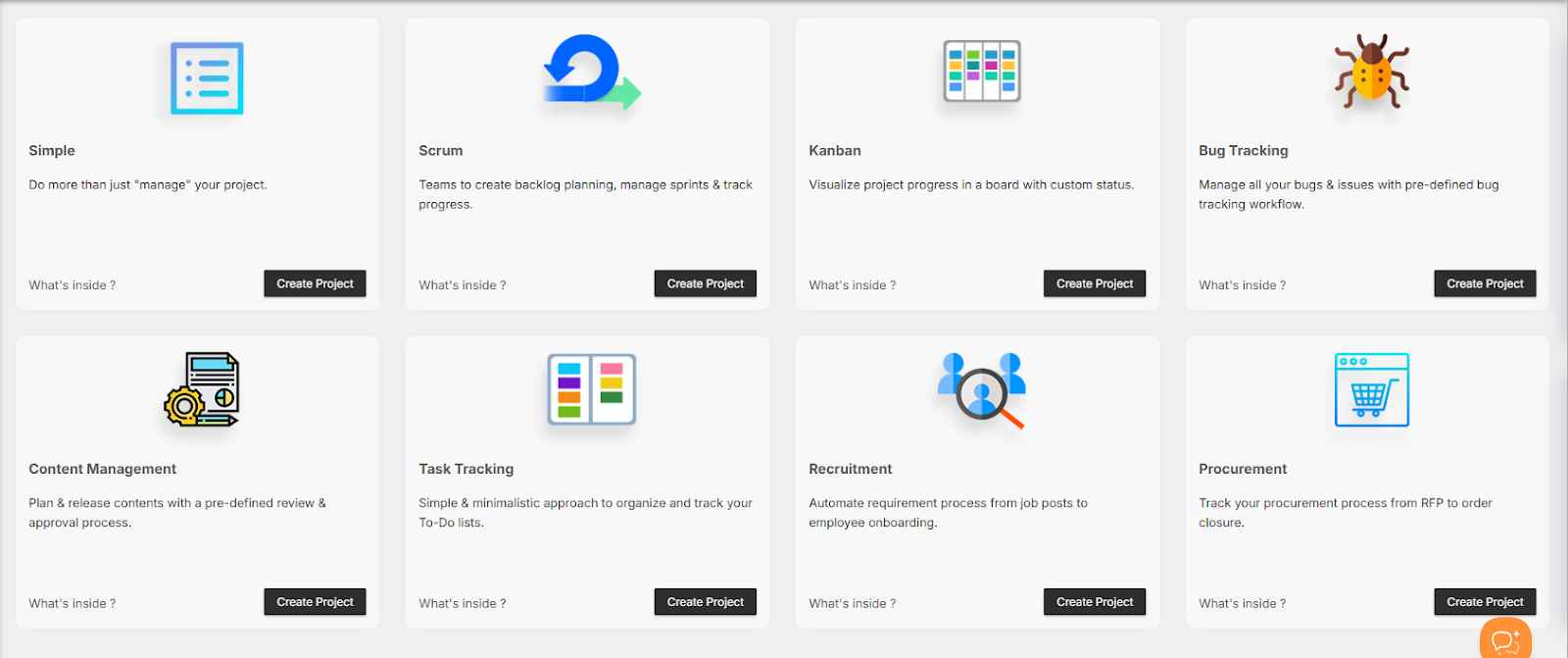
Available Project Templates

Orangescrum provides a variety of ready-to-use templates designed for different workflows and industries.

  • Simple Project Template

Best for: Small teams or general project management.

Description: Do more than just manage your project — track progress, tasks, and milestones easily.

Includes:

  • Default task stages: To-Do, In Progress, Completed
  • Basic task types and user permissions
  • Ideal for quick, flexible project tracking

Use this for short-term or cross-functional internal projects.

  • Scrum Project Template

Best for: Agile teams managing sprints and product backlogs.

Description: Designed to help Agile teams create backlogs, manage sprints, assign story points, and monitor burndown charts.

Includes:

  • Backlog and sprint boards
  • Story points, velocity tracking, and sprint planning
  • Task types like Epic, Story, Bug, Task
  • Predefined Agile statuses (To-Do → In Progress → QA → Done)

Perfect for software, IT, and product development teams.

  • Kanban Project Template

Best for: Visual workflow management and continuous delivery.

Description: Visualize your process using a Kanban board with custom columns representing workflow stages.

Includes:

  • Drag-and-drop task movement
  • Configurable status columns
  • Continuous work tracking with no fixed sprint cycles

Ideal for marketing, operations, or support teams.

  • Bug Tracking Template

Best for: QA and development teams managing bugs and issues.

Description: Track and resolve bugs efficiently with a predefined bug tracking workflow.

Includes:

  • Bug categories and priorities (Critical, Major, Minor)
  • Statuses: New → In Progress → Fixed → Verified → Closed
  • Fields like Bug Origin, Resolution, Affect Version, Fix Version

Ensure software quality and issue transparency.

  • Content Management Template

Best for: Marketing, editorial, and content production teams.

Description: Plan, review, and publish content using a structured approval workflow.

Includes:

  • Task stages: Idea → Draft → Review → Approved → Published
  • Custom fields for content type, due date, and editor
  • Collaboration-ready task comments and attachments

Perfect for blogs, marketing campaigns, and creative assets.

  • Task Tracking Template

Best for: Individual contributors and small teams managing daily to-do lists.

Description: A minimalistic template to organize and track personal or team tasks.

Includes:

  • Simple task list and priority tags
  • Statuses: Open, In Progress, Completed
  • Option to add due dates, assignees, and attachments

Stay organized and keep work moving.

  • Recruitment Template

Best for: HR and recruitment teams managing hiring pipelines.

Description: Automate your recruitment process from job posting to candidate onboarding.

Includes:

  • Stages: Application Received → Screening → Interview → Offer → Hired
  • Task fields for candidate name, job title, and status
  • Workflow reports for hiring progress tracking

Ideal for tracking applicants and streamlining hiring cycles.

  • Procurement Template

Best for: Finance, procurement, and operations teams.

Description: Track your procurement process from RFP to purchase order closure.

Includes:

  • Task statuses: RFQ Sent → Quotation Received → Negotiation → Order Placed → Closed
  • Vendor and item tracking fields
  • Built-in cost visibility and document attachment options

Perfect for vendor coordination and budget control.

Customizing a Template

Once you create a project from a template, you can customize it fully:

  • Rename or remove task stages
  • Add or modify task types
  • Assign roles and permissions
  • Configure notifications and integrations

Each template serves as a foundation — you can build on top of it as your workflow evolves.

Duplicating or Reusing a Template

  1. Open an existing project.
  2. Click the Project Settings icon.
  3. Choose “Save as Template.”
  4. Enter a name and description.
  5. Your template is now available in the Project Templates list for reuse.

This feature is ideal for recurring project structures like campaigns, releases, or audits.

Benefits of Using Templates

Benefit Description
Speed Launch new projects instantly without setup delays.
Standardization Keep workflows consistent across teams and departments.
Productivity Spend less time on setup, more on execution.
Scalability Reuse successful project structures for new clients or initiatives.

Best Practices

  • Review each template’s workflow before creating a project.
  • Create department-specific templates (e.g., HR, Marketing, IT).
  • Use naming conventions for easy identification (e.g., Client-Onboarding-Template).
  • Save frequently used configurations as custom templates.

Templates are reusable systems — refine them as your team grows.

Access Control

Role Permission
Admin Create, edit, and delete templates.
Project Owner Use templates to create projects.
User View and join projects created from templates.

Only admins can modify or remove default system templates.

Summary

Template Purpose
Simple General project management.
Scrum Agile sprint planning and backlog tracking.
Kanban Visual workflow management.
Bug Tracking QA and issue tracking.
Content Management Editorial planning and approvals.
Task Tracking Daily task organization.
Recruitment Hiring pipeline management.
Procurement Vendor and purchase process tracking.

Project Templates in Orangescrum give your team a head start — standardizing workflows, boosting productivity, and ensuring every project begins with clarity and structure.