The Change Password section in Orangescrum Cloud allows users to securely update their account password.
Changing your password regularly helps keep your workspace and project data safe from unauthorized access.
This feature is especially useful when you suspect unusual activity, share a system temporarily, or need to comply with your organization’s security policy.
Tip: Always choose a strong and unique password — avoid reusing old or common passwords.
How to Change Your Password
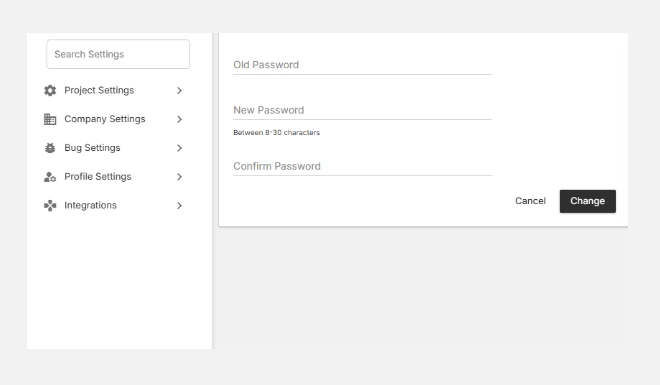
- Go to Settings → Profile Settings → Change Password.
- Enter your Old Password to verify your identity.
- Type a New Password — it must be 8 to 30 characters long.
- Re-enter the same password in Confirm Password.
- Click Change to update your credentials.
- You’ll see a confirmation once your password is successfully changed.
Best Practices for Password Security
✅ Change your password at least once every 90 days.
✅ Never share your credentials with others.
✅ Use a secure password manager to store passwords safely.
✅ Immediately update your password if you notice suspicious login activity.
The Change Password feature in Orangescrum Cloud ensures that every user maintains account confidentiality and keeps their projects, tasks, and reports protected at all times.