Identify issues faster. Track progress clearly. Deliver quality consistently.
The Bug Tracking module in Orangescrum Cloud helps project teams manage software defects and quality issues efficiently from detection to resolution.
It enables testers, developers, and project managers to collaborate in one centralized workspace — ensuring that every bug is properly logged, prioritized, assigned, and resolved on time.
Turn quality assurance into a streamlined workflow — detect early, fix fast, and release confidently.
Why Use Bug Tracking in Orangescrum
- Centralized Issue Management – Keep all reported bugs organized and searchable in one place.
- Faster Resolution – Assign issues instantly to the right developer or team member.
- Improved Communication – Discuss, attach screenshots, and update status in real time.
- Increased Product Quality – Ensure every bug is logged, tracked, and verified before release.
- Insightful Reports – Analyze bug trends, open/closed rates, and team performance.
Accessing the Bug Tracking Module
You can access the bug tracking area in two ways:
- From the Main Sidebar → Bug Tracking → Bug List
- Inside a Project Workspace → Bug Tab
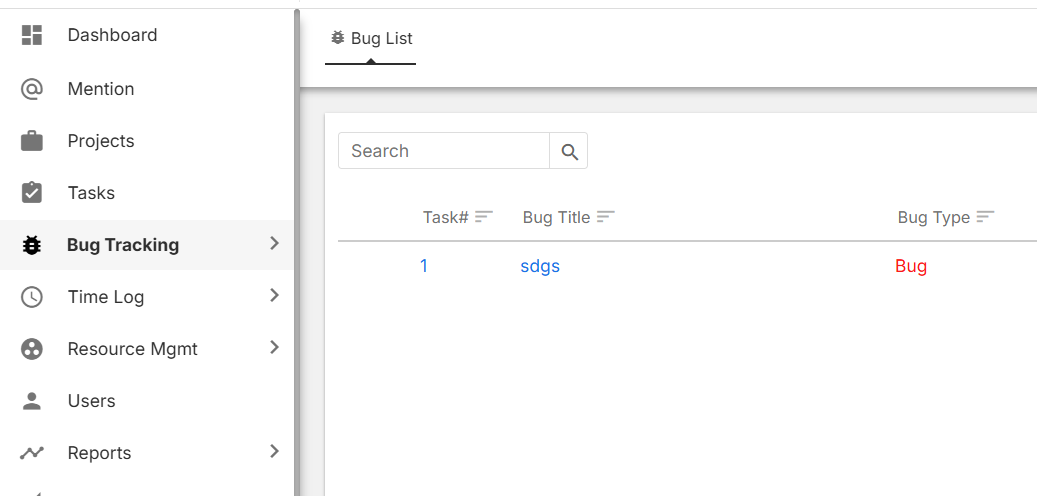
Each project has its own bug list — so you can filter issues by product, release, or client.
How to Log a New Bug
- Go to your project’s Bug Tab.
- Click + Add Bug.
- Enter the required details:
- Bug Title – A clear and concise name for the issue.
- Description / Steps to Reproduce – Detailed explanation and how the issue can be replicated.
- Project & Task Reference – Optionally link the bug to a specific task or feature.
- Priority – Select Low, Medium, High, or Critical.
- Status – Default is New.
- Reported By – The person who identified the issue.
- Assigned To – The developer responsible for fixing it.
- Attachments – Add screenshots, logs, or supporting files.
- Click Save — the bug will appear in the project’s bug list immediately.
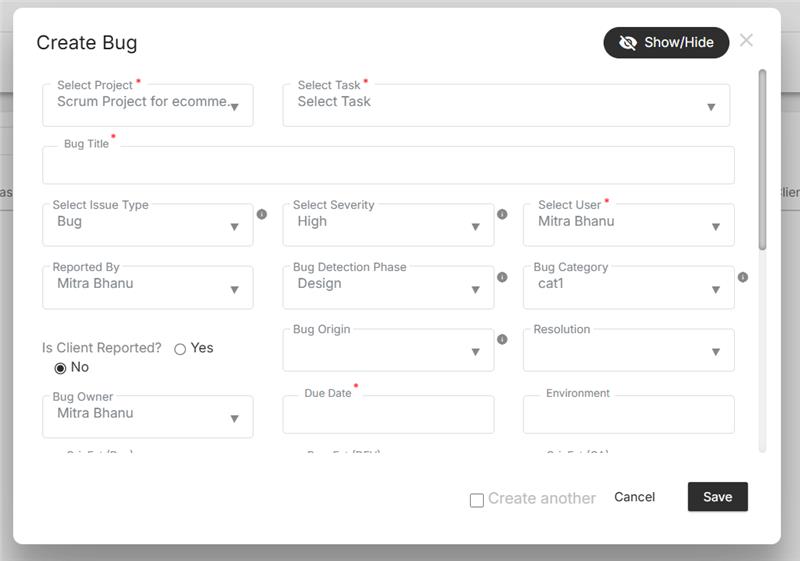
Bugs can also be added through integrations like GitHub for code-linked issue management.
Understanding Bug Fields
| Field | Description |
| Bug ID | Unique identifier for tracking and referencing each issue. |
| Title | Short description of the problem. |
| Description | Detailed context, steps to reproduce, or observed behavior. |
| Project | Links the bug to the relevant project or module. |
| Status | Indicates the current stage (New, Assigned, In Progress, Fixed, Closed). |
| Priority | Defines urgency — helps in sorting and triage. |
| Assigned To | Developer or tester responsible for resolving it. |
| Reported By | User who initially found or reported the bug. |
| Created & Updated Dates | Tracks issue lifecycle for accountability. |
| Attachments | Screenshots or error logs for better understanding. |
Detailed bug data helps teams fix faster and track accountability.
Bug Lifecycle in Orangescrum
Each bug follows a standard workflow through these stages:
| Stage | Description |
| New | Issue is freshly reported and awaiting triage. |
| Assigned | Assigned to a developer or QA member. |
| In Progress | The developer is actively fixing the issue. |
| Fixed | Code changes completed and pushed for testing. |
| Verified | QA tests and confirms that the issue is resolved. |
| Closed | Bug fix confirmed and completed successfully. |
| Reopened | If the issue reappears or was not fully resolved. |
You can customize these stages based on your project workflow.
Managing Bugs
- Use Filters to sort bugs by priority, assignee, or status.
- Update status as progress is made.
- Add comments or tag users using @mentions for quick collaboration.
- Attach screenshots or documents directly for context.
- Bulk-edit multiple bugs to change status or assignment.
Instant updates keep everyone in sync — no need for separate email threads.
Bug Prioritization
Each bug can be classified by urgency to help your team focus on what matters most:
| Priority | Use Case |
| Critical | Breaks core functionality or blocks development. |
| High | Major issue affecting multiple users. |
| Medium | Functional issue with limited scope. |
| Low | Minor defect or cosmetic error. |
Regular bug triage meetings help teams plan fixes efficiently.
Viewing Bugs
You can visualize bugs in multiple views for better clarity:
| View | Description |
| List View | Default tabular view showing all bugs, priorities, and statuses. |
| Kanban View | Drag-and-drop interface to move bugs through stages visually. |
| Filter View | Focus on specific users, projects, or statuses. |
Kanban view is perfect for agile QA and sprint review cycles.
Linking Bugs to Tasks
Bugs can be associated with existing project tasks to maintain traceability between features and issues.
- Open a bug.
- Select Link Task or Related Task.
- Choose the relevant task from the dropdown.
- Save changes — both records will now reference each other.
Linked tasks provide complete visibility from issue to resolution.
Bug Notifications
Stay updated automatically when:
- A bug is assigned to you.
- Someone comments or updates a bug.
- The status or priority changes.
Notifications are delivered via:
- Email Alerts
- In-App Notifications
- Slack Integration
You can configure these alerts in Profile → Notification Settings.
Bug Reports and Analytics
Monitor project health and QA performance using built-in reports:
| Report Type | Description |
| Bug Summary Report | Overview of all bugs by project, assignee, or status. |
| Open vs. Closed Bugs | Visual ratio of resolved vs. pending issues. |
| Bug Aging Report | Highlights bugs open beyond a certain timeframe. |
| User Bug Report | Tracks how many issues each member reported or fixed. |
| Priority Breakdown Report | Categorizes bugs based on urgency levels. |
Download or export bug reports in CSV or PDF format for review meetings.
Integrations for Bug Tracking
Enhance your bug management with integrations:
- GitHub – Automatically sync issues or pull request bugs.
- Slack – Receive bug notifications in team channels.
- Zapier – Automate workflows like “Create a task when a new bug is reported.”
- OneDrive / Google Drive – Attach logs and screenshots directly from your cloud storage.
Integrations connect your development and QA tools for a unified workflow.
With Orangescrum Bug Tracking, teams can manage issues seamlessly — keeping every release clean, stable, and on schedule.