Track hours accurately. Improve productivity. Bill clients confidently.
The Time Tracking feature in Orangescrum Cloud helps teams record, monitor, and analyze the time spent on each task or project.
It ensures better transparency, accountability, and control over project costs — especially for client billing and resource utilization.
Whether your team is on fixed-price or hourly contracts, Orangescrum lets you log time effortlessly, compare estimated vs. actual hours, and generate timesheet reports in one place.
Accurate time tracking means better forecasting, fair billing, and data-driven performance insights.
Why Use Time Tracking
- Accurate Billing – Capture every billable minute for clients or internal reporting.
- Performance Analysis – Identify productive hours and track utilization trends.
- Project Forecasting – Compare planned vs. actual time for better scheduling.
- Accountability – Keep team members responsible for their daily progress.
- Resource Optimization – Balance workload distribution and avoid burnout.
Accessing Time Tracking
You can access Time Tracking in three ways:
- Project Sidebar → Time Log
- Top Navigation Bar → Time Entry Icon
- Within Tasks → Log Time Tab
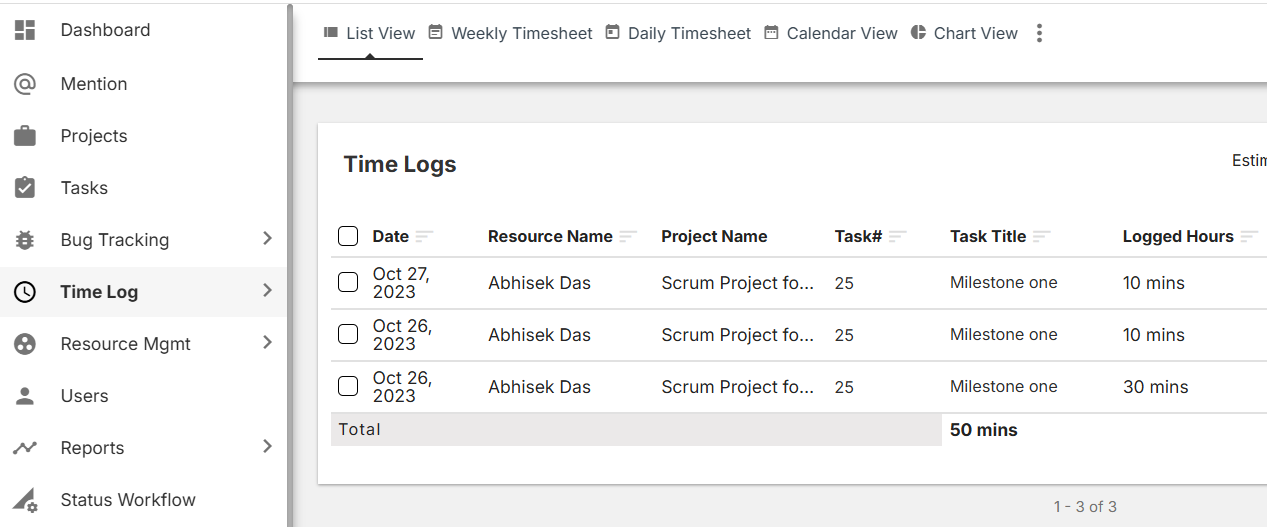
Wherever you’re working, you can log hours without leaving your task or project workspace.
How to Log Time
- Navigate to your project or task.
- Click Log Time or Add Time Entry.
- Fill in the required details:
- Date: When the work was done.
- User / Resource: Who performed the work.
- Task: The associated work item.
- Hours Spent: Actual duration.
- Description / Notes: Brief summary of the work completed.
- Billable or Non-Billable: Select based on client agreements.
- Click Save to record your time entry.
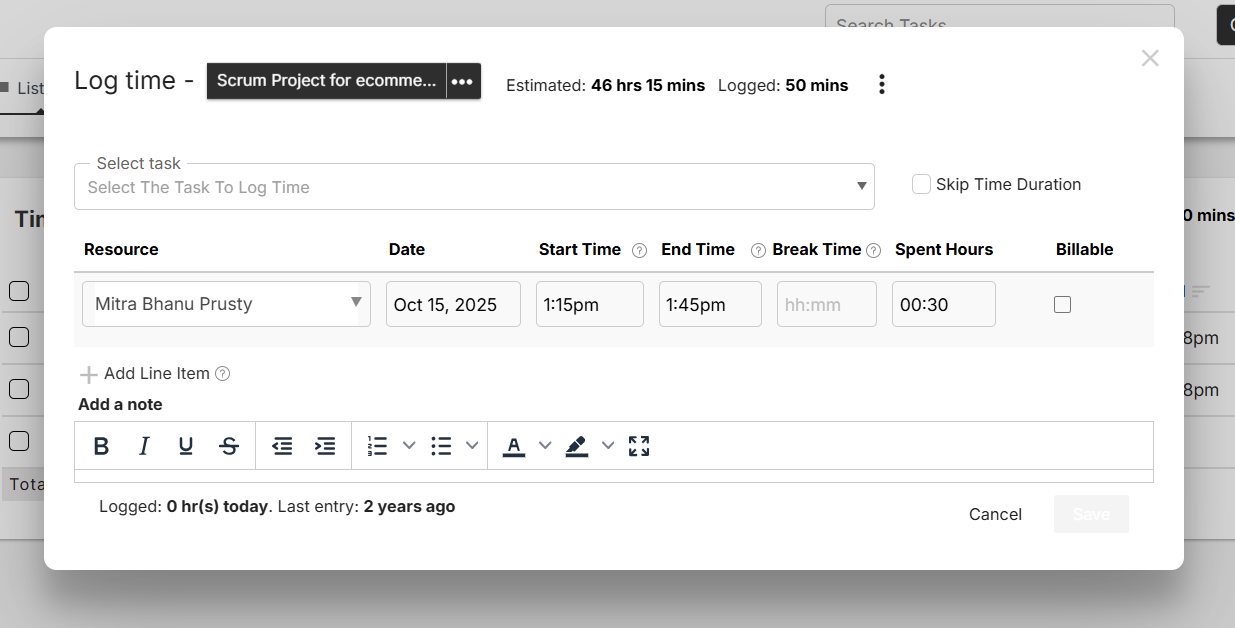
Admins and project owners can also log or edit time entries for their team members.
Using the Timer
Prefer real-time tracking? Use Orangescrum’s Live Timer to capture your work duration automatically.
- Open a task and click Start Timer.
- Work on your task — the timer runs in the background.
- Click Stop Timer once done.
- Review and confirm the logged hours before saving.
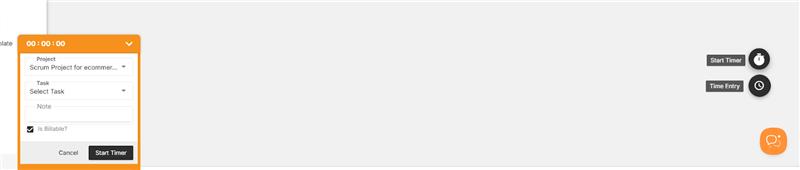
This method ensures accuracy without manual entry errors.
Daily & Weekly Timesheets
Orangescrum automatically compiles all your time logs into Timesheets that can be reviewed daily or weekly.
| View | Description |
| Daily Timesheet | Displays the total hours logged each day, by user or project. |
| Weekly Timesheet | Summarizes hours logged over a full week for performance analysis. |
| User Timesheet | Shows all time entries of an individual user. |
| Project Timesheet | Consolidates hours spent on tasks within a specific project. |
Managers can review, approve, or reject entries before billing.
Comparing Estimated vs. Actual Hours
When you create tasks, you can define Estimated Hours for planning purposes.
As your team logs actual work hours, Orangescrum automatically compares them to highlight deviations.
- If Actual > Estimated, the task shows an overrun alert.
- If Actual < Estimated, the team is ahead of schedule.
This visibility helps you forecast more accurately and improve future estimations.
Billable vs. Non-Billable Hours
While logging time, you can mark entries as Billable (client-invoiced) or Non-Billable (internal effort).
This distinction helps in:
- Generating client invoices
- Calculating utilization percentages
- Reporting internal vs. revenue-generating hours
Billable tracking ensures no revenue leakage in project billing.
Time Tracking Permissions
| Role | Permission |
| Admin | View, add, edit, and delete all time logs. |
| Project Owner | Manage time logs for their own projects. |
| User | Log and edit their own time entries. |
| Client | View project-level timesheets (if enabled). |
Access controls ensure time data remains secure and accurate.
Time Reports
Generate in-depth reports to monitor productivity and costs:
| Report Type | Description |
| Weekly Usage Report | View total logged hours across projects. |
| User Time Report | Breakdown of each team member’s effort. |
| Task Time Report | Time spent on each task. |
| Billable vs. Non-Billable Report | See revenue-related hours vs. internal work. |
| Project Estimation vs. Actual Report | Compare estimated effort to actual performance. |
All reports can be exported to CSV or PDF for management or client sharing.
Integrations for Time Tracking
Enhance your time management workflow with integrations:
- Slack: Log and get reminders directly from Slack channels.
- Google Calendar: Sync task deadlines with your calendar.
- Zapier: Automate time log updates across tools.
- OneDrive: Attach related timesheet files for client reports.
Integrations make your time tracking effortless and connected.
Best Practices for Effective Time Tracking
- Encourage team members to log time daily.
- Use clear task titles and descriptions for context.
- Review timesheets weekly to catch anomalies early.
- Separate billable and non-billable hours for accurate billing.
- Analyze overruns to improve project estimates.
Consistent time tracking builds reliability and supports transparent reporting.
Troubleshooting
If you face issues with time logging or reports:
- Ensure you have permissions for the selected project.
- Check your browser time zone matches your Orangescrum settings.
- Refresh the page or clear browser cache.
- Reconnect integrations (Slack/Zapier) if automation fails.
- Contact Orangescrum Support if the issue persists.
Summary
| Feature | Description |
| Time Logging | Record billable and non-billable work hours. |
| Live Timer | Track work in real time. |
| Timesheets | Review daily and weekly summaries. |
| Reports | Analyze productivity and project effort. |
| Integrations | Connect with Slack, Zapier, Calendar, and more. |
With Orangescrum Time Tracking, you gain precision, accountability, and clarity — turning every hour into measurable progress.