The Email Reports section in Orangescrum Cloud allows users to configure automated reports that provide regular insights into task progress, team utilization, and overall project performance.
These reports help project managers, team leads, and stakeholders stay informed — without logging into the system frequently.
Email Reports make sure you never miss key updates, helping you plan resources and timelines efficiently.
Types of Email Reports
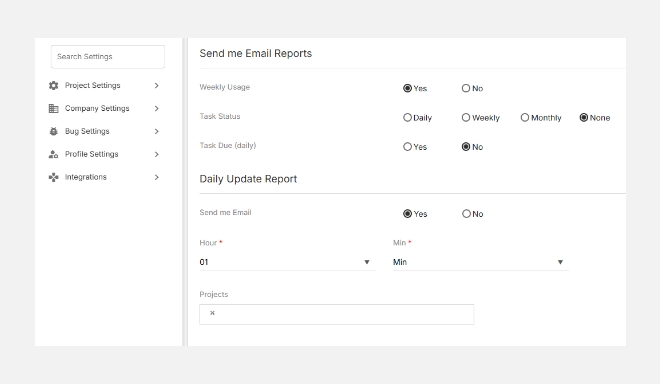
Weekly Usage Report
Keep track of workspace usage and task activity over time.
You can choose how often you’d like to receive this report:
| Option | Description |
| Daily | Receive usage insights every day. |
| Weekly | Get a weekly summary of project and task activity. |
| Monthly | Receive a monthly overview of your workspace usage. |
| None | Disable weekly usage reports. |
Task Reports
Stay informed about task progress and deadlines through automated updates.
- Task Status Report – Get task completion and status summaries.
- Task Due (Daily) – Receive reminders for upcoming or overdue tasks every day.
You can turn these reports ON (Yes) or OFF (No) based on your preference.
Daily Update Report
This option allows you to receive a daily snapshot of all activities performed in your workspace, such as new tasks, comments, or progress updates.
| Field | Description |
| Send me Email | Enable/disable daily updates across all assigned tasks and projects. |
Management Reports
Enable management-level reporting to monitor project progress against planned metrics.
| Field | Description |
| Send Project Estimation vs Actual | Sends a report comparing estimated vs. actual task hours to evaluate project efficiency. |
Useful for project owners, PMs, and stakeholders tracking time utilization and budget variance.
Team Utilization Reports
Measure how effectively your team’s time is being utilized.
| Field | Description |
| Send Team Utilization Report | Enables automatic delivery of team performance and time utilization data. |
| Choose a day for sending notification | Pick a day of the week when you’d like to receive this report. |
| Notify To | Choose who receives the report |
| Compare with actual hours | Choose whether the report should reflect |
These reports provide valuable insights into workload balance, productivity, and time allocation.
How to Configure Email Reports
- Navigate to Settings → Profile Settings → Email Reports.
- Choose which reports you want to receive by selecting Yes or No.
- Set the frequency (Daily, Weekly, Monthly).
- Assign recipients if applicable (Owner/Admin).
- Click Update to save your preferences.
Best Practices
✅ Enable Weekly Usage Reports for consistent project health tracking.
✅ Activate Task Due (Daily) to avoid missed deadlines.
✅ Use Estimation vs Actual and Team Utilization Reports to improve project accuracy and forecasting.
✅ Review your settings monthly to ensure reports align with your current role or needs.
With Email Reports in Orangescrum Cloud, you get actionable insights delivered automatically — helping you stay proactive, informed, and always in control of your projects.