The Quick Links Settings in Orangescrum Cloud let you customize which shortcuts appear in your top navigation menu.
These quick links provide one-click access to essential tools like creating new projects, checking reports, tracking resources, or managing company-wide settings — all from anywhere in your workspace.
Think of Quick Links as your personal control panel — helping you reach your most-used modules faster.
Categories of Quick Links
Quick Links are organized into four major sections for better customization and visibility.
| Category | Description |
| New | Create or add new items quickly such as projects, tasks, users, or invoices. |
| Analytics | Access time, usage, and performance reports instantly. |
| Others | Navigate to general tools like Gantt charts, templates, activities, or calendars. |
| Company Settings | Jump directly to workspace and configuration settings without switching menus. |
New
The New section provides shortcuts to create new records within Orangescrum.
| Option | Description |
| Project | Create a new project instantly. |
| User | Add new users to your workspace. |
| Task / Task Group | Quickly add tasks or group them under phases. |
| Time Entry | Log work hours directly. |
| Start Timer | Start real-time time tracking. |
| Invoice | Generate a new invoice for a project. |
Toggle “All/None” to select or deselect all creation shortcuts at once.
Analytics
This section gives quick access to performance, utilization, and productivity insights.
| Option | Description |
| Hours Spent | Review total logged hours per user or project. |
| Task Reports | Generate and view reports on task progress. |
| Weekly Usage | Monitor overall workspace activity. |
| Resource Utilization / Availability | Analyze workload and identify free capacity. |
| Pending Task | View tasks still awaiting completion. |
| Weekly / Daily Timesheet | Access summarized or detailed timesheet views. |
Ideal for managers and team leads tracking team performance.
Others
The Others section gives access to essential productivity tools and visual aids.
| Option | Description |
| Archive | Access archived projects or tasks. |
| Template | Manage saved task or project templates. |
| Gantt Chart | Visualize project timelines and dependencies. |
| Activities | View recent activity logs and updates. |
| Calendar | See upcoming deadlines and events. |
Company Settings
Get direct shortcuts to key configuration modules.
| Option | Description |
| My Company | Manage your company information and workspace identity. |
| Daily Catch-Up | Access daily progress summaries. |
| Import & Export | Upload or download project/task data in bulk. |
| Task Type / Manage Labels | Customize how tasks are categorized. |
| Invoice / Task / Resource Settings | Manage project billing, task defaults, and resource configuration. |
Use this section to quickly reach admin-level settings.
How to Customize Quick Links
- Go to Settings → Profile Settings → Quick Links.
- Review each category (New, Analytics, Others, Company Settings).
- Check or uncheck the boxes beside each feature to show or hide it.
- Click Save to apply your preferences.
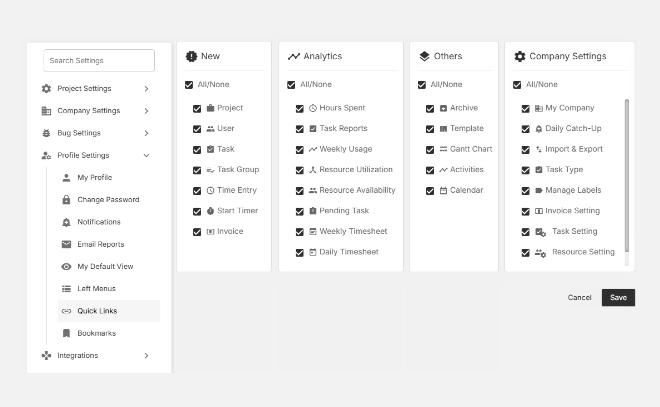
Your selected shortcuts will appear as icons under the Quick Links menu at the top of your Orangescrum workspace.
Benefits
✅ Faster Navigation – Access frequently used features in one click.
✅ Role-based Control – Customize links depending on whether you’re a team member, project lead, or admin.
✅ Simplified Workflow – No need to switch menus or search for common actions.
With Quick Links in Orangescrum Cloud, your most important tools are always one click away — saving time and keeping your workflow seamless.