The Notification Settings section in Orangescrum Cloud allows you to customize how and when you receive updates related to your projects and tasks.
You can choose between email notifications and desktop notifications to stay on top of all important activities — from new tasks to comments and status changes.
This feature helps ensure you never miss critical updates while keeping your inbox and workspace clutter-free.
Adjusting notification preferences gives you complete control over the alerts you receive — whether you prefer instant updates or minimal interruptions.
Types of Notifications
1. Email Notifications
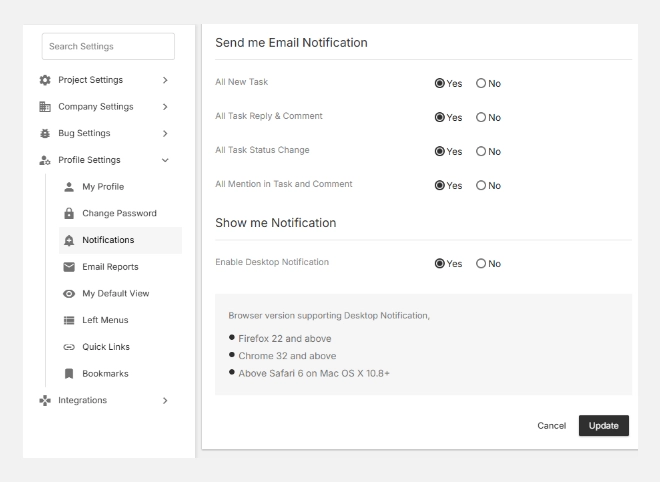
Receive instant email alerts for important events in your projects. You can enable or disable any of the following:
| Notification Type | Description |
| All New Task | Get notified every time a new task is created and assigned to you or your project. |
| All Task Reply & Comment | Receive emails when someone replies to or comments on a task you’re part of. |
| All Task Status Change | Stay informed whenever the task status changes (e.g., In Progress → Completed). |
| All mentions in the Task and Comment | Receive notifications whenever someone mentions you using @yourname in tasks or comments. |
To modify these, simply select Yes or No next to each option.
2. Desktop Notifications
Stay updated directly from your browser without checking your email.
Turn on Enable Desktop Notification to receive alerts for new tasks, comments, or mentions while working.
Supported browser versions include:
- Firefox v22 and above
- Chrome v32 and above
- Safari v6 (Mac OS X 10.8+) and above
Make sure browser notifications are allowed for Orangescrum Cloud in your browser settings.
How to Update Notification Settings
- Go to Settings → Profile Settings → Notifications.
- Choose Yes or No for each email notification option.
- Enable or disable desktop notifications as needed.
- Click Update to save your preferences.
Best Practices
✅ Keep Task Status and Mentions notifications enabled to stay in sync with your team.
✅ Use desktop notifications if you prefer quick updates without opening your inbox.
✅ Review notification settings periodically to match your current workflow.
With Notification Settings in Orangescrum Cloud, you can balance awareness and focus — staying informed about what matters most, without unnecessary distractions.