Project Management

Plan smarter, collaborate faster, and deliver projects on time — every time.

Orangescrum Cloud is an all-in-one project management and collaboration platform designed to help teams plan, track, and deliver projects seamlessly — from concept to completion.

Whether you’re managing client projects, internal initiatives, or agile sprints, Orangescrum gives you the visibility, control, and tools you need to stay on track and hit every milestone.

From task creation to time tracking and reporting — manage your entire project lifecycle in one place.

Key Features of Orangescrum Project Management

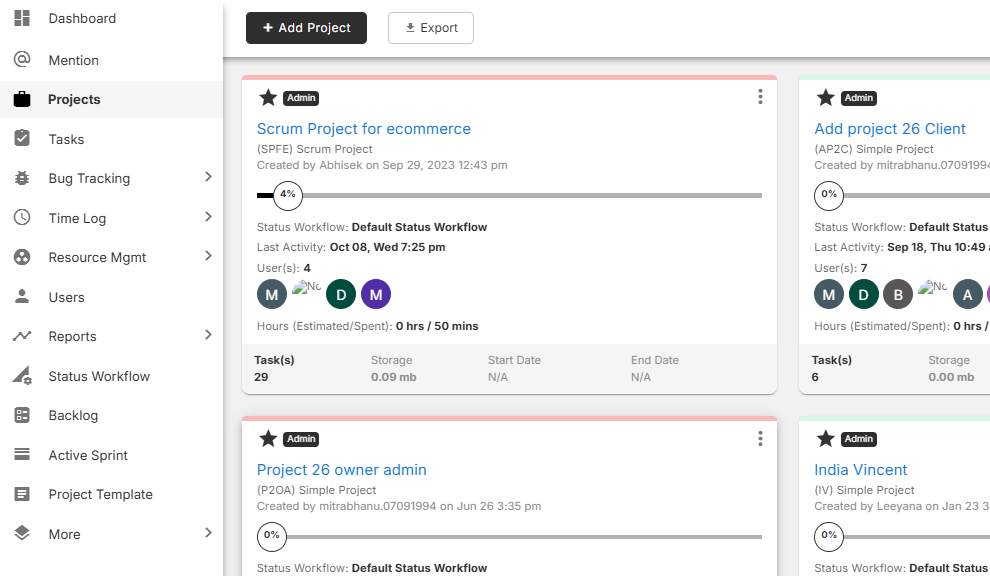
Project Dashboard: Get a bird’s-eye view of all your projects, with instant access to progress summaries, active tasks, resources, and deadlines.

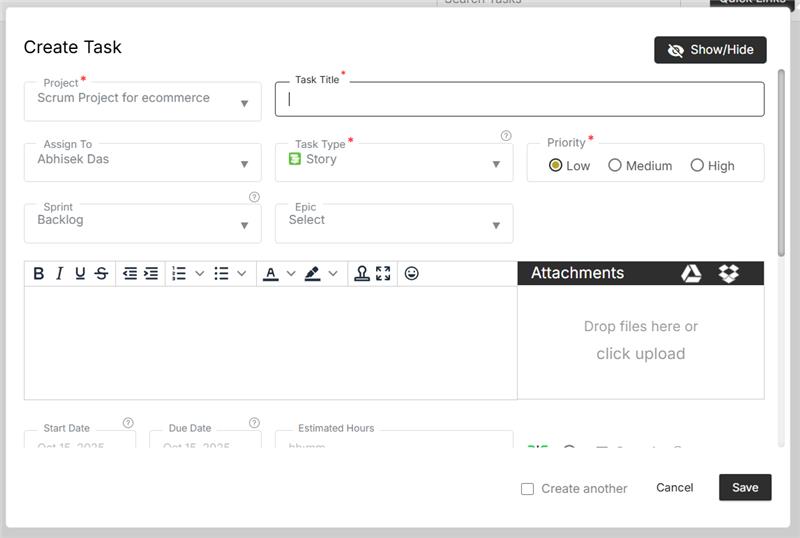
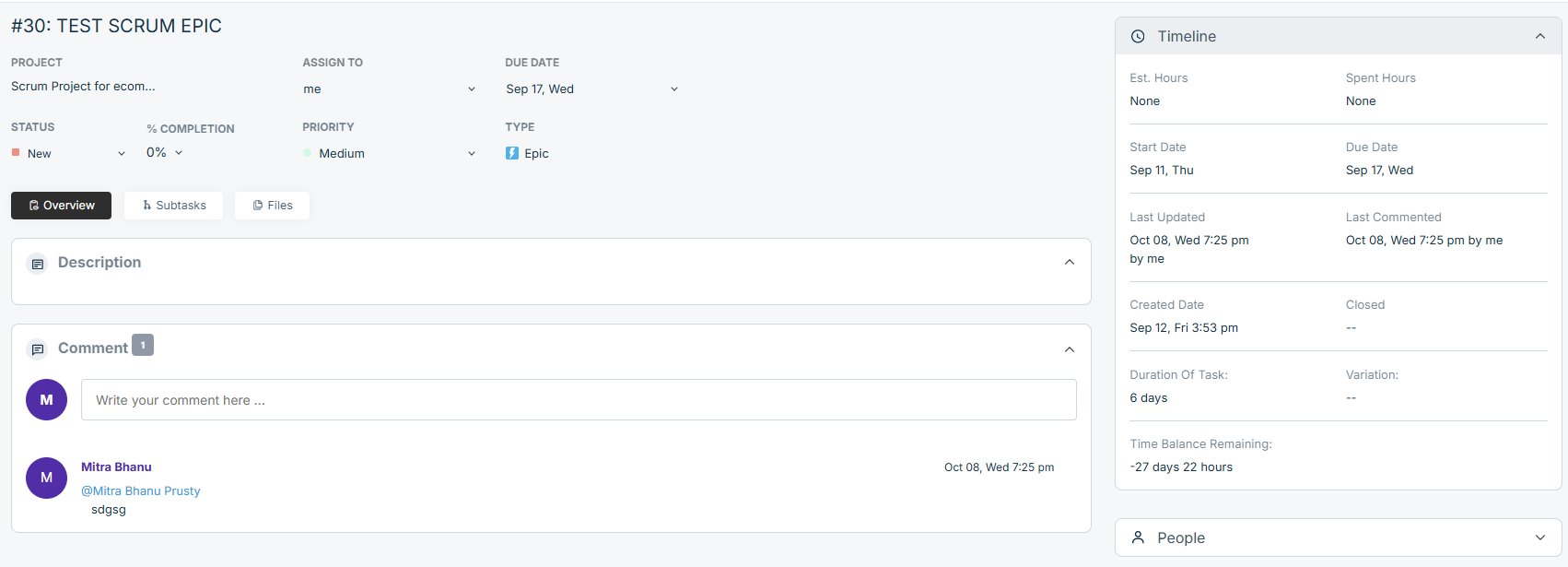
Task Management: Create, assign, and prioritize tasks. Break complex work into subtasks and use Kanban or List views to track progress easily.

Gantt Charts: Visualize your project timelines and dependencies. Reschedule tasks with drag-and-drop simplicity and keep delivery dates realistic.

Time Tracking: Log hours manually or with timers to monitor resource productivity and project billing accuracy.

Resource Management: Track workloads, balance team availability, and ensure no resource is over or underutilized.

Collaboration Tools: Communicate in real time through comments, file attachments, mentions, and activity feeds — all within the project workspace.

Agile Board: For teams running sprints — plan, execute, and review with agile boards, burndown charts, and velocity tracking.

Reports & Analytics: Generate insightful reports on project progress, productivity, and cost — helping you make data-driven decisions.

How to Create a Project in Orangescrum Cloud

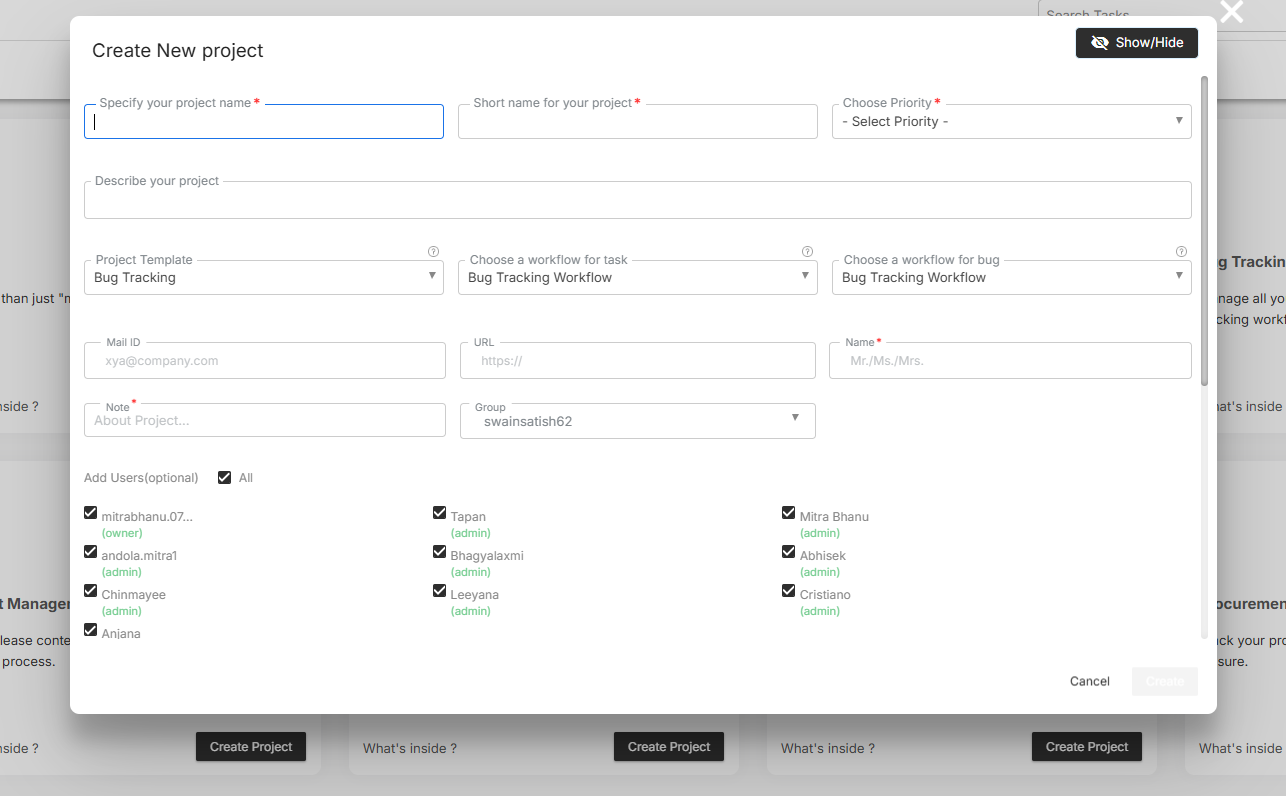
  • Navigate to Projects → Create New Projects.

  • Enter essential details:
    • Project Name
    • Start & End Dates
    • Client/Owner
    • Team Members
    • Billing Type (if applicable)
  • Add a Project Description and attach related files or notes.
  • Click Save — your project workspace is now active!
  • Start adding tasks, milestones, or discussions immediately.

You can create unlimited projects and organize them by department, client, or program.

Understanding the Project Dashboard

The Project Dashboard is your command center — displaying all active and archived projects in one place.

Section Description
Project Cards Display key details such as title, owner, due date, and status.
Progress Bar Shows completion percentage based on closed vs. open tasks.
Filters Sort projects by owner, status, client, or due date.
Quick Actions Edit, duplicate, or archive projects directly from the dashboard.

Use search and filters to locate specific projects in seconds.

Managing Tasks Inside a Project

Within each project, tasks form the foundation of execution.

You can:

  • Add tasks with due dates and priority levels.
  • Assign tasks to team members.
  • Use task groups or milestones for structured breakdowns.
  • Switch between List, Kanban, Calendar, or Gantt views for flexibility.
  • Track updates through activity streams and comments.

Every task can include attachments, checklists, and dependencies to ensure nothing falls through the cracks.

Collaborating with Your Team

Collaboration in Orangescrum happens naturally within the project space.

  • Mention teammates using @username to alert them instantly.
  • Attach documents, spreadsheets, or designs directly from OneDrive, Google Drive, or local files.
  • Track all updates via real-time notifications.
  • Use the Discussion Tab for project-wide communication threads.

Keep all project-related communication organized — no more scattered chats or lost emails.

Monitoring Progress and Performance

Use the built-in analytics to ensure your project stays aligned with timelines and goals.

  • Project Summary Report: Task distribution, completion rate, and time utilization.
  • Task Status Report: Overview of pending, ongoing, and completed tasks.
  • User Productivity Report: Measure resource contributions and logged hours.
  • Timesheet Reports: Evaluate billable vs. non-billable time.

Orangescrum’s live dashboards help managers identify bottlenecks and reallocate resources instantly.

Roles & Permissions

Assign roles to maintain control over data and actions:

Role Access Level
Admin Full access to all projects, settings, and reports.
Project Owner Manages specific projects, tasks, and team assignments.
User Can view and manage assigned tasks.
Client / Guest Limited visibility — ideal for status tracking and feedback.

Custom role configurations are also supported in enterprise plans.

Integrations for Enhanced Project Management

Orangescrum Cloud integrates with your favorite tools to simplify project tracking and collaboration:

  • Slack: Real-time project updates.
  • OneDrive / Google Drive: File sharing.
  • Zapier: Workflow automation.
  • GitHub: Development updates.
  • Google Calendar: Sync deadlines and events.

Integrations help your teams stay connected and reduce manual updates.

Summary

Function Description
Project Dashboard View and manage all projects at a glance.
Task & Time Tracking Assign work, log hours, and monitor progress.
Reports Generate data-driven insights.
Collaboration Keep communication and files in one place.
Integrations Connect Orangescrum with Slack, Zapier, OneDrive, and more.

With Orangescrum Cloud, project management becomes simple, visual, and productive — empowering your team to deliver faster and smarter.

Import & Export

Moving project data from one tool to another can feel like a nightmare. Hours of manual entry, mismatched columns, broken timelines… It’s not fun.

This is where Orangescrum Imports makes things easy!

With Imports, you can bring everything over — Milestones, Sprints, Epics, Features, Stories, Tasks, Subtasks, Estimations, Due Dates, Timelogs, Project Plans, Templates, Budgets, Test Cases, and more — without typing it all in again. Just upload a file, and Orangescrum does the heavy lifting for you.

Sounds good? Let’s walk through it.

Why Use Orangescrum Imports?

Think about it:

  • You don’t need manual typing, which saves hours of boring data entry.
  • Onboarding is easy, so you can get started quickly with ready projects.
  • Bulk upload lets you move thousands of tasks in just minutes.
  • The process ensures accuracy by reducing human errors with a clean, pre-formatted template.
  • Your project data stays consistent and neatly aligned with Orangescrum’s structure.
  • You get flexibility to migrate from spreadsheets, tools, or even databases.
  • The system scales with you, whether you’re importing one project or an entire portfolio.
  • Data consistency is maintained, keeping all your historical records intact.
  • You save costs by reducing manual effort, errors, and rework.
  • Time-saving imports let you focus on execution instead of setup.
  • The process is future-proof since you can re-use templates whenever you want.

Whether you’re switching from another project management tool, moving away from messy spreadsheets, or setting up a brand-new workspace, Imports makes the process smooth.

What can you import to Orangescrum?

  1. Tasks
  2. Timelogs
  3. Customers
  4. Epics
  5. Test cases
  6. Task templates

Import Tasks

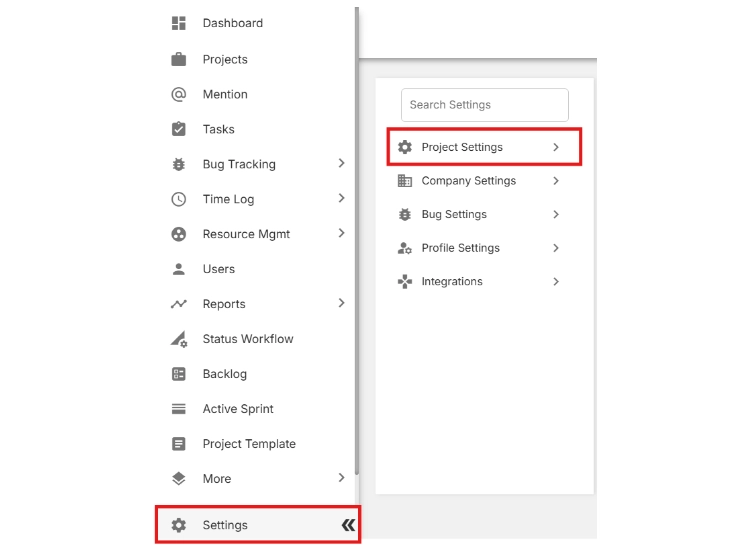
  • Login to your Orangescrum account.
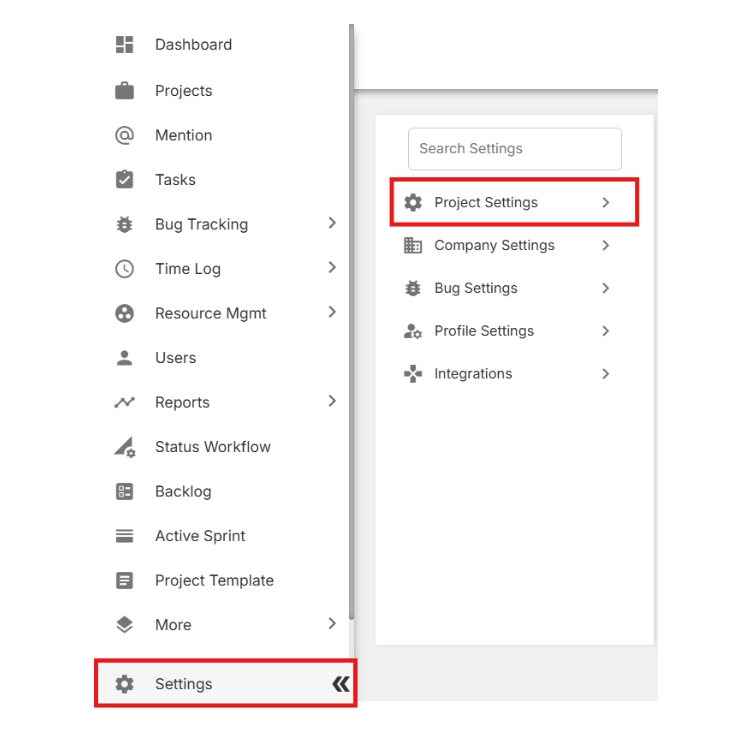
  • From the left-side menu, scroll to the bottom and click Settings.
  • Select Project Settings.

Import tasks in Orangescrum

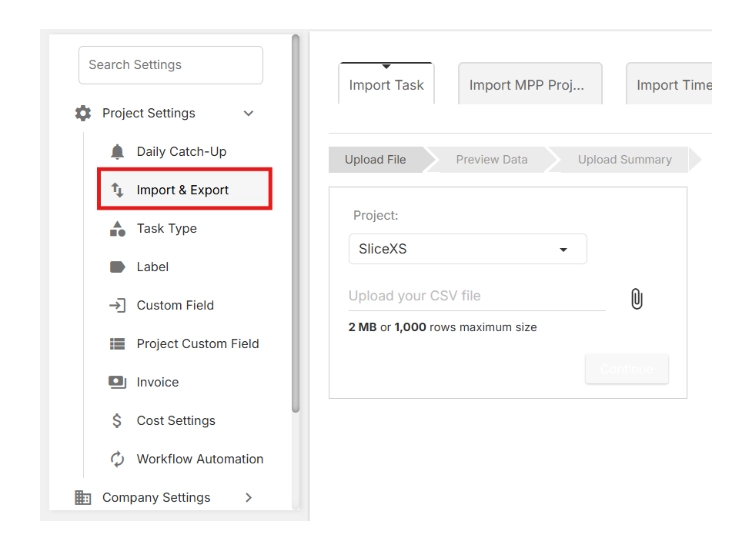
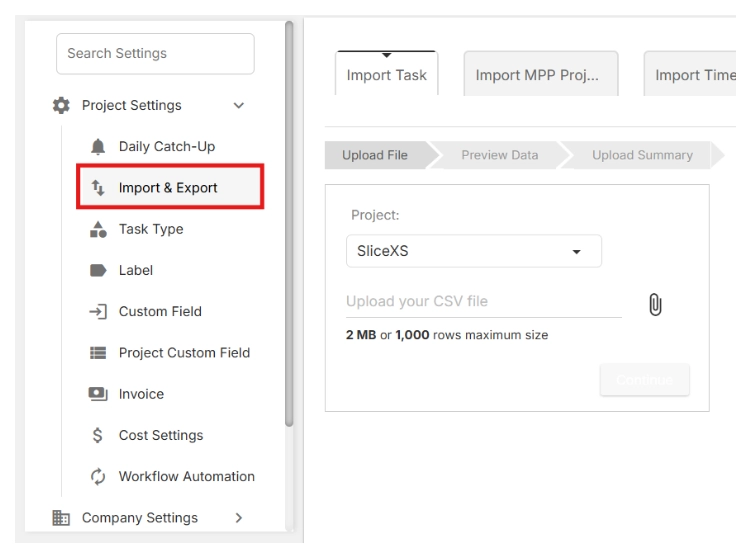
  •  Click on Import & Export.

Click on Import and Export

🔎 This is where you can both download the import template and upload your project data later.

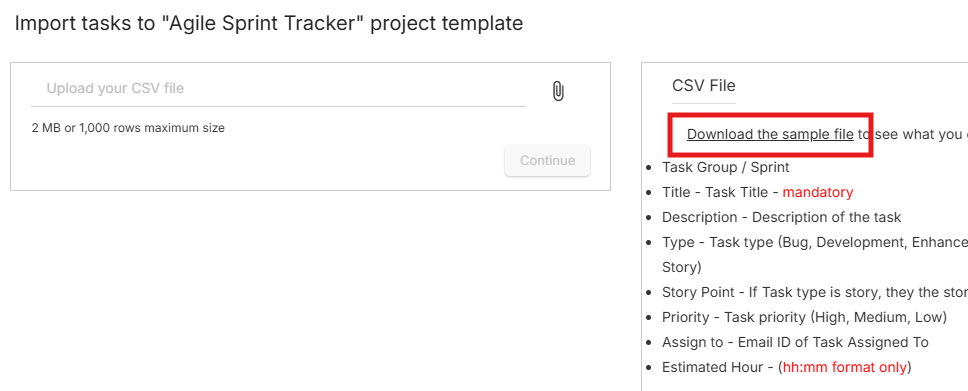
  • Click Download the sample file.

Click download the sample file

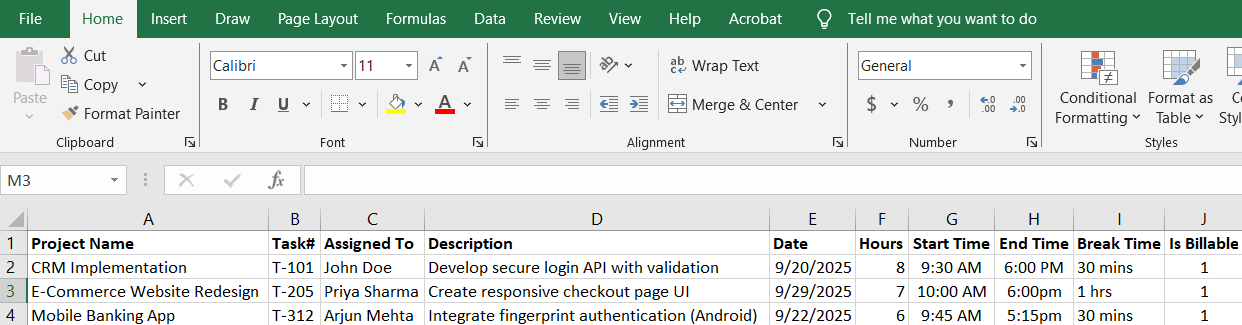
  • Open the file in your spreadsheet application (e.g., Excel, Google Sheets).

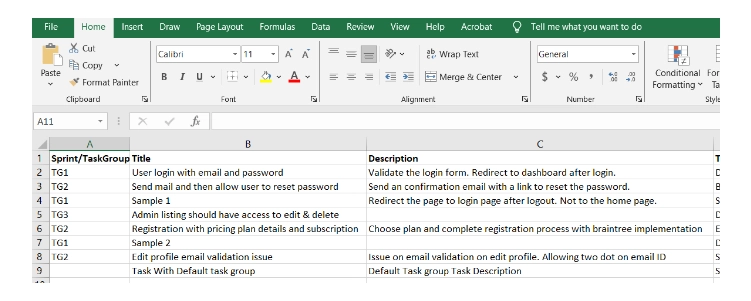
Complete the sample file with your project information. The file includes the following columns:

  • Project
  • Sprint
  • Task#
  • Parent
  • Title
  • Description
  • Start Date
  • Due Date
  • Status
  • Type
  • Assigned To
  • Priority
  • Created By
  • Estimated Hours
  • Label
  • Start Time
  • End Time
  • Break Time
  • Is Billable
  • Project Start Date
  • Project End Date

Sample file

Make sure your data matches the format provided in the sample file to avoid errors during import.


💡 Tip: Always start with this template to avoid formatting errors during the import process.

  • Return to the Import & Export page.
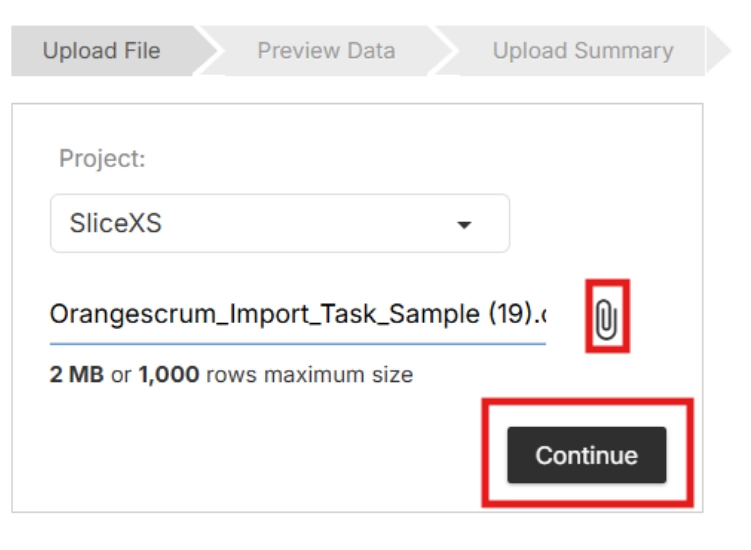
  • Click the Upload icon, then select your completed file.
  • Click Continue.

Import file

📂 Orangescrum will now validate your file to ensure the data is properly structured.

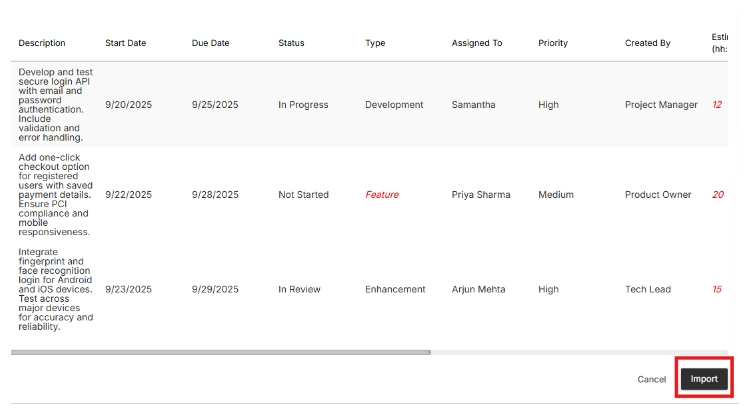
  • Review the preview of your uploaded data.
  • If everything looks correct, click Import to finalize.

view imported data

📂 Orangescrum will now validate your file to ensure the data is properly structured.

Import Timelogs

  • Login to your Orangescrum account.
  • From the left-side menu, scroll to the bottom and click Settings.
  • Select Project Settings.

Access project settings

  • Click on Import & Export.

Click on import and export

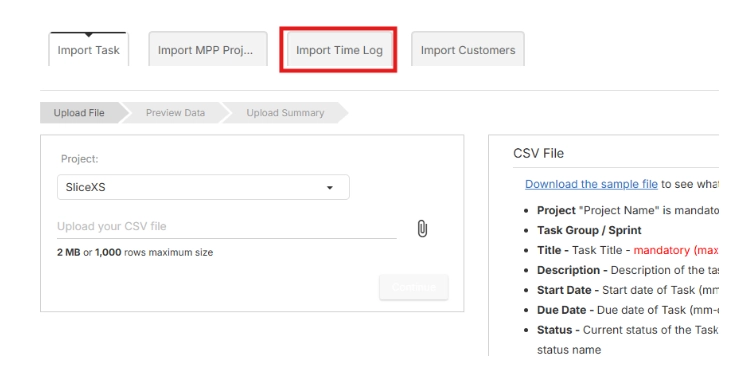
  • Click on the tab Import Time Log

Import timelog

  • Click Download the sample file.


  • Open the file in your spreadsheet application (e.g., Excel, Google Sheets).
  • Complete the sample file with your project information. It includes fields such as project name, task number, assigned to, description, date, hours etc.

Make sure your data matches the format provided in the sample file to avoid errors during import.

💡 Tip: Always start with this template to avoid formatting errors during the import process.

  • Return to the Import & Export page.
  • Click the Upload icon, then select your completed file.
  • Click Continue.

Upload timelog


📂 Orangescrum will now validate your file to ensure the data is properly structured.

  • Review the preview of your uploaded data.
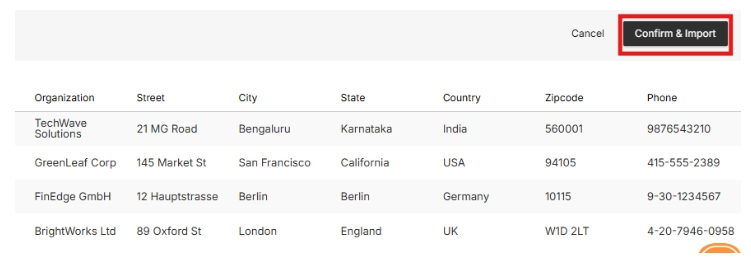
  • If everything looks correct, click Import to finalize.

Confirm Import

📂 Orangescrum will now validate your file to ensure the data is properly structured.

Import Customers

  • Login to your Orangescrum account.
  • From the left-side menu, scroll to the bottom and click Settings.
  • Select Project Settings.

Import customers

  • Click on Import & Export.

Import and Export customers

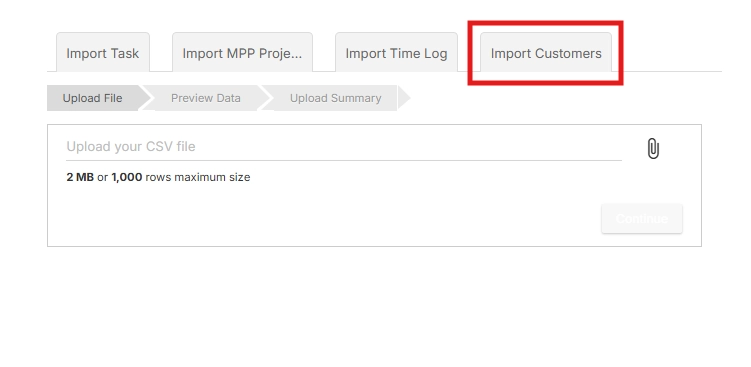
  • Click on the tab Import Customers

Import customers

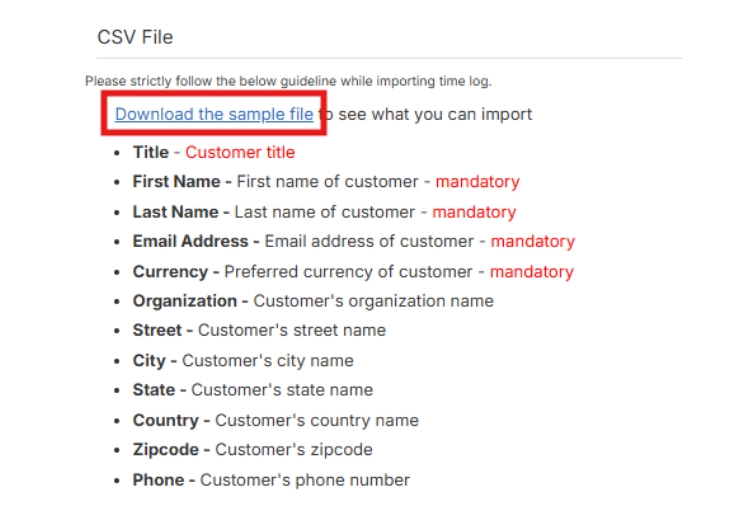
  • Click Download the sample file.

Download the CSV file

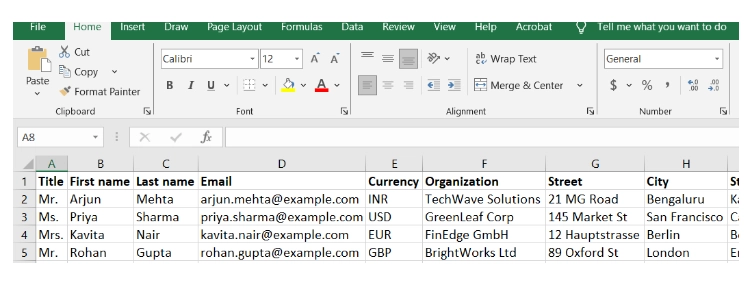
  • Open the file in your spreadsheet application (e.g., Excel, Google Sheets).
  • Complete the sample file with your project information. It includes fields such as project name, task number, assigned to, description, date, hours etc.

Upload customers

Make sure your data matches the format provided in the sample file to avoid errors during import.

💡 Tip: Always start with this template to avoid formatting errors during the import process.

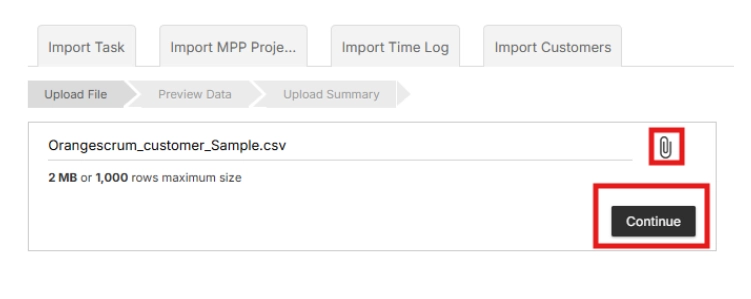
  • Return to the Import & Export page.
  • Click the Upload icon, then select your completed file.
  • Click Continue.

Upload document

📂 Orangescrum will now validate your file to ensure the data is properly structured.

  • Review the preview of your uploaded data.
  • If everything looks correct, click Import to finalize.

Review imports

📂 Orangescrum will now validate your file to ensure the data is properly structured.

Import EPICs

  • Login to your Orangescrum account.
  • From the left-side menu, scroll to the bottom and click Settings.
  • Select Project Settings.

Access EPIC settings

  • Click on Import & Export.

Import & Export file

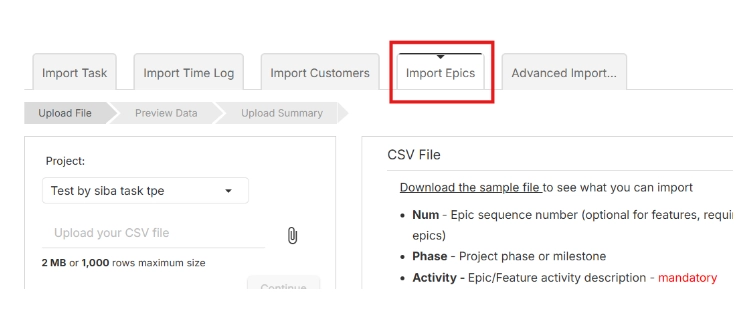
  • Click on the tab Import Epics

Import EPICs

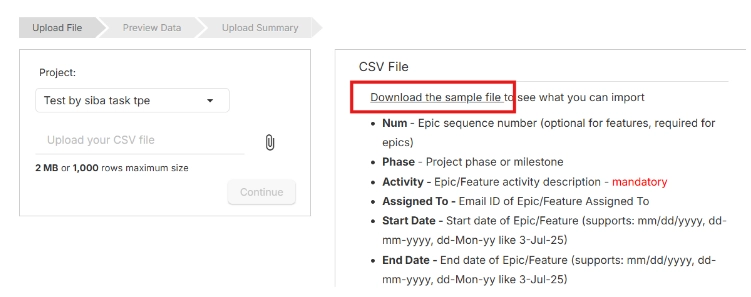
  • Click Download the sample file.

Download sample file

  • Open the file in your spreadsheet application (e.g., Excel, Google Sheets).
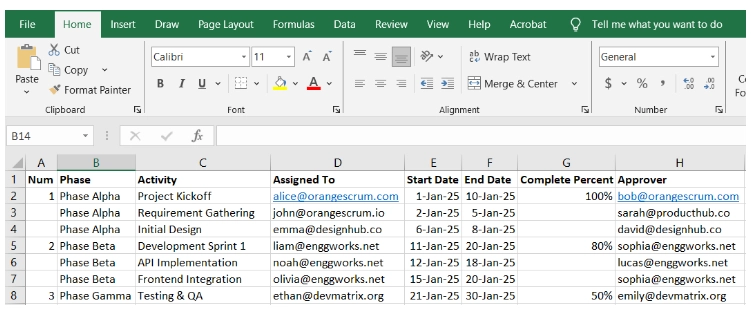
  • Complete the sample file with your project information. It includes fields such as project name, task number, assigned to, description, date, hours etc.

Sample file

  • Make sure your data matches the format provided in the sample file to avoid errors during import.

💡 Tip: Always start with this template to avoid formatting errors during the import process.

  • Return to the Import & Export page.
  • Click the Upload icon, then select your completed file.
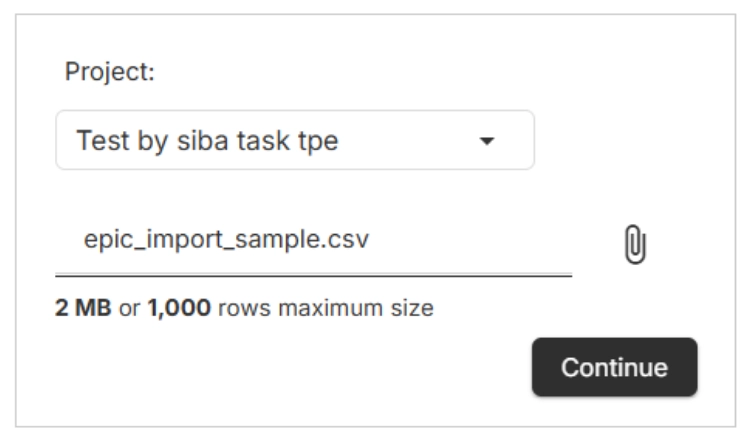
  • Click Continue.

Import and export documents

📂 Orangescrum will now validate your file to ensure the data is properly structured.

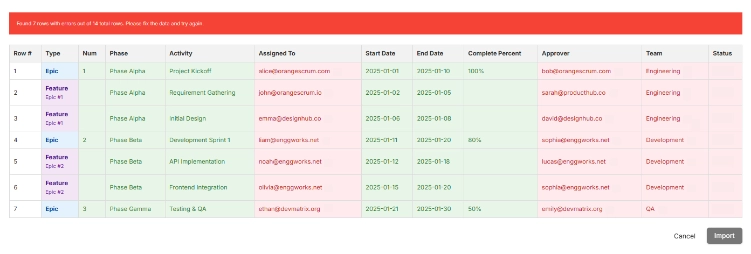
  • Review the preview of your uploaded data.
  • If everything looks correct, click Import to finalize.

Map imports

📂 Orangescrum will now validate your file to ensure the data is properly structured.

Import Test Cases

  • Login to your Orangescrum account.
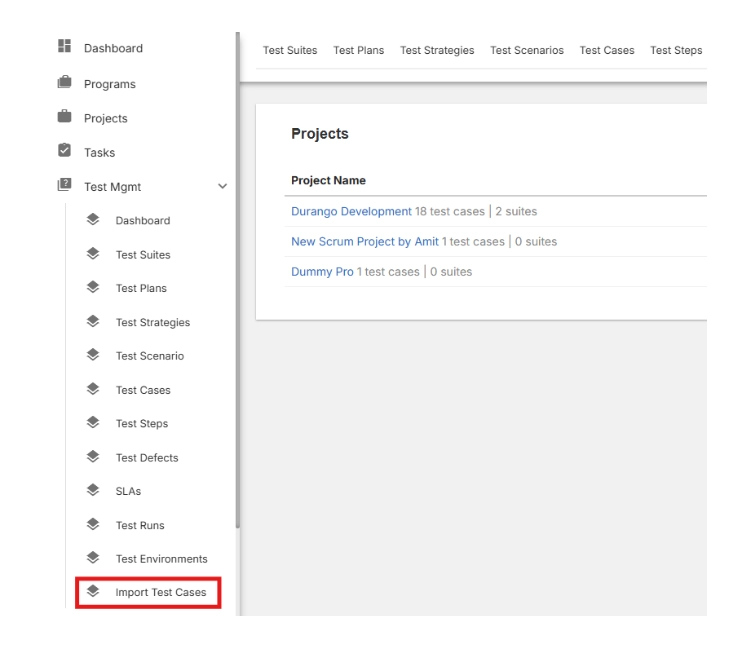
  • From the left-side menu, and navigate to Test Management.

Import test cases

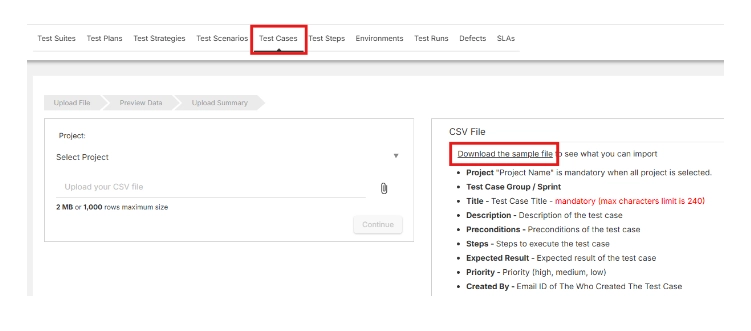
  • From the dropdown click on Import Test Cases.
  • Next click on Download the sample file.

Download sample test case file

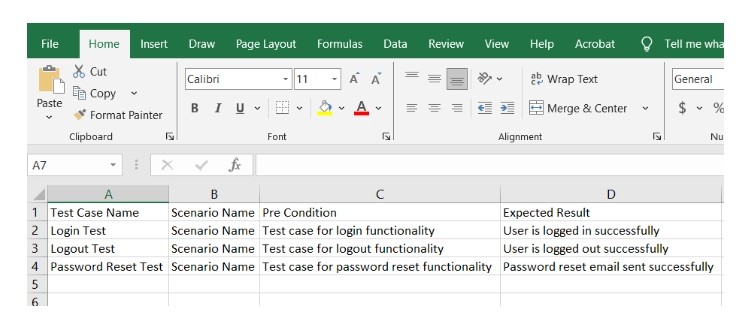
  • Open the file in your spreadsheet application (e.g., Excel, Google Sheets).
  • Complete the sample file with your project information. It includes fields such as project name, task number, assigned to, description, date, hours etc.

Test case management

  • Make sure your data matches the format provided in the sample file to avoid errors during import.
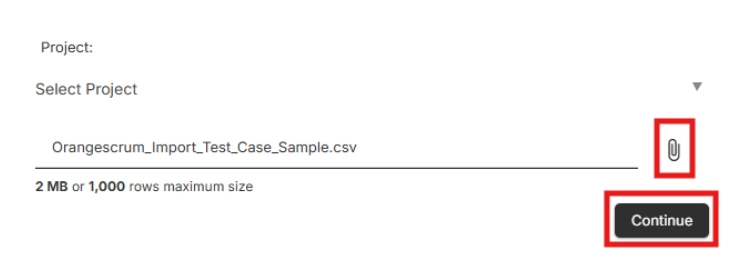
  • Return to the Import & Export page.
  • Click the Upload icon, then select your completed file.
  • Click Continue.

Orangescrum test case sample file

📂 Orangescrum will now validate your file to ensure the data is properly structured.

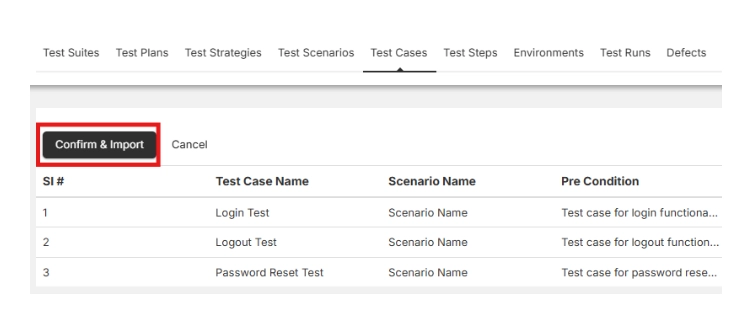
  • Review the preview of your uploaded data.
  • If everything looks correct, click Import to finalize

Confirm and import

📂 Orangescrum will now validate your file to ensure the data is properly structured.

Import Project Templates?

  • Login to your Orangescrum account.
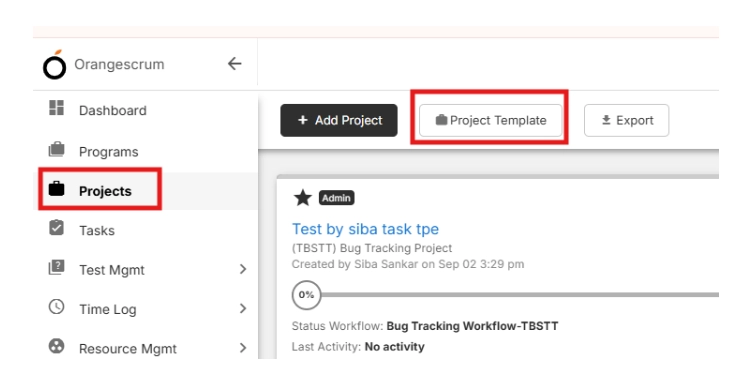
  • From the left-side menu, and navigate to Projects.
  • From the top tabs click on Project Template.

Project template

  • Navigate to ‘+Template’ on the top right.
  • Give a ‘Project Template’ name and a ‘Description’ → Click on Save & Continue

Add templates

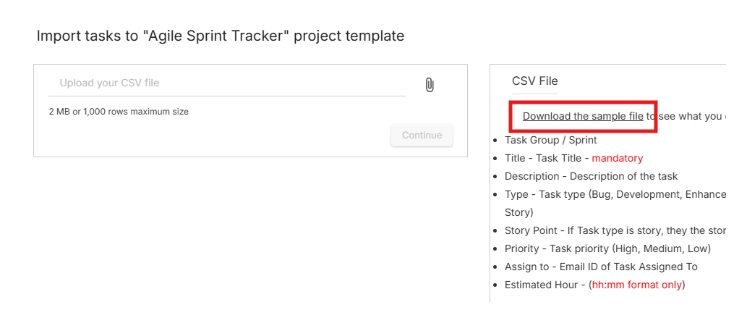
  • On the top right corner click on Import Task

Project template save and continue

  • Next click on Download the sample file.

Download the sample file

  • Open the file in your spreadsheet application (e.g., Excel, Google Sheets).
  • Complete the sample file with your project information. It includes fields such as project name, task number, assigned to, description, date, hours etc.
  • Make sure your data matches the format provided in the sample file to avoid errors during import.

Upload project document

  • Return to the New Template page.
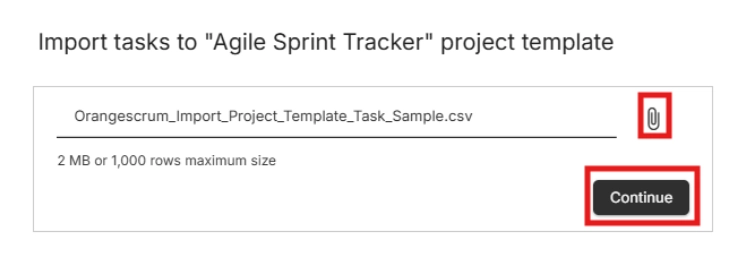
  • Click the Upload icon, then select your completed file.
  • Click Continue.

Upload document

  • In the next page click on Save

📂 Orangescrum will now validate your file to ensure the data is properly structured.

Other Ways to Import Data

Sometimes a file upload isn’t enough. That’s why Orangescrum also supports:

  • API Import → Connect external tools directly. Perfect for automation.
  • Database-to-Database Import → If you’re migrating from a legacy system, we can help map and transfer your data directly between databases.
  • Third-Party Integrations → Use Zapier or other connectors to automatically sync data.
  • Custom Migration Services → Our team can help if your setup is complex.

No matter how your data is structured, we’ve got a way to bring it in.

FAQs about Orangescrum Import

Q1. What type of data can I import into Orangescrum?

You can import milestones, sprints, epics, stories, tasks, subtasks, timelogs,  budgets, project plans, templates, and even test cases.

Q2. Do I always need to use the sample file?

Yes. The sample file ensures your data follows Orangescrum’s format, preventing errors during import.

Q3. Can I import directly from Excel or Google Sheets?

Yes. Just fill the sample file using Excel or Google Sheets, save it, and upload.

Q4. Is there a data limit for import?

You can import large volumes of tasks and projects. For enterprise-scale imports, we recommend API or DB-to-DB migration.

Q5. Can I undo an import if I make a mistake?

Yes. You can delete imported projects or tasks and re-upload them correctly.

Q6. How do I import from another project management tool?

Export data from your old tool into CSV/Excel → Match it with Orangescrum’s sample file → Upload. For complex systems, use API or database migration.

Q7. Can I automate imports?

Yes. Using Orangescrum’s API or integrations like Zapier, you can automate imports and sync data regularly.

Q8. Will my task hierarchy (parent/child) be maintained?

Yes. The “Parent” column in the template ensures subtasks are linked correctly.

Q9. What happens if my file has errors?

Orangescrum will validate your file and point out issues before import, so you can fix them.

Q10. Can Orangescrum help with custom migrations?

Absolutely. If you’re moving from a legacy system or have unique requirements, our team can help with DB-to-DB imports or custom scripts.

OneDrive Integration

The OneDrive Integration in Orangescrum Cloud allows teams to securely connect their Microsoft OneDrive account and manage project files directly within Orangescrum.

It enhances document collaboration, improves accessibility, and keeps your team’s resources organized in one central place — helping you move projects forward efficiently.

Connect Orangescrum with OneDrive to create, store, and share project files without switching between platforms.

Key Benefits

Centralized File Management: Access all project-related files in one place — no more searching across folders or emails.
Real-Time Collaboration: Share files and collaborate instantly with your team through OneDrive.
Secure Cloud Storage: All documents remain protected under Microsoft’s enterprise-grade cloud security.
Improved Productivity: Streamline workflows by linking files directly to projects, tasks, and discussions in Orangescrum.
Automatic Sync: Any updates made in OneDrive reflect instantly within your Orangescrum workspace.

How to Connect OneDrive to Orangescrum

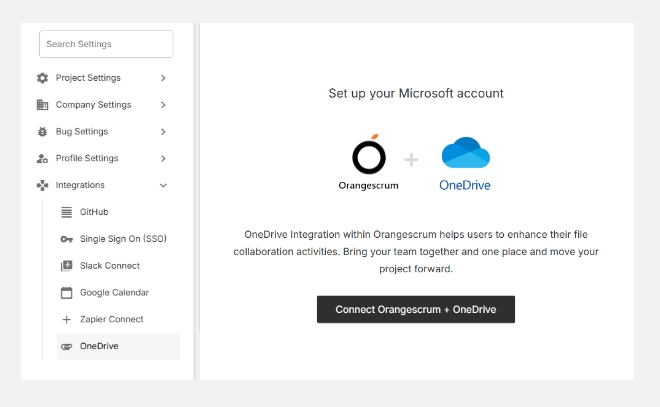
  1. Go to Settings → Integrations → OneDrive.
  2. Click the Connect Orangescrum + OneDrive button.
  3. Sign in with your Microsoft Account (personal, business, or enterprise).
  4. Grant Orangescrum the necessary permissions to access your OneDrive files.
  5. Once connected, you can attach, upload, or view files from OneDrive directly within tasks or projects.

How to connect onedrive to Orangescrum

After successful connection, your workspace will be linked with your OneDrive account for all future file operations.

What You Can Do with the Integration

Action Description
Attach Files Link files from OneDrive to Orangescrum tasks, projects, or discussions.
Upload Documents Upload project files directly into your OneDrive account through Orangescrum.
View Files Access and preview documents instantly from within the platform.
Collaborate in Real Time Edit shared files in OneDrive, and change sync automatically for all users.
Organize Resources Maintain version control and track updates easily.

Example Use Case

You’re managing a construction project in Orangescrum.

Instead of emailing blueprints or schedules, simply upload them to OneDrive and attach them to your Orangescrum project.

Your team can open, edit, and review files directly — ensuring everyone has the latest version without confusion or duplication.

Managing the Integration

  • Disconnect OneDrive: You can unlink the integration anytime to stop file synchronization.
  • Switch Account: Reconnect using a different Microsoft account if your organization structure changes.
  • Check Permissions: Ensure you’re logged into the correct Microsoft account with access rights to shared folders.

Security & Compliance

Orangescrum follows Microsoft’s secure OAuth protocol for authentication. Your files remain within OneDrive — Orangescrum only accesses them through authorized APIs. No documents are stored directly in Orangescrum servers.

Troubleshooting

If your OneDrive connection fails or files don’t appear:

  • Confirm your Microsoft credentials are valid.
  • Ensure you’ve granted Orangescrum access permissions.
  • Try logging out and reconnecting the account.
  • Check if OneDrive’s sharing settings restrict external app access.

For persistent issues, contact Orangescrum Support for assistance.

With OneDrive Integration, Orangescrum becomes your unified workspace — bringing together project management, file sharing, and collaboration under one secure roof.

Zapier Connect

The Zapier Connect Integration in Orangescrum Cloud lets you automate repetitive tasks by connecting Orangescrum with your favorite tools like Gmail, Google Sheets, Slack, Trello, HubSpot, Asana, or Microsoft Teams — all without writing a single line of code.

Using triggers and actions, Zapier helps you streamline workflows.

For example:

  • When a new task is created in Orangescrum, it can automatically be added to Google Sheets.
  • When a project is created, a notification can be sent to Slack.
  • When a new user joins your Orangescrum workspace, they can be automatically added to your CRM or HR app.

Think of Zapier as your personal automation assistant — linking Orangescrum to the rest of your business ecosystem.

Key Benefits

Save Time: Automate routine updates like task creation, project assignments, and user onboarding.
Boost Accuracy: Reduce manual entry errors by syncing data automatically between platforms.
Connect Everything: Integrate with 5,000+ tools, including CRM, HR, finance, and communication apps.
Focus on Work: Let Zapier handle admin updates so your team can focus on what matters most.

How to Set Up Zapier Connect

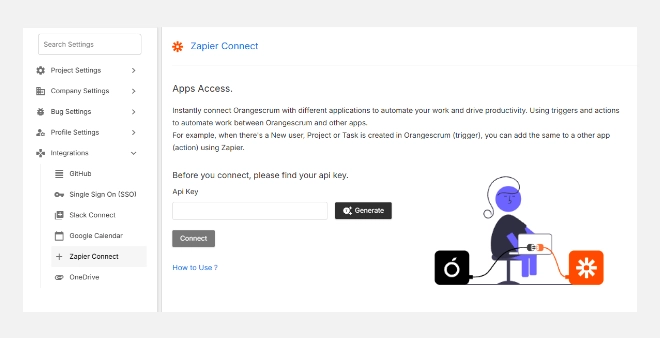
  1. Go to Settings → Integrations → Zapier Connect.
  2. Click Generate to create your unique API Key.
  3. Copy the key and paste it into your Zapier Orangescrum integration setup when prompted.
  4. Click Connect — your Orangescrum workspace will now be authorized to work with Zapier.
  5. Create your first “Zap” by choosing a Trigger (from Orangescrum) and an Action (in another app).

How to setup Zapier connect

Example: “When a new task is created in Orangescrum (Trigger), add a row to Google Sheets (Action).”

Common Use Cases

Here are some popular workflow automations (Zaps) you can create:

Automation Trigger Action
Track tasks in Google Sheets New task in Orangescrum Create row in Google Sheets
Notify team on Slack New project in Orangescrum Send Slack message
Add contacts to CRM New user in Orangescrum Add contact in HubSpot / Salesforce
Create Trello cards automatically Task created Add card in Trello
Save reports automatically New timesheet entry Add record in Google Drive / Airtable

With Zapier Connect, Orangescrum becomes the central hub of your workflow — seamlessly linking project management with every tool your business runs on.

Single Sign-On (SSO) Integration

The Single Sign-On (SSO) integration in Orangescrum Cloud enables users to securely access their workspace using existing organizational credentials.

It eliminates the need to remember multiple usernames and passwords, streamlining access while enhancing security for teams and enterprises.

With SSO, you can log in once through your company identity provider and instantly access Orangescrum — no separate password required.

Why enable SSO?

Simplified Access: One secure login for all your applications.
Enterprise-Grade Security: Centralized authentication and compliance with your company’s identity policies.
Time-Saving: No need to reset forgotten passwords or manage separate credentials.
Access Control: Admins can manage user access centrally via your identity provider (IdP).

How to Enable SSO in Orangescrum

  1. Navigate to Settings → Integrations → Single Sign-On (SSO).
  2. Click Enable SSO (if not already active).
  3. Choose your identity provider (e.g., Google Workspace, Microsoft Azure AD, Okta, or other SAML-supported IdPs).
  4. Follow the setup prompts to authenticate and authorize your workspace.
  5. Once enabled, all authorized users can log in using their company SSO credentials.

How to enable single sign on in Orangescrum

After successful setup, your page will show “Single Sign On (SSO) is Enabled” with options to Edit or Remove the configuration.

Managing Your SSO Integration

  • Edit: Update configuration details, change IdP settings, or reauthenticate.
  • Remove: Disable SSO and revert to standard Orangescrum email/password login.

If you remove SSO, users will need to log in with their original Orangescrum credentials.

Supported Identity Providers

Provider Authentication Type
Google Workspace OAuth 2.0
Microsoft Azure AD SAML / OAuth
Okta SAML 2.0
OneLogin SAML 2.0
Custom SAML IdP SAML Configuration

Benefits of SSO for Organizations

Centralized User Management: Control who can access Orangescrum via your company directory.
Enhanced Compliance: Meet enterprise-grade security standards (SOC 2, ISO 27001, etc.).
Reduced IT Overhead: Minimize password resets and helpdesk tickets.
Faster Onboarding: Add or remove users instantly through your existing identity management system.

Summary

Feature Description
Single Login Access Orangescrum using existing company credentials.
Secure Authentication SAML/OAuth support for leading IdPs.
User Control Centralized management of user access.
Edit/Remove Options Easily update or disable SSO anytime.

With Orangescrum SSO, you get enterprise-grade security, faster access, and complete control — all in one seamless login experience.

GitHub Integration

The GitHub Integration in Orangescrum Cloud bridges your project tasks and your development workflow.

By connecting your GitHub repository, you can link commits, pull requests, and code updates directly with Orangescrum tasks — giving your team complete visibility from code to completion.

No more switching between tools. Manage project progress, issues, and commits all in one place.

Key Benefits

Automatic Tracking: Sync GitHub commits and pull requests to corresponding Orangescrum tasks.
Improved Collaboration: Let non-developers see project progress without accessing GitHub.
Traceability: Know exactly which code changes relate to which task or bug.
Productivity Boost: Developers can close tasks via commit messages using task IDs.

How to Set Up GitHub Integration

  1. Go to Settings → Integrations → GitHub.
  2. Click on Add Sync to begin setup.
  3. Authorize Orangescrum to access your GitHub account.
  4. Select the repository you want to connect to.
  5. Configure your sync preferences (e.g., push updates, pull requests, or commit linking).
  6. Save your configuration — your GitHub data will now begin syncing automatically.

How to set-up GitHub integrations

Using the Integration

Once integrated:

  • Each commit or pull request referencing a task ID (e.g., #123) will automatically link to that task in Orangescrum.
  • The task’s activity stream will display the associated GitHub updates.
  • Team members can review code history, status, and contributors without leaving Orangescrum.

You can disconnect or modify your sync settings anytime by returning to this GitHub integration page and selecting “Edit” or “Remove Sync.”

Best Practices

  • Use consistent task IDs in your commit messages (e.g., “Fix validation bug #205”).
  • Assign proper access rights — only authorized users should connect repositories.
  • Sync only relevant repositories to avoid unnecessary clutter.

Troubleshooting

If commits aren’t syncing:

  • Verify that your GitHub repository is linked to the correct workspace.
  • Ensure task IDs exist and are referenced properly in commit messages.
  • Reauthorize GitHub if tokens have expired.

Summary

Feature Description
Sync Repositories Connect multiple GitHub repositories with Orangescrum projects.
Commit Linking Automatically link code commits to Orangescrum tasks.
Pull Request Tracking View pull requests and merges in task history.
Activity Visibility Get real-time updates on code progress within Orangescrum.

With GitHub Integration, Orangescrum becomes your all-in-one development dashboard — connecting planning, execution, and delivery in one synchronized flow.