The OneDrive Integration in Orangescrum Cloud allows teams to securely connect their Microsoft OneDrive account and manage project files directly within Orangescrum.
It enhances document collaboration, improves accessibility, and keeps your team’s resources organized in one central place — helping you move projects forward efficiently.
Connect Orangescrum with OneDrive to create, store, and share project files without switching between platforms.
Key Benefits
✅ Centralized File Management: Access all project-related files in one place — no more searching across folders or emails.
✅ Real-Time Collaboration: Share files and collaborate instantly with your team through OneDrive.
✅ Secure Cloud Storage: All documents remain protected under Microsoft’s enterprise-grade cloud security.
✅ Improved Productivity: Streamline workflows by linking files directly to projects, tasks, and discussions in Orangescrum.
✅ Automatic Sync: Any updates made in OneDrive reflect instantly within your Orangescrum workspace.
How to Connect OneDrive to Orangescrum
- Go to Settings → Integrations → OneDrive.
- Click the Connect Orangescrum + OneDrive button.
- Sign in with your Microsoft Account (personal, business, or enterprise).
- Grant Orangescrum the necessary permissions to access your OneDrive files.
- Once connected, you can attach, upload, or view files from OneDrive directly within tasks or projects.
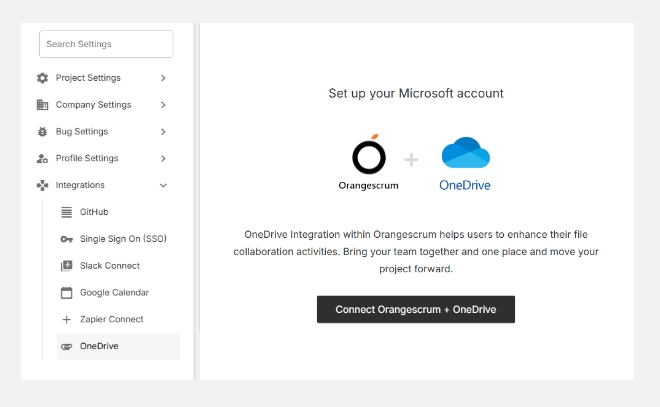
After successful connection, your workspace will be linked with your OneDrive account for all future file operations.
What You Can Do with the Integration
| Action | Description |
| Attach Files | Link files from OneDrive to Orangescrum tasks, projects, or discussions. |
| Upload Documents | Upload project files directly into your OneDrive account through Orangescrum. |
| View Files | Access and preview documents instantly from within the platform. |
| Collaborate in Real Time | Edit shared files in OneDrive, and change sync automatically for all users. |
| Organize Resources | Maintain version control and track updates easily. |
Example Use Case
You’re managing a construction project in Orangescrum.
Instead of emailing blueprints or schedules, simply upload them to OneDrive and attach them to your Orangescrum project.
Your team can open, edit, and review files directly — ensuring everyone has the latest version without confusion or duplication.
Managing the Integration
- Disconnect OneDrive: You can unlink the integration anytime to stop file synchronization.
- Switch Account: Reconnect using a different Microsoft account if your organization structure changes.
- Check Permissions: Ensure you’re logged into the correct Microsoft account with access rights to shared folders.
Security & Compliance
Orangescrum follows Microsoft’s secure OAuth protocol for authentication. Your files remain within OneDrive — Orangescrum only accesses them through authorized APIs. No documents are stored directly in Orangescrum servers.
Troubleshooting
If your OneDrive connection fails or files don’t appear:
- Confirm your Microsoft credentials are valid.
- Ensure you’ve granted Orangescrum access permissions.
- Try logging out and reconnecting the account.
- Check if OneDrive’s sharing settings restrict external app access.
For persistent issues, contact Orangescrum Support for assistance.
With OneDrive Integration, Orangescrum becomes your unified workspace — bringing together project management, file sharing, and collaboration under one secure roof.