Affect Version in Orangescrum Cloud helps you record where a defect was first found — the specific product or project version affected by the issue.
It’s a vital part of release management that ensures bugs are traced to their origin and verified properly during regression testing.
Example: If a bug appeared in V30 but was fixed in V31, the Affect Version indicates where the problem originated, helping QA confirm it no longer exists in newer builds.
Why Use Affect Version
- Trace defect origin: Identify which release introduced the issue.
- Support regression testing: Test fixes against the same version the bug appeared in.
- Improve reporting: View defect trends per release.
- Enhance visibility: Understand how product updates affect system stability.
Accessing Affect Version Settings
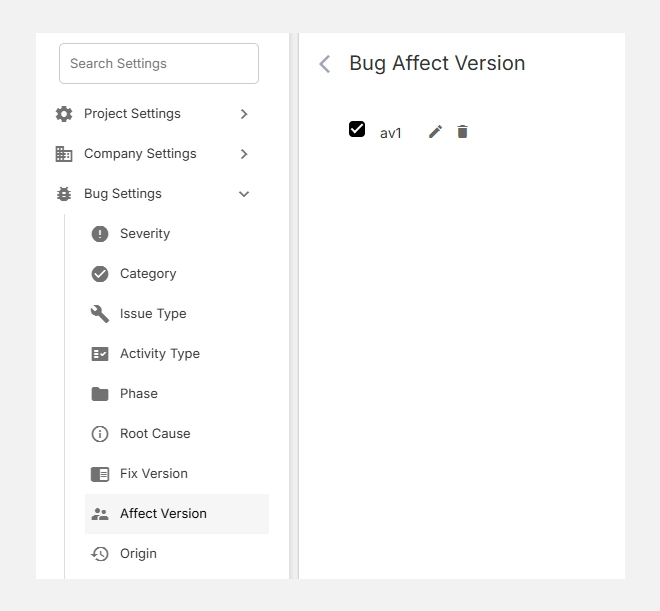
- Navigate to Settings → Bug Settings → Affect Version.
- You’ll see a list of configured versions (e.g., V30).
- Add, edit, or remove versions as your project evolves.
How It Works
When a bug is logged, the reporter selects the Affect Version — indicating which release was impacted.
Later, the Fix Version field can be used to mark the version where it was resolved.
| Field | Description | Example |
| Affect Version | The version where the issue was found. |
V30 |
| Fix Version | The version where the issue was fixed. |
V31 |
Tip: Keeping both fields updated provides full visibility into bug lifecycles across versions.
Adding a New Affect Version
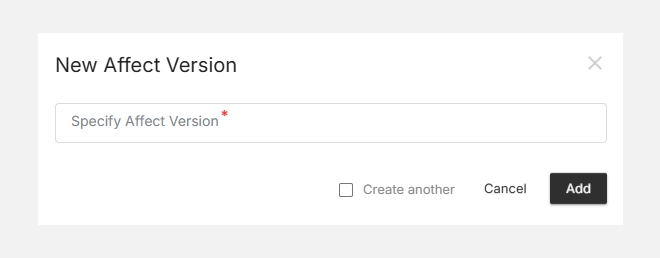
- Click + New Affect Version (top-right).
- Enter a clear Version Name (e.g., V30, Release 2.0).
- Click Add to save it.
- The version becomes selectable in bug reports.
Editing or Deleting Versions
- To Edit, click the icon next to the version.
- To Delete, click the icon to remove unused versions.
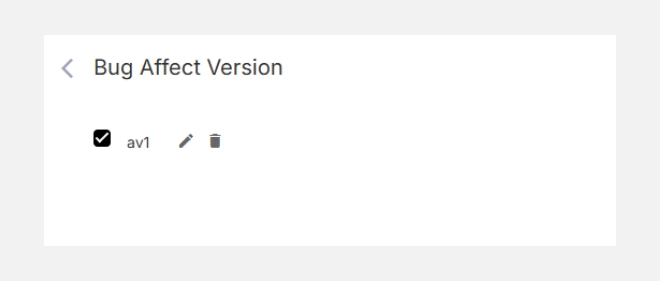
Note: Deleting a version unlinks it from bugs but does not delete the bugs themselves.