Bug Severity in Orangescrum Cloud helps you classify how critical or impactful a bug is to your system, functionality, or end users.
It indicates the technical seriousness of a defect — whether it blocks key features, causes minor inconvenience, or is simply cosmetic.
By defining bug severities, teams can prioritize fixes effectively, ensure faster turnaround for critical issues, and maintain product quality through consistent classification.
Example: A crash on the login page would be tagged as High Severity, while a typo in a tooltip may be Low Severity.
Why Define Bug Severity
- Prioritize fixes smartly — focus first on issues that affect business-critical functionality.
- Standardize QA reporting — ensure all team members use consistent severity levels.
- Improve visibility — generate better defect analytics and release dashboards.
- Optimize time management — align developer effort with real system impact.
Accessing Bug Severity
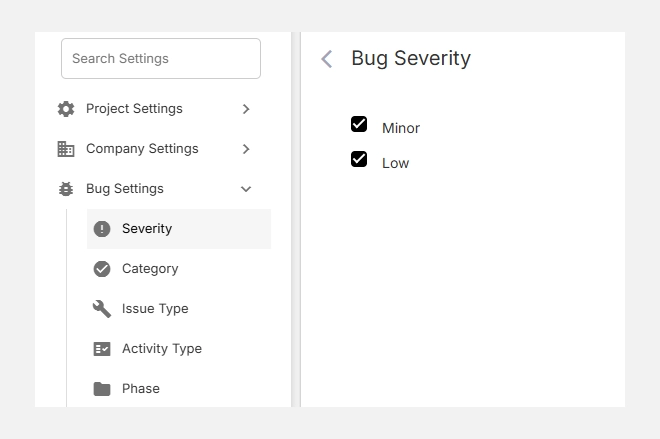
- Navigate to Settings → Bug Settings → Severity.
- You’ll see a list of existing severity levels such as Trivial, Minor, Medium, High, etc.
- You can enable, disable, or add new severity types as needed.
Default Severity Levels
| Severity | Description | Typical Example |
| Trivial | Very minor issue with no functional impact. | Spelling error, UI alignment. |
| Minor | Small problem that does not block normal operation. | Misaligned label, minor color issue. |
| Medium | Noticeable defect affecting a secondary feature. | Sorting issue in a report, minor data mismatch. |
| High | Major issue affecting primary functionality but with a workaround. | Broken workflow, incorrect calculations. |
| Critical (custom) | Severe defect that blocks core functionality or causes system failure. | Application crash, data corruption. |
Note: Severity levels can be customized to match your organization’s QA or release policies.
Adding a New Severity Level
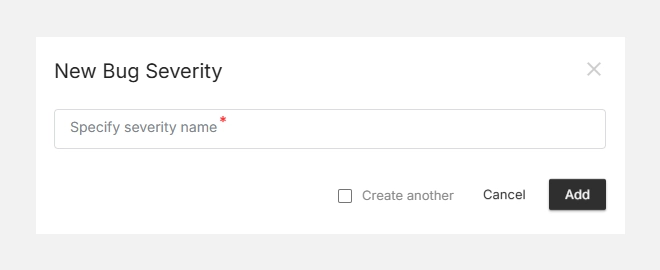
- Click + New Bug Severity (top-right corner).
- Enter a clear and concise Severity Name (e.g., Critical, Blocker, Cosmetic).
- Click Add to save your new severity.
- The new level will now appear in your list and be available while reporting bugs.
Editing or Deleting Severities
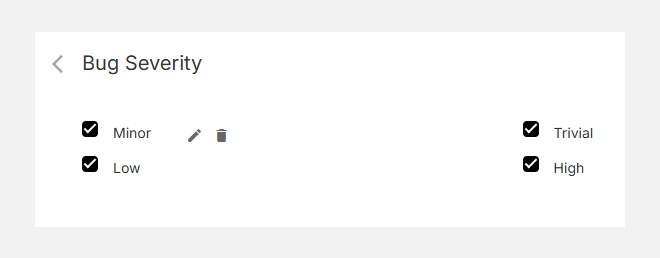
- To Edit, hover over a severity and click the edit icon to rename or update it.
- To Delete, click the trash icon to remove unwanted levels.
- Changes are applied instantly across all projects using that configuration.
Note: Removing a severity will unassign it from existing bugs but will not delete those bug records.