The Timesheet Settings section in Orangescrum Cloud allows you to configure who approves team timesheets within your workspace.
This ensures that all logged hours — whether for tasks, projects, or clients — go through an approval process before they are finalized for reporting or invoicing.
By defining Timesheet Approvers, organizations can maintain accuracy, accountability, and transparency in their time tracking and billing operations.
Example: A project manager can be set as the approver for their team’s timesheets, ensuring all time entries are reviewed before invoicing the client.
Why Use Timesheet Settings
- Ensure accuracy: Validate work hours before billing or payroll.
- Assign approvers: Designate who reviews and approves timesheets per project.
- Maintain accountability: Keep track of who approved or rejected time entries.
- Improve reporting: Only approved timesheets are included in cost and resource reports.
Accessing Timesheet Settings
- Navigate to Settings → Company Settings → Timesheet Settings.
- You’ll see a list of all existing approvers, along with their email addresses, approval status, and pending timesheets.

Understanding the Interface
| Field | Description |
| Name | Displays the approver’s name and profile picture. |
| The approver’s registered email address in the workspace. | |
| Pending Approvals | Number of timesheets awaiting review from that approver. |
| Status | Indicates whether the approver is Active or Inactive. |
| Action | Allows you to edit or remove an approver. |
Adding a Timesheet Approver
- In the Select Approver field, start typing the user’s name.
- Select the desired user from the dropdown list.
- Click Add Approver.
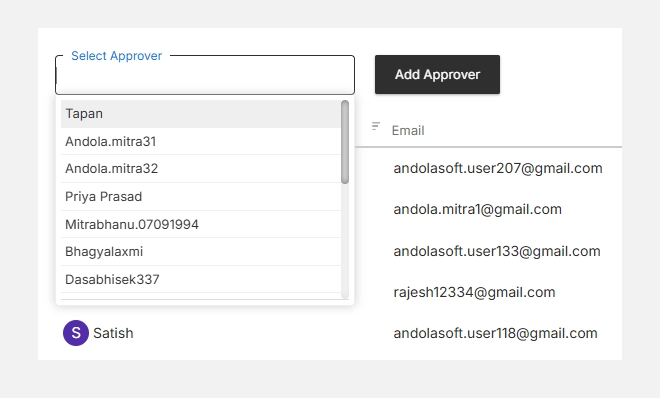
Once added, the user will appear in the list of active approvers and will begin receiving timesheet approval requests for relevant team members.
Note: Only Admins or authorized users can manage approvers in Timesheet Settings.
Managing Approvers
You can update, activate/deactivate, or remove approvers anytime:
- Edit Approver: Update details or reassign approval rights.
- Deactivate: Temporarily disable an approver without removing them.
- Delete: Permanently remove a user from the approver list.
All changes reflect instantly across ongoing timesheet submissions.
Timesheet Approval Flow
- A team member submits their weekly or daily timesheet.
- The assigned approver receives a notification.
- The approver reviews the entries, validates hours, and approves or rejects them.
- Once approved, the time logs are automatically marked as billable (if applicable).
This workflow helps maintain precision in both client billing and internal project cost tracking.
With Timesheet Settings in Orangescrum Cloud, you can ensure that every logged hour is validated, every project remains transparent, and every invoice is backed by verified data.