My Profile

The My Profile section allows each user to personalize their Orangescrum experience by managing their identity, contact details, and workspace preferences.

Here, you can update your name, email, time zone, language, time format, and upload a profile image — ensuring your account is accurate and consistent across your projects.

Keeping your profile updated helps team members identify you easily in projects, tasks, and reports.

Fields Available in My Profile

Field Description
First Name / Last Name Your official name as it appears across projects, tasks, and communications.
Short Name Abbreviation or initials (e.g., AN) used in dashboards, comments, and quick views.
Email Your registered email address used for login and notifications.
Phone Number Optional — add your contact number for internal reference or team directories.
Time Zone Choose your preferred time zone to ensure all tasks, logs, and reports show accurate timestamps.
Daylight Saving (DST) Enable or disable DST adjustments based on your region.
Language Select your preferred language for interface labels and menus.
Time Format Choose between a 12-hour or 24-hour format for all date/time displays.
Skills Mention your core skills or areas of expertise — useful for team visibility and resource allocation.
Profile Image Upload a profile photo to personalize your workspace and make collaboration more intuitive.

How to Update Your Profile

  1. Go to Settings → Profile Settings → My Profile.
  2. Update the desired fields such as name, email, or timezone.
  3. Click Save to apply your changes.
  4. Your updates will instantly reflect across your Orangescrum account.
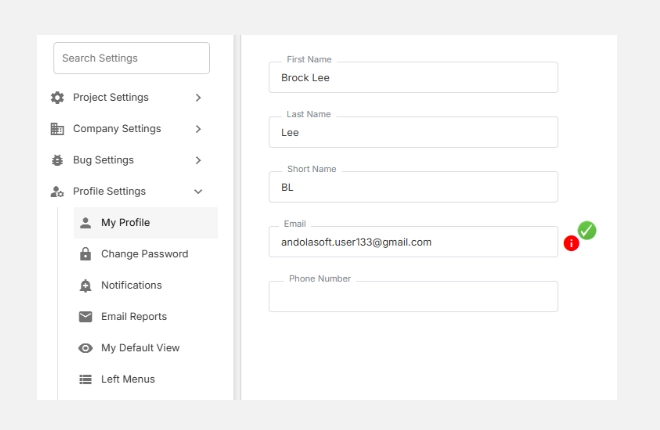
How to update your profile

Best Practices

✅ Use your official name and company email for team identification.
✅ Keep your time zone and language settings aligned with your working location.
✅ Update your profile photo to help teammates recognize you in discussions and reports.
✅ Review and refresh your details periodically, especially when changing roles or locations.

With My Profile in Orangescrum Cloud, every user can create a personalized workspace that reflects their identity, time preferences, and communication style — ensuring smoother collaboration and better visibility across teams.
Profile Settings

The Profile Settings in Orangescrum Cloud allow each user to customize how they interact with the platform. From managing your personal details and password to setting up notifications, reports, and quick-access menus — everything can be fine-tuned here to match your workflow.

These settings enhance productivity and comfort, ensuring you get the right information at the right time while keeping your workspace organized and secure.

Key Options in Profile Settings

Option Description
My Profile Update your personal details such as name, email, and profile image.
Set Password Change your login password securely at any time.
Notifications Control which alerts you receive for tasks, projects, or updates.
Email Reports Schedule and receive regular reports about projects, tasks, or time logs directly in your inbox.
My Default View Choose your preferred dashboard or module view when you log in.
Left Menus Customize the items displayed on your left navigation panel for faster access.
Quick Links Create shortcuts to your most-used modules, pages, or tools.
Bookmarks Save and manage frequently accessed pages or project views for quick reference.

Tip: Adjusting your profile settings helps streamline your daily workflow and ensures that Orangescrum adapts perfectly to your role, preferences, and priorities.

Bug Resolution

Bug Resolution in Orangescrum Cloud represents the final status or action taken on a reported issue.

It helps your team record how each bug was handled — whether it was fixed, rejected, duplicated, or could not be reproduced.

This setting brings clarity to your QA cycle and enables better reporting on software quality and resolution trends.

Example: A bug marked as Fixed indicates it has been resolved, while Duplicate shows that a similar issue already exists in the tracker.

Why Use Bug Resolution

  • Clarify outcomes: Record the final result of every issue.
  • Enhance reporting: Filter and analyze resolved, duplicate, or invalid bugs.
  • Track QA efficiency: Understand how many bugs are successfully fixed versus deferred.
  • Reduce confusion: Maintain transparency on why an issue was closed.

Accessing Bug Resolution Settings

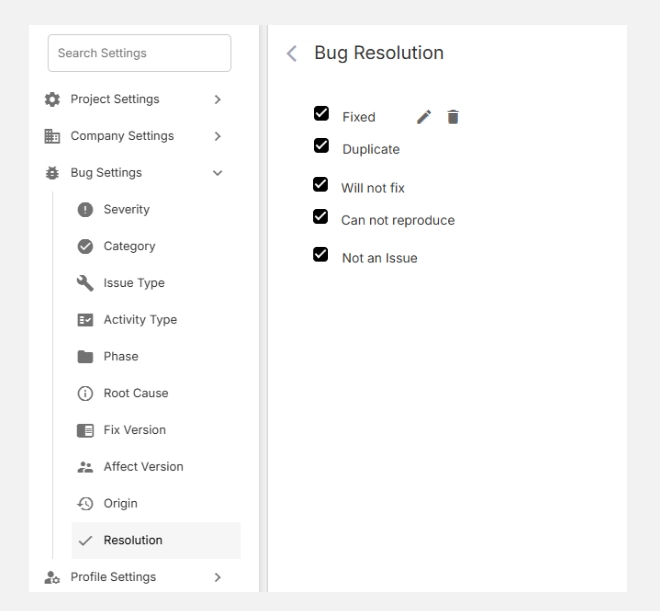
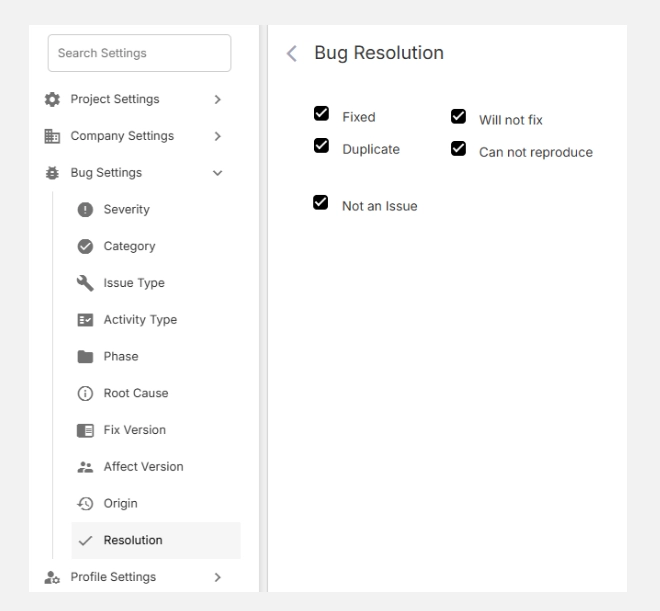
  1. Navigate to Settings → Bug Settings → Resolution.
  2. You’ll see a predefined list such as Fixed, Duplicate, Will Not Fix, Can Not Reproduce, Not an Issue, and N/A.
  3. You can add, edit, or remove resolutions to align with your internal QA process.

Accessing bug resolution settings

Common Bug Resolution Types

Resolution Description
Fixed The bug has been successfully corrected and verified.
Duplicate The bug is already reported in another ticket.
Will Not Fix The issue is acknowledged but won’t be fixed (low impact or outside scope).
Can Not Reproduce QA could not replicate the bug based on current data.
Not an Issue The reported behavior is intentional or not a defect.
N/A (Not Applicable) The bug report was invalid or no longer relevant.

Tip: Standardizing resolutions helps your reporting stay accurate across multiple projects and releases.

Adding a New Bug Resolution

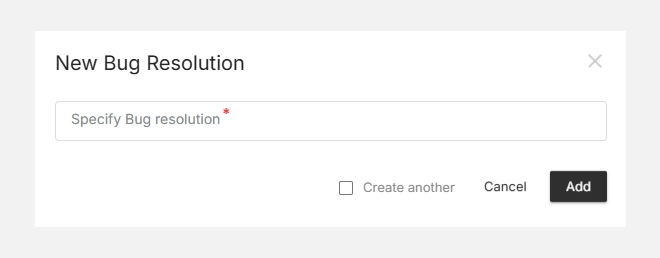
  1. Click + New Bug Resolution (top-right corner).
  2. Enter a clear, descriptive Resolution Name (e.g., Deferred, Won’t Fix in Current Version).
  3. Click Add to save it.
  4. The new option will be available for selection when updating a bug’s status.

Adding a new bug resolution

Editing or Deleting Resolutions

  • To Edit, click the icon next to a resolution.
  • To Delete, click the icon to remove outdated options.

Editing or deleting resolutions

Note: Removing a resolution does not delete existing bugs but unlinks that resolution type from future records.

Bug Origin

Bug Origin in Orangescrum Cloud helps teams trace where in the project lifecycle a defect was introduced — such as during Requirements, Design, or Development.

By recording the origin of bugs, project managers and QA teams can analyze process gaps, improve quality controls, and reduce recurrence in future cycles.

Example: If a defect is traced back to the Requirements phase, it means the issue originated from unclear specifications rather than poor coding.

Why Use Bug Origin

  • Improve root cause analysis: Identify the source of recurring defects.
  • Enhance team accountability: Pinpoint which stage needs better QA checks.
  • Improve quality metrics: Track bug density by lifecycle phase.
  • Strengthen prevention strategies: Focus on process improvements early in the cycle.

Accessing Bug Origin Settings

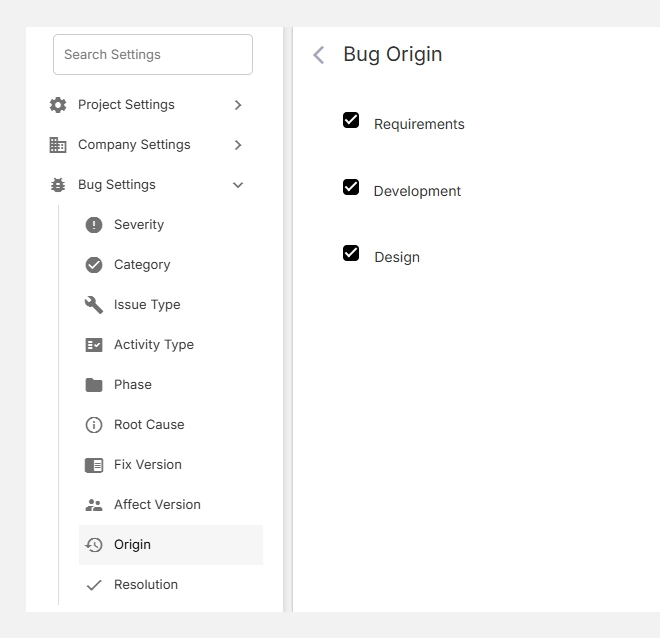
  1. Go to Settings → Bug Settings → Origin.
  2. You’ll see default origins like Requirements, Design, and Development.
  3. Add or edit these to match your internal project lifecycle.

Accessing bug origin settings

How It Works

Each bug logged in Orangescrum can be tagged with its Origin.

This makes it easy to track not just when an issue occurred but where it started.

Field Description Example
Bug Origin The phase where the defect was introduced. Requirements, Design, Development
Usage Selected during bug reporting or analysis. Helps QA trace the source of errors

Tip: Combine “Origin” with “Root Cause” and “Phase” fields to conduct deeper defect trend analysis.

Adding a New Bug Origin

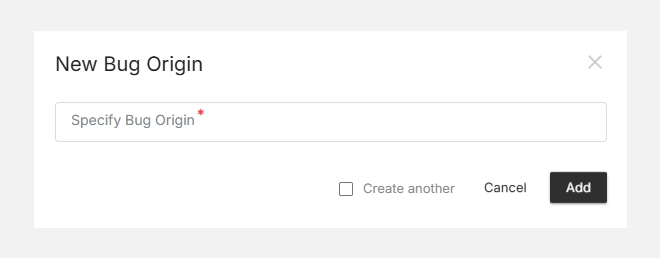
  1. Click + New Bug Origin (top-right).
  2. Enter the Origin Name — e.g., Testing, Deployment, Documentation.
  3. Click Add to save.
  4. The new origin will now appear in your selection list when creating or updating bugs.

Adding a new bug origin

Editing or Deleting Origins

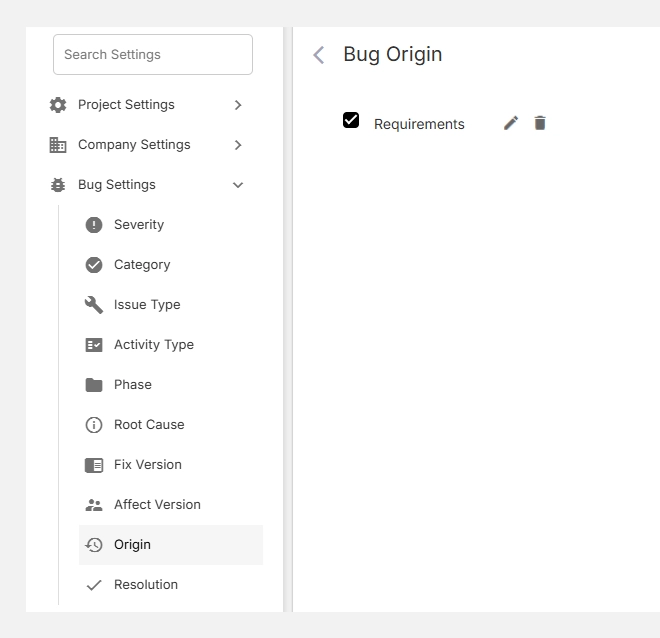
  • Click Edit to rename an existing origin.
  • Click Delete to remove outdated or unused origins.

Editing or deleting origins

Note: Removing a Bug Origin unlinks it from existing bugs but doesn’t delete those issues.

Bug Affect Version

Affect Version in Orangescrum Cloud helps you record where a defect was first found — the specific product or project version affected by the issue.

It’s a vital part of release management that ensures bugs are traced to their origin and verified properly during regression testing.

Example: If a bug appeared in V30 but was fixed in V31, the Affect Version indicates where the problem originated, helping QA confirm it no longer exists in newer builds.

Why Use Affect Version

  • Trace defect origin: Identify which release introduced the issue.
  • Support regression testing: Test fixes against the same version the bug appeared in.
  • Improve reporting: View defect trends per release.
  • Enhance visibility: Understand how product updates affect system stability.

Accessing Affect Version Settings

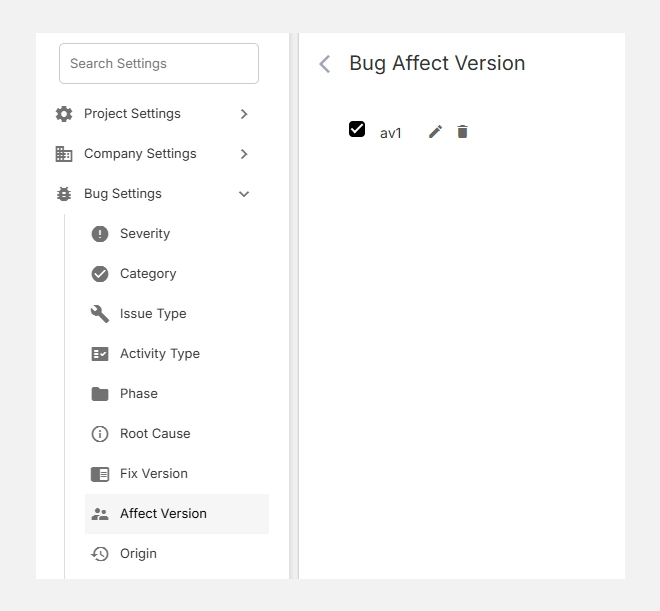
  1. Navigate to Settings → Bug Settings → Affect Version.
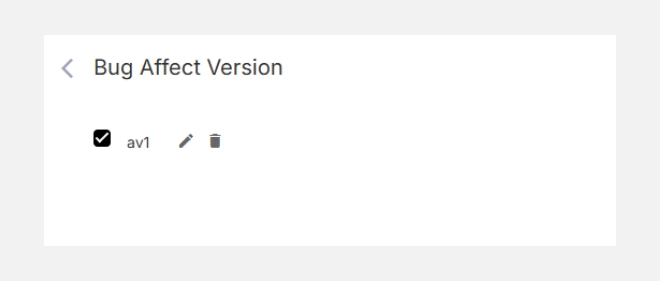
  2. You’ll see a list of configured versions (e.g., V30).
  3. Add, edit, or remove versions as your project evolves.

Accessing affect version settings

How It Works

When a bug is logged, the reporter selects the Affect Version — indicating which release was impacted.

Later, the Fix Version field can be used to mark the version where it was resolved.

Field Description Example
Affect Version The version where the issue was found.

V30

Fix Version The version where the issue was fixed.

V31

Tip: Keeping both fields updated provides full visibility into bug lifecycles across versions.

Adding a New Affect Version

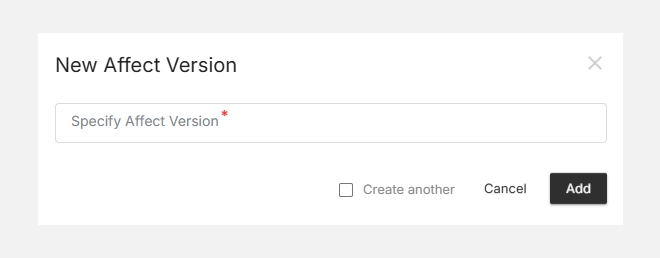
  1. Click + New Affect Version (top-right).
  2. Enter a clear Version Name (e.g., V30, Release 2.0).
  3. Click Add to save it.
  4. The version becomes selectable in bug reports.

Adding a new affect version

Editing or Deleting Versions

  • To Edit, click the icon next to the version.
  • To Delete, click the icon to remove unused versions.

Editing or deleting versions

Note: Deleting a version unlinks it from bugs but does not delete the bugs themselves.

Bug Fix Version

Track and manage bug fixes across releases with clarity. The Fix Version feature in Orangescrum Cloud helps teams track which release or version a bug or issue was fixed in.

It ensures product stability and provides a clear historical reference for every issue — making it easier for QA teams, developers, and release managers to validate fixes and plan version rollouts efficiently.

💡 Fix Versions are primarily used in bug tracking and release management workflows.

Where to Find Fix Version

You can find the Fix Version option under:

Settings → Bug Settings → Fix Version

Here, Admins and Project Managers can:

  • Add new Fix Versions
  • Edit existing Fix Versions
  • Delete or deactivate unused Fix Versions

where to find a fix version

How to Create a New Fix Version

  1. Go to Settings → Bug Settings → Fix Version
  2. Click + New Fix Version (top-right corner)
  3. Enter a version name (e.g., v1.1.0 or Sprint_15_Fix)
  4. Click Save

How to create a new fix version

Your new Fix Version will appear in the list and can be assigned to any bug or issue during or after resolution.

Use consistent naming (like “v1.0.1”, “Patch_Q4_2024”) to simplify release tracking.

Editing or Deleting a Fix Version

  • To edit, click the icon beside the version name.
  • To delete, click the trash icon.

Editing or deleting a fix version

⚠️ Deleting a Fix Version will remove it from any associated bugs, so use with caution.

Using Fix Version in Bug Tracking

When creating or updating a bug, you can assign a Fix Version to indicate the version or release where the issue will be (or has been) resolved.

Example:

  • Bug: “Login page throws 500 error”
  • Fix Version: v2.3.1
  • Status: Resolved

This helps QA testers verify the bug in the specific build or deployment.

🔍 QA teams can filter bugs by Fix Version to focus on regression and validation testing.

Why Fix Version Matters

Benefit Description
Release Tracking Know which issues were fixed in each version or patch.
Quality Assurance Test teams can validate fixes before release.
Change Log Management Automatically generate fixed summaries for release notes.
Historical Audit Keep a clear history of what was fixed, when, and in which version.

Best Practices

Align Fix Versions with your release cycle — e.g., Sprint numbers, product versions, or deployment dates.
Use descriptive version names — to easily match versions with builds or repositories.
Update regularly — close out old versions and archive completed ones to maintain clarity.
Combine with Affect Version — to see where the issue appeared vs. where it was fixed.

Example Use Case

Bug ID Summary Affect Version Fix Version Status
#1021 Login error on mobile v2.2 v2.3 Resolved
#1035 Slow loading dashboard v2.3 v2.4 Fixed
#1040 Email notifications not triggering v2.1 v2.3 Closed

🧾 This table gives teams a full audit trail across defects, fixes, and releases.

💡 Related Bug Settings

Setting Description
Affect Version Indicates which version the issue was found in.
Root Cause Defines the underlying reason behind the issue.
Severity Measures the impact level of the bug.
Phase Shows the stage where the bug was identified or fixed.